DonationCoder.com forum
 
Read-only archive. This is a static copy of the DonationCoder.com forum. Reading and searching work as before; logging in, posting and private messages do not.
Archive of 2026-10-21 · About this archive · Main site

Author Topic: Screenshot Captor v4.29.0 "Grab Active window"- found something to improve?  (Read 9,102 times)

KodeZwerg

  • Honorary Member
  • Joined in 2018
  • **
  • Posts: 718
    • Participated in NANY Challenge Four Times
    • Coding Snacks
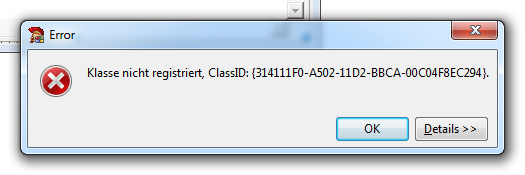
What you see is a Modal OnTop Error Dialog-Box from RADStudio.
Screenshot - 10_06.png as you can see it snap something from behind too, made with "Grab Active window" Feature.
Or did i do wrong? "Grab selected Region" would end up in this case with an image what shows alot more background stuff, i dont know why scrollbars is visible yet.
mouser

  • First Author
  • Administrator
  • Joined in 2005
  • *****
  • Posts: 40,931
    • Gathering Badge
    • Plugin Coding Medal
    • Participated in NANY Challenge Seventeen Times
    • Cody Award
    • Coding Snacks
    • Volunteers/Staff
Here's what's happening:

When you do an active window capture, SC is trying to figure out the partial transparency behind the rounded corners.  TO do this, it actually does something a bit involved, it paints the background of the window in black then white and compares them and uses the difference to remove the partial transparency around the borders outside the window.

However, when you try this on a child (modal only?) window, the parent prevents this trick from working.

So you have 3 options in such a case:
1. Move the child off the parent background.  This will make it work.
2. Turn off the option to try to grab partial window backgound transparency in the Windows Capture options dialog.
3. Live with the background captured in the image or crop it yourself afterwards.  You might try the new advanced option under the Edit menu called "Auto Adjust Selection to Fit" as an alternative way of shrinking the outside crop to the window borders.

KodeZwerg

  • Honorary Member
  • Joined in 2018
  • **
  • Posts: 718
    • Participated in NANY Challenge Four Times
    • Coding Snacks
Thanks for fast reply, moving Window fix my issue!
You might try the new advanced option under the Edit menu called "Auto Adjust Selection to Fit" as an alternative way of shrinking the outside crop to the window borders.
Could you show me where i find that option please?

mouser

  • First Author
  • Administrator
  • Joined in 2005
  • *****
  • Posts: 40,931
    • Gathering Badge
    • Plugin Coding Medal
    • Participated in NANY Challenge Seventeen Times
    • Cody Award
    • Coding Snacks
    • Volunteers/Staff
It is under the "Edit" menu, about half way down.  It is a new experimental feature -- basically you select an approximate area and it tries to shrink the selection region to fit that object inside the selection.

KodeZwerg

  • Honorary Member
  • Joined in 2018
  • **
  • Posts: 718
    • Participated in NANY Challenge Four Times
    • Coding Snacks
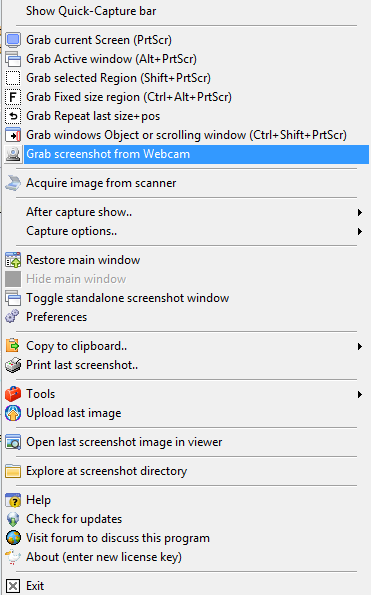
I am sorry but cant find "Edit" at all...... i am so new to this app but i  :-* love it!
Screenshot - 12_06.png Where is "Edit" ?

mouser

  • First Author
  • Administrator
  • Joined in 2005
  • *****
  • Posts: 40,931
    • Gathering Badge
    • Plugin Coding Medal
    • Participated in NANY Challenge Seventeen Times
    • Cody Award
    • Coding Snacks
    • Volunteers/Staff
You are looking in the right-click system tray menu.  I'm talking about the main menu on the full main window.

KodeZwerg

  • Honorary Member
  • Joined in 2018
  • **
  • Posts: 718
    • Participated in NANY Challenge Four Times
    • Coding Snacks
omg, i cant believe what i see!
I always just used Hotkey with its Save-Dialog or Rightclick on Tray, left clicking never tried before.
Its awesome, fully Paint features, fantastic! Thanks and found "Edit"  :Thmbsup:

mouser

  • First Author
  • Administrator
  • Joined in 2005
  • *****
  • Posts: 40,931
    • Gathering Badge
    • Plugin Coding Medal
    • Participated in NANY Challenge Seventeen Times
    • Cody Award
    • Coding Snacks
    • Volunteers/Staff
:up:

Personally I find it more efficient to disable the post-capture dialog (that's where you choose save as, etc.), and just let SC stay minimized in tray after each capture -- and then I double click the tray to open the main window when I want to actually do something with my captures.

KodeZwerg

  • Honorary Member
  • Joined in 2018
  • **
  • Posts: 718
    • Participated in NANY Challenge Four Times
    • Coding Snacks
My way with your app is a bit different because i dont know all features. :-[
TrayIcon = App starts with Windows, Hotkeys are cool with my others.
Either Coolbar or just Hotkey invoking was my usage style (since i didnt knew that the actual Program has an Interface behind TrayIcon, blame on me!)
I will try to adopt like you said, Snap whatever and collect until i open main GUI, maby edit, and finally save, good advice! Thank you!

Original address: https://www.donationcoder.com/forum/index.php?topic=45717.0