topbanner_forum
  *

avatar image

Welcome, Guest. Please login or register.
Did you miss your activation email?

Login with username, password and session length
  • Saturday September 19, 2026, 3:20 am
  • Proudly celebrating 15+ years online.
  • Donate now to become a lifetime supporting member of the site and get a non-expiring license key for all of our programs.
  • donate

Recent Posts

Pages: prev1 2 3 4 5 6 [7] 8 9 10 11 12 ... 47next
151
Nice! Here is a helper hotkey script to more quickly go from a regular FARR search to activating the "choose program" alias for the first search match by using an exclamation character as keyboard shortcut.

Code: Autohotkey [Select]
  1. SetWorkingDir %A_ScriptDir%
  2.  
  3. ; choose program FARR alias helper hotkey script.ahk
  4. ; 2020-05-23
  5. ; by Nod5
  6.  
  7. #IfWinActive, ahk_exe FindAndRunRobot.exe
  8. ; press ! to expand first FARR match file path and append --
  9. !::
  10.   ControlGetFocus, vFocusControl, A
  11.   ; if FARR search box focus and options not open
  12.   if (vFocusControl = "TEdit1")
  13.     if !WinExist("ahk_class TOptionsForm")
  14.     {
  15.       ; show first result file full path in FARR search box
  16.       Send {down}{right}
  17.       ; append -- to trigger "choose program" alias
  18.       Send --
  19.     }
  20. Return

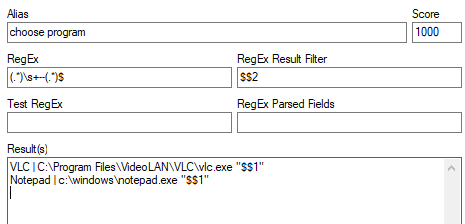
Screenshot of the alias
alias.png

Gif of how it all works
https://imgur.com/a/YzJlRhx

(Edit: cannot embed .mp4 video in forum posts it seems so I added link to Imgur instead)

Edit2: mouser could uppdate FARR with special variables that represent the full path of a file result, maybe %resultfile1% or similar. Then we could skip the AutoHotkey script and instead make an alias that triggers on "!" anywhere in the searchbox and reacts by doing "restartsearch %resultfile1% --".
152
Post New Requests Here / Re: Sort/organize mp3 files by bitrate, into folders
« Last post by Nod5 on May 14, 2020, 07:53 AM »
This worked for me in a quick test. But do try it out on some smaller folders first to see that it works as expected on your files, since mp3 tags and exif data can be complicated and I don't know if the function I use handles all corner cases correctly.

Code: Autohotkey [Select]
  1. SetWorkingDir %A_ScriptDir%
  2.  
  3. ; sort mp3 files into folders based on bitrate and if they are VBR or not
  4. ; AutoHotkey script
  5. ; by nod5
  6. ; 2020-05-14
  7.  
  8. ; ---------------------------------------
  9. ; folder with mp3 files that we want to sort move
  10.  
  11. sourcefolder      := "C:\some\folder"
  12.  
  13. ; also recurse in sourcefolder? 1 means yes, 0 means no
  14. recurse := 1
  15.  
  16. ; target folder where we want the files to end up in subfolders
  17. ; for example VBR files go to \VBR subfolder, 128kbs CBR files got to \128 subfolder
  18.  
  19. destinationfolder := "D:\this other\location"
  20.  
  21. ; ---------------------------------------
  22.  
  23. ; disable recurse if in/out folders are same, to avoid endless loop
  24. if (sourcefolder = destinationfolder)
  25.   recurse := 0
  26.  
  27. ; recursively loop sourcefolder for mp3 files and move to a destinationfolder subfolder
  28. Loop, Files, % sourcefolder "\*.mp3", % recurse ? "R" : ""
  29. {
  30.   ; get audio properties as object
  31.   ; we need these two properties:
  32.   ; System.Audio.EncodingBitrate      examples: 128000 (which is 128kbs), 320000, 263704, ...
  33.   ; System.Audio.IsVariableBitRate    value -1 if VBR otherwise value 0
  34.   Props := ["System.Audio.IsVariableBitRate", "System.Audio.EncodingBitrate"]
  35.   obj := Filexpro(A_LoopFilePath,, Props*)           ; v.90 By SKAN on D1CC @ goo.gl/jyXFo9
  36.  
  37.   ; if VBR then move to subfolder "\VBR"
  38.   if (obj["System.Audio.IsVariableBitRate"] = "-1")
  39.     subfolder := "VBR"
  40.   else
  41.   {
  42.     ; else move CBR to matching bitrate folder, for example "\128"
  43.     ; get bitrate in kbs, for example 128000 -> 128
  44.     subfolder := SubStr(obj["System.Audio.EncodingBitrate"],1,-3)
  45.   }
  46.   if subfolder
  47.   {
  48.     if !FileExist(destinationfolder "\" subfolder)
  49.       FileCreateDir, % destinationfolder "\" subfolder
  50.     FileMove, % A_LoopFilePath, % destinationfolder "\" subfolder
  51.   }
  52. }
  53. ToolTip DONE
  54. sleep 2000
  55.  
  56.  
  57.  
  58. ; function: Filexpro
  59. ; get extended properties from file
  60. ; by SKAN 2018-12-11
  61. ; https://www.autohotkey.com/boards/viewtopic.php?t=59882
  62.  
  63. Filexpro( sFile := "", Kind := "", P* ) {           ; v.90 By SKAN on D1CC @ goo.gl/jyXFo9
  64. Local
  65. Static xDetails
  66.  
  67.   If ( sFile = "" )
  68.     {                                                           ;   Deinit static variable
  69.         xDetails := ""
  70.         Return
  71.     }
  72.  
  73.   fex := {}, _FileExt := ""
  74.  
  75.   Loop, Files, % RTrim(sfile,"\*/."), DF
  76.     {
  77.         If not FileExist( sFile:=A_LoopFileLongPath )
  78.           {
  79.               Return
  80.           }
  81.  
  82.         SplitPath, sFile, _FileExt, _Dir, _Ext, _File, _Drv
  83.  
  84.         If ( p[p.length()] = "xInfo" )                          ;  Last parameter is xInfo
  85.           {
  86.               p.Pop()                                           ;         Delete parameter
  87.               fex.SetCapacity(11)                               ; Make room for Extra info
  88.               fex["_Attrib"]    := A_LoopFileAttrib
  89.               fex["_Dir"]       := _Dir
  90.               fex["_Drv"]       := _Drv
  91.               fex["_Ext"]       := _Ext
  92.               fex["_File"]      := _File
  93.               fex["_File.Ext"]  := _FileExt
  94.               fex["_FilePath"]  := sFile
  95.               fex["_FileSize"]  := A_LoopFileSize
  96.               fex["_FileTimeA"] := A_LoopFileTimeAccessed
  97.               fex["_FileTimeC"] := A_LoopFileTimeCreated
  98.               fex["_FileTimeM"] := A_LoopFileTimeModified
  99.           }              
  100.         Break            
  101.     }
  102.  
  103.   If Not ( _FileExt )                                   ;    Filepath not resolved
  104.     {
  105.         Return
  106.     }        
  107.  
  108.  
  109.   objShl := ComObjCreate("Shell.Application")
  110.   objDir := objShl.NameSpace(_Dir)
  111.   objItm := objDir.ParseName(_FileExt)
  112.                                                                
  113.   If ( VarSetCapacity(xDetails) = 0 )                           ;     Init static variable
  114.     {
  115.         i:=-1,  xDetails:={},  xDetails.SetCapacity(309)
  116.        
  117.         While ( i++ < 309 )
  118.           {
  119.             xDetails[ objDir.GetDetailsOf(0,i) ] := i
  120.           }
  121.  
  122.         xDetails.Delete("")
  123.     }
  124.  
  125.   If ( Kind and Kind <> objDir.GetDetailsOf(objItm,11) )        ;  File isn't desired kind  
  126.     {
  127.         Return
  128.     }
  129.  
  130.   i:=0,  nParams:=p.Count(),  fex.SetCapacity(nParams + 11)
  131.  
  132.   While ( i++ < nParams )
  133.     {
  134.         Prop := p[i]
  135.        
  136.         If ( (Dot:=InStr(Prop,".")) and (Prop:=(Dot=1 ? "System":"") . Prop) )
  137.           {
  138.               fex[Prop] := objItm.ExtendedProperty(Prop)
  139.               Continue
  140.           }
  141.          
  142.         If ( PropNum := xDetails[Prop] ) > -1
  143.           {
  144.               fex[Prop] := ObjDir.GetDetailsOf(objItm,PropNum)
  145.               Continue
  146.           }  
  147.     }
  148.  
  149.   fex.SetCapacity(-1)
  150. Return fex  
  151.  
  152. }

Alternatively if you want a GUI approach you could drag all the mp3 files into Mp3Tag, sort by columns bitrate and VBR, select a range of files e.g. all with 128 kbs and use right click context menu action "move...".
153
Find And Run Robot / Re: Launch, stay open and continue searching
« Last post by Nod5 on April 27, 2020, 12:54 PM »
Another small wrinkle related to the current launch and stay open option: FARR moves focus to the searchbox, instead of keeping focus at the line of the result that was launched.

Here is an AutoHotkey script that somewhat works around both issues. Somewhat since it only works when launching a result that points to file/folder path (not a complex alias result that launches multiple files, passes parameters or other extras). I imagine the script might also fail to keep focus in some situations, depending on how long it takes for the launched file to open in the default app for that extension.

Code: Autohotkey [Select]
  1. SetWorkingDir %A_ScriptDir%
  2.  
  3. ; FARR helper script to launch a file and continue search and keep focus in results list
  4.  
  5. ; 2020-04-27 by Nod5
  6.  
  7. ; Hotkey: Alt+Enter
  8. ; - launches the selected FARR result (a file or folder)
  9. ; - FARR continues searching
  10. ; - FARR stays open and keeps its focus in the results window
  11.  
  12. ; note: does nothing if the selected result is not an existing file/folder.
  13. ; In other words does nothing if the result is an complex alias result.
  14.  
  15. #IfWinActive, ahk_exe FindAndRunRobot.exe
  16. !Enter::
  17.   ; only react if user has focused FARR results list
  18.   ControlGetFocus, vFocusControl, A
  19.   if (vFocusControl != "TNextGrid1")
  20.     Return
  21.   ; get FARR window handle
  22.   vHwnd := WinExist("A")
  23.   ; use ctrl+C to get the path to selected file in FARR results
  24.   ; note: only works if result is a path to a single file (not a complex alias result)
  25.   clip := ClipToVar()
  26.   If !FileExist(clip)
  27.     Return
  28.   ; run the file
  29.   Run % clip
  30.   ; keep the FARR window active
  31.   While WinActive("ahk_id " vHwnd) and (A_Index < 100)
  32.     sleep 10
  33.   WinActivate, % "ahk_id " vHwnd
  34. Return
  35.  
  36. ;function: copy selection to clipboard to variable
  37. ClipToVar() {
  38.   cliptemp := clipboardall ;backup
  39.   clipboard =
  40.   send ^c
  41.   clipwait, 1
  42.   clip := clipboard
  43.   clipboard := cliptemp    ;restore
  44.   return clip
  45. }
154
Official Announcements / Re: Upgrading forum Dec 28, 2019
« Last post by Nod5 on April 25, 2020, 04:48 PM »
Some forums that run on phpBB have inline code and use a [c]tag like this[/c]. For example https://www.autohotkey.com/boards/
I found this customization page https://www.phpbb.co...bcode/inline_bbcode/ but I'm not sure if that is what AutoHotkey and others use today. I know that DC uses SMF though, so maybe that phpBB stuff is not relevant anyway?

I like to use inline code formatting in instructions e.g. when describing some command to type in the terminal or an exact filepath. Less ambiguous than just using quote marks or bold and more compact than adding a code block, especially if there are many small such snippets in a text.
155
Official Announcements / Re: Upgrading forum Dec 28, 2019
« Last post by Nod5 on April 25, 2020, 06:01 AM »
Does the current version of the forum software have an option to enable inline code formatting? I mean the minimal code formatting of short strings within a sentence using backticks like `these three words` in contrast to linebreak separate code blocks, which we already have. If yes then turn it on please!  :)

Markdown uses backticks for inline code and many platforms like GitHub and Reddit support it.
https://github.com/a...down-Cheatsheet#code
156
AutoHotkey script template to take action on selected files in active File Explorer window in Windows 10.

Background
FARR can find and launch files, but also do much more. This AutoHotkey script template helps you use FARR to quickly take action on selected files in the active Explorer window. Similar to a context menu action in Explorer, but started from a FARR alias.

AutoHotkey script template
Code: Autohotkey [Select]
  1. SetWorkingDir %A_ScriptDir%
  2.  
  3. ; Template: take action on selected files in active Explorer window
  4. ; - AutoHotkey helper script template for FindAndRunRobot (FARR)
  5. ; - by Nod5 2020-04-25
  6.  
  7. ; Get active the window's handle (Hwnd) from parameter passed by FARR
  8. vHwnd := A_Args[1]
  9.  
  10. ; verify that the window is Explorer
  11. WinActivate, ahk_id %vHwnd%
  12. If !WinActive("ahk_class CabinetWClass ahk_id " vHwnd)
  13.  
  14. ; get filepaths for selected files
  15. aFiles := ExplorerHwndSelectedFilepaths(vHwnd)
  16.  
  17. ; ----------------------------------------------------
  18. ; add code to take action on the files here
  19.  
  20. ; example: show each filename in a messagebox popup
  21. For Key, vFile in aFiles
  22. {
  23.   SplitPath, vFile, vFilename
  24.   MsgBox % vFilename
  25. }
  26.  
  27. ; ----------------------------------------------------
  28.  
  29. ; exit script when finished
  30.  
  31.  
  32. ; required function
  33. ; function: ExplorerHwndSelectedFilepaths()
  34. ; return array of filepaths for selected files in Explorer window identified via HWND
  35. ExplorerHwndSelectedFilepaths(vHwnd)
  36. {
  37.   if !vHwnd or !WinExist("ahk_class CabinetWClass ahk_exe Explorer.exe ahk_id " vHwnd)
  38.     return
  39.   for window in ComObjCreate("Shell.Application").Windows
  40.   {
  41.     if (window.HWND != vHwnd)
  42.       continue
  43.     aFiles := []
  44.     sfv   := window.Document
  45.     ; note: gets items in alphanum ascending sort order
  46.     ; https://docs.microsoft.com/en-us/windows/desktop/shell/shellfolderview-selecteditems
  47.     items := sfv.SelectedItems
  48.     for item in items
  49.       aFiles.push(item.Path)
  50.     break
  51.   }
  52.   window := item := items := sfv := ""
  53.   return aFiles
  54. }

Preparation
Install AutoHotkey, https://www.autohotkey.com/

Create a new action
- Download the template to a file, for example "C:\some folder\timestamp action.ahk"
- Edit the template to add code for the action you want to perform on the selected files
- Create a FARR user alias to launch the script and pass the parameter %LASTHWND%

Example FARR alias
- alias keyword: timestamp now
- regular expression pattern: ^(stamp)$
- result: C:\some folder\timestamp action.ahk %LASTHWND%

Use the action
- Open Explorer and select some files
- Open FARR, type to show the alias action (for example "stamp") and press Enter.

Note
The regular expression pattern is optional in FARR aliases, but useful to more quickly get to a single result.
For max speed use short patterns like ^(sta|stam|stamp)$ to show only the alias result when you type "sta", "stam" or "stamp" but still let FARR show regular file search results if you continue typing for example "stamp collection".

Action example
Code: Autohotkey [Select]
  1. ; set "time modified" for the file to the current time
  2. For Key, vFile in aFiles
  3. {
  4.   FileSetTime, % A_Now, % vFile, M
  5. }


List of action ideas
- add to music/video app playlist
- copy to some other folder
- create file shortcuts in some other folder
- create a companion note file ("filename.jpg -- notes.txt")
- compare selected files in WinMerge
- scale image files 50%
- rotate image files 90 degrees
- change file date modified/created timestamp to current time
- create backup file copy with a timestamp suffix ("filename_20200423103546.txt")
(Useful for basic versioning when Git is overkill but you want some order to avoid a mess like "text.doc", "text2 final.doc", "text 2 final FIXED.doc")
- calculate and save file hashes (sha1, sha256, ...)

Ideas for more advanced actions
Asymmetric action on two selected files: copy/clone some feature (image size, timestamp, filename pattern, ...) from first file onto second file. For example clone a date modified timestamp.

Why use this rather than regular Explorer context menu actions?
- easy to create and use if you're already using FARR and AutoHotkey
- very quick if you set up short regex alias patterns
- quick to toggle aliases on/off
- you can add and show context/instructions to alias text to remind you what the action does
- avoid browsing a cluttered context menu


Example with screenshots
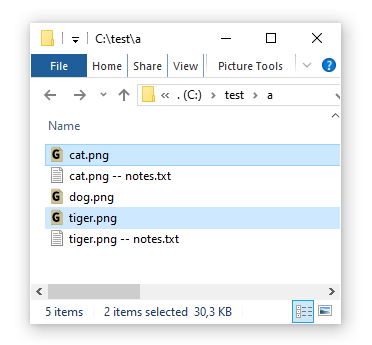
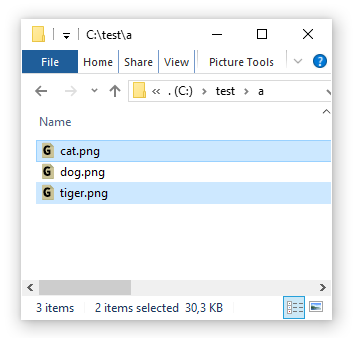
Use case: We want a quick way to to create .txt files to write notes about some files, for example some images.
1.png

Edit the template and add an action to create .txt note files. Save, for example to "C:\test\create txt note.ahk"

Code: Autohotkey [Select]
  1. ; create companion text file for notes
  2. For Key, vFile in aFiles
  3. {
  4.   FileAppend, , % vFile " -- notes.txt"
  5. }

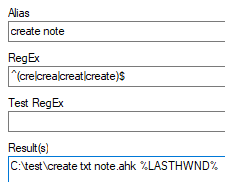
Create a user alias in FARR

2.png

Select files in Explorer, Open FARR and use the alias
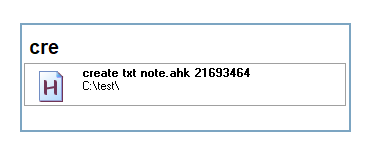
3.png

Text files are created.

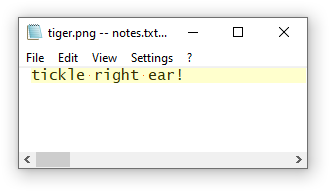
4.png

Take important notes.

5.png
157
Maybe it is the same issue as https://www.donation...ex.php?topic=49502.0 ?
158
Find And Run Robot / Re: Support Windows 10 Universal app?
« Last post by Nod5 on March 11, 2020, 05:05 PM »
FARR does not have support for that yet.

Some less than perfect things you can try in the meantime:

- If it a single universal apps that you want to launch with FARR then you can manually create a .lnk shortcuts to it using these steps

- If you use many unversal apps then this python program on stack overflow creates a desktop folder with one .lnk shortcut (including icon) for each universal app. You can after that set FARR to include that folder when searching.
159
Find And Run Robot / Re: A similar function to Listary's Quick Switch function?
« Last post by Nod5 on March 10, 2020, 02:34 PM »
I updated SaveAsPathHelper.ahk to fix an issue that can make the path change fail in some cases (due to a quirk in how AutoHotkey's ControlClick command works)
https://gist.github....7ab6762833d5442fef5d

I think the scripts is very useful! If I may say so :) Feedback welcome, especially from those who have used Listary's Quick Switch feature a lot and can tell me what my scripts is still lacking (apart from support for other file managers than File Explorer).
160
Find And Run Robot / Re: Sending the selected text to a program via FARR
« Last post by Nod5 on March 08, 2020, 04:56 AM »
Adding one tip on top of what mouser said and linked to:
You can also make a hotkey that copies selected text to clipboard but leaves the FARR search box empy on open.
Next you create an alias for Velocity (and one for any other tool you want to pass a selected string to).

In other words, instead of tying one hotkey to a single program, or to a single alias that lists a number of programs, you make a generic "copy selection and open FARR" hotkey and then set up any number of aliases that you want to use with it.

1.png


2.png
161
Find And Run Robot / Re: Best way to Upgrade FARR and Preserve Customizations
« Last post by Nod5 on March 08, 2020, 04:42 AM »
I tried adding a custom alias directly to the new FindAndRunRobot.ini by pasting from the old one. It was overwritten when I restarted FARR.

I assume you meant that you tried to add a custom alias directly to an .alias file like myaliases.alias ?

To make sure that direct edits (in Notepad or some other editor) to the .alias file will stick first close the FARR process, then open and edit the .alias and then close FARR again.
162
Find And Run Robot / Re: A similar function to Listary's Quick Switch function?
« Last post by Nod5 on March 06, 2020, 04:50 AM »
Alt+Tab to the file manager, Alt+Tab back to the dialog

Ok, I added a similar feature to SaveAsPathHelper.ahk just now.
Alt+Tab from file dialogue window to Explorer window and back within 5 seconds: update file dialogue window with Explorer path

Listary supports most of the popular 3rd-party file managers

Doable, but would for each such file manager need this pair of information:
- how to detect the window (what AutoHotkey's Window Spy utility shows as ahk_exe and ahk_class when the file manager is active)
- how to get the current folder path from the window (I guess this varies, but whatever Listary is doing this script could probably also do if the method is public e.g. getting path from window title, control text, DDE, windows message, keyboard shortcut, ...)

I don't use any of the listed file managers but if anyone who does gives me the above info pair I might add support for it.
163
Find And Run Robot / Re: A similar function to Listary's Quick Switch function?
« Last post by Nod5 on March 04, 2020, 06:00 PM »
Here's my first AutoHotkey attempt at some of these features. Probably has some issues. But works ok in some tests on my Win 10 x64 PC at least. Only works with File Explorer.

SaveAsPathHelper.ahk
https://gist.github....7ab6762833d5442fef5d
164
Find And Run Robot / Re: A similar function to Listary's Quick Switch function?
« Last post by Nod5 on March 04, 2020, 05:46 PM »
Maybe this should be moved to the Coding Snacks section?

I more or less 'live' within my favourite file manager, Total Commander. Listary's ability to steer the dialog box to whatever is the active directory in TC is invaluable.  Listary supports several other file managers etc. too.

Do you with "steer" mean one of these or something else?
1. when in the Save As window, the user presses a hotkey to make Listary change the Save As window path to the last active Explorer window's path
2. when a Save As window opens, Listary automatically and immediately changes the Save As window path to the last active Explorer window's path

Feature 1 seems pretty simple to clone, 2 more complex.

... the Windows folder settings must have "Display full path in Title Bar" enabled.  ...
I'm probably missing something here, but why not get the Explorer window paths via ComObj?
165
Find And Run Robot / Re: A similar function to Listary's Quick Switch function?
« Last post by Nod5 on March 04, 2020, 11:03 AM »
There are several scripts, such as this one but it's not working that reliability in my experience.
There are also scripts that allow to select a currently opened folder from a list, which is more convenient than nothing, but it's still not as efficient.
In what way is it unreliable on your computer? I made an AutoHotkey script for the Ctrl+G feature and it seems to run without any issues on my PC. Will test it some more and post somewhere later on if I don't experience any problems with it.
166
Find And Run Robot / Re: A similar function to Listary's Quick Switch function?
« Last post by Nod5 on March 03, 2020, 11:34 AM »
I'm with Skajfes. This task (changing the folder in a save file... window) seems like a job for a windowless hotkey tool, not a GUI based file launcher like FARR.

I'm aware that one can mimic this functionality using an AHK script, but would prefer not to have to run another program in the background just to achieve this.

If there already is an AutoHotkey script that does what you want (link?) then why not use that? What is the downside in your view?
167
Find And Run Robot / Re: FARR is on other monitor, can't see
« Last post by Nod5 on February 28, 2020, 10:35 AM »
I added a line to my AHK script (I have a script running that defines a number of hot keys) added Win+F12 to do the trick.
That'll do it until the bug is fixed.

Off topic: For some time I kept my FARR use and AutoHotkey use mostly separate. But now I find it much easier, and more mnemonic, to make small single use AutoHotkey scripts and run them from a FARR alias. Easier to recall the alias "move" for moving a window than the hotkey "win+F7" or similar. Especially for stuff that I don't use very often.
168
There is also a beta available for https://roamresearch.com/
169
https://www.ghacks.n...manager-for-windows/
:Thmbsup:
:up: Lintalist is such a great application and, if that wasn't enough, a great example of and inspiration for complex applications coded in AutoHotkey.
170
DC Website Help and Extras / donationcoder.com loads http (not https) by default?
« Last post by Nod5 on February 17, 2020, 04:11 AM »
I noticed that if I open an incognito tab in Chrome or Firefox and load donationcoder.com then the main page loads as http (not https). While loaded as http Chrome labels the connection "Not secure" and some of the top menu bar icons are not visible. Once any link on the page is pressed the https version is loaded.
171
Find And Run Robot / minor bug: FARR locks #filecontents file if empty
« Last post by Nod5 on February 17, 2020, 03:57 AM »
Minor bug: If an alias uses #filecontents and the file exists and is empty then FARR locks that file.

To reproduce:
1. Make an alias with this as Results
#filecontents C:\test.txt
2. Create the empty file "C:\test.txt"
3. Run the alias
4. close FARR
5. try to delete or write to "C:\test.txt"

This might also affect the fileresults command, I haven't had time to test that yet.
172
Find And Run Robot / Re: FARR is on other monitor, can't see
« Last post by Nod5 on February 06, 2020, 11:52 AM »
If this only happens in the newest FARR version then it is probably an issue that mouser will fix.

In the meantime you could try some workarounds:

First, check if you can move the FARR window using the Win + Shift + Left/Right shortcuts in Windows. Those shortcuts work on most windows. Did not work on my FARR though, but worth a first try.

Alternatively, try using an AutoHotkey script to move the window to the visible part of the screen. One single line of code is enough to move the FARR window to near the middle of the primary display on my PC.
WinMove, ahk_class TMainForm ahk_exe FindAndRunRobot.exe,, 500, 500

If that works then you could for convenience make a FARR alias to run the script when you type "move".
alias name: move FARR
regex: ^move$
Result: dolaunch C:\folder\moveFARR.ahk

Modify the result line to the filename and folder you want for the AutoHotkey script.
You could also change the "move" part of the regex to whatever other string you want to use to launch the script.
173
Find And Run Robot / Re: FARR - Suggested Hotkey
« Last post by Nod5 on January 23, 2020, 08:38 AM »
Ctrl+space is also used by the editor
Alt+space is free but I use it for moving window, by opening the system menu.
Well, do you use those more often than FARR? If no, then why not just remap them to something else with AutoHotkey.

Or you could split them like so: Left Ctrl + Space for FARR, Right Ctrl + Space for something else.
174
Find And Run Robot / Re: FARR - Suggested Hotkey
« Last post by Nod5 on January 22, 2020, 01:40 PM »
I suggest Ctrl+Space or Alt+Space. Both very quick and easy to press without looking down at the keyboard. Take your pick  :)
175
Incorrect AV warnings against compiled AutoHotkey programs suck. It has been like this on and off for a long time. Not much individual coders can do about that I think. Something needs to change in the AV sector. But it probably won't.
Pages: prev1 2 3 4 5 6 [7] 8 9 10 11 12 ... 47next