MiniCap is a minimal screenshot capture app, with good commandline support, including the ability to launch (and then terminate) apps, capture windows by handle or object name.
Latest download from MiniCap web page:
https://www.donation...r/MiniCap/index.html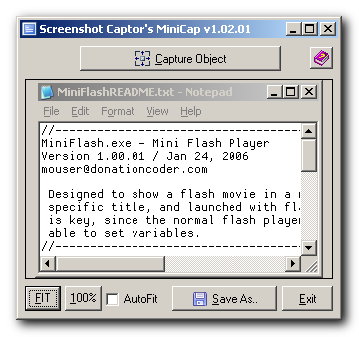 v1.42.01 - June 27, 2022
- [Feature] Added -capturehwndat commandline parameter
- [Improvement] Noticed significant slow capture on some window captures, due to minicap trying to use PrintWin capture mode and failing; this mode is no longer attempted by default (see -trypwcapmode to reenable)
- [Feature] Added -trypwcapmode tells minicap to try using the PrintWindow capture mode which was used in some older version of windows for minicap older than v1.42
- [Bugfix] Sometimes printing without printer preview would fail with generic printer driver error, due to no printer document title being set.
v1.40.01 - June 24, 2018- [Feature] Added -capturemon # commandline parameter to capture the screen of a specified monitor
v1.39.01 - Apr 2, 2018- [Improvement] Removed a flash of the main interactive window when it was unnecessary in processing commandline.
- [Feature] Added -noerr commandline parameter to suppress any error messages on failure to save file; commandline -exit parameter will be processes as if file was saved.
- [BugFix] The -stderr commandline parameter will be obeyed even on failure to write image file to disk.
v1.38.01 - Dec 30, 2017- [Bugfix] Fixed a long standing error that could cause a program fault on exit.
- [Improvement] MiniCap now uses a configdir file to determine if it runs portably or not, and saves settings in appropriate directory (local or in MyDocments) as appropriate.
v1.36.01 - Sep 15, 2016- [Feature] Added -printmargin commandline parameter to change printing margins.
v1.35.01 - July 30, 2016- [Feature] Added -stderr commandline parameter to send any errors to stderr console stream instead of showing in gui message boxes.
- [Feature] Added -cursor commandline parameter to capture image of mouse cursor when capturing.
- [BugFix] Fixed bug where -capsound arguement was ignored if -exit parameter was passed.
- [MinorImprovement] Simplified help topics.
v1.33.01 - Nov 28, 2015- [MinorFeature] Added -escapequit option. If user hits escape while doing a region or window capture, the program will exit (rather than return to minicap interface); should be used in conjunction with -save and -exit to prevent minicap interface from ever showing.
v1.32.01 - Mar 22, 2014- [BugFix] Fixed rare screen zoom bug.
v1.31.01 - Aug 17, 2014- [BugFix] Region capture sizes were off by one.
- [MinorFeature] Main window now shows on taskbar (when main window is shown).
- [MinorFeature] Image dimensions are now shown on main window.
- [MinorFeature] Selection is cleared after new captures.
- [BugFix] Image starts out blank if MiniCap launched with no commandline parameters.
- [Feature] Updated with new scrolling capture code from big brother tool Screenshot Captor.
- [MinorFeature] Previous foreground window is restored after exit.
- [Feature] New commandline option to embed (exif) comment in file (gif, png, jpg, pdf, tiff, but not .bmp format).
- [Feature] New commandline option to not focus a target window when doing a window capture.
v1.28.01 - Nov 29, 2013- [MinorFeature] Added -capsound commandline option to play sound after capture.
- [Major Feature] Updated with latest Screenshot Captor scrolling window capture code.
- [Feature] Now offering both installer and portable zip downloads; executables and installer are now signed.
v1.25.01 - Nov 13, 2011- [MinorFeature] Added -dpi option to set DPI of saved image.
v1.24.01 - Aug 28, 2011- [MinorFeature] Updated with current Screenshot Captor semi-transparent window Aero capture abilities
- [MinorFeature] Better reporting of failure-to-save-file errors.
v1.23.01 - Oct 21, 2010- [MinorFeature] The file extension (.exe) is removed from the captured application filename ($fullfilename$)
- [MinorFeature] You can now use $uniquenum0$ instead of $uniquenum$ if you want to force a counter name always even if not needed to avoid conflict with existing file.
v1.21.01 - 6/7/10- [BugFix] The -exit commandline option was not being obeyed if user used -print but didn't save.
v1.20.01 - 5/4/10- [Feature] Updated with latest Screenshot Captor capture code.
- MajorFeature] Completely re-rewritten new method for capturing Aero Glass themed Semi-transparent windows on Vista and Windows 7. Based on an approach described by Ian Griffiths (http://www.interact-...7/01/30/recoveralpha), with several tweaks for automatic border detection and improved color handling. A new options tab ("Windows Capturing") was added to control the various options for it. Note that by default SC will preserve the entire transparency recovered from the window; this will allow you to composite the screenshot in graphics editing software with it's original semi-transparent regions and effects. By default SC will attempt to remove the shadow effect imparted by Aero, but you can change this via commandline options.
- [BugFix] Was refusing to capture certain windows like Google Chrome; errors in capturing are now reported better.
v1.18.01 - 12/25/2009- Added commandline options for grayscale and black+white conversion.
v1.17.01 - 12/25/2009- Added commandline options for printing.
- Added print button.
- Hitting Escape key in main form will now exit.
v1.16.01 - 3/12/2009- Added commandline options for resizing
v1.15.01 - 12/08/2008- Added commandline option -postrun "commandline" to run a post processing program on the captured image (use $file$ to replace saved image filename in commandline)
OLDER VERSIONS:
v1.14.01 - 10/05/2008- Improved capture of non-standard (skinned) windows, for example bblean.
- Added hotkey Ctrl+U to unselect region.
v1.13.01 - 08/15/2008- Added commandline option -captureactivewin which will capture whatever window was last active before triggering minicap.
- Added grabbing of last active window application name for filename replacement with $appname$
- Extension is removed from $appname$
- You can now combine -promptsave with -save to have minicap prompt you to change the filename initialized to that specified with -save
v1.12.01 - 07/30/2008- Added commandline option -promptsave to ask user for filename and do a save after capture.
- Modified behavior so that the -exit commanline parameter will cause an exit after a manual save.
v1.11.01 - 07/24/2008- Added new more flexible way to specify custom date text wherever you want in your commandline
v1.10.01 - 07/23/2008- Added new capture modes (screen, redbox object, redbox region, traditional region)
- Remembers last save directory better.
- Added options to copy images (or saved file path) to clipboard.
- Added border/shadow option.
v1.08.02 - 07/05/06- Fixed lingering issue with ghosted gridlines showing when scrolling capture from IE.
FROM THE INCLUDED HELP FILE:If run on the commandline without any arguments, MiniCap starts up in interactive capture mode (identical to redbox capture mode in screenshot captor); select the object to capture, hit control click, and it will appear in preview. Hit Save As to save the file.
But the most common way to use the program is with commandline arguments for non interactive capture:
-save "OUTPUTFILENAME"
Tells MiniCap to automatically save the captured image using the specified filename, including path, and extension which should include the image format extension of your choice (.jpg, .gif, .pdf, .png, .bmp, .tiff).
You can use certain fields which will be replaced:
$appdir$ - application directory (useful if you want to save snapshot in same directory)
$appname$ - application exe name (without path)
$nicename$ - nice name of application exe (taken from exe resource)
$windowtitle$ - window caption
$uniquenum$ - adds unique number to filename to avoid overwriting existing files (number only added when needed to avoid existing file)
$uniquenum0$ - adds unique number to filename to avoid overwriting existing files (number ALWAYS added)
$datetime$ , $date$ , $time$ - local date/time
$dt:%DATEFORMATSTRING$ - where DATEFORMATSTRING is made up from the following:
%a Abbreviated weekday name
%A Full weekday name
%b Abbreviated month name
%B Full month name
%c Date and time representation appropriate for locale
%d Day of month as decimal number (01 – 31)
%H Hour in 24-hour format (00 – 23)
%I Hour in 12-hour format (01 – 12)
%j Day of year as decimal number (001 – 366)
%m Month as decimal number (01 – 12)
%M Minute as decimal number (00 – 59)
%p Current locale's A.M./P.M. indicator for 12-hour clock
%S Second as decimal number (00 – 59)
%U Week of year as decimal number, with Sunday as first day of week (00 – 53)
%w Weekday as decimal number (0 – 6; Sunday is 0)
%W Week of year as decimal number, with Monday as first day of week (00 – 53)
%x Date representation for current locale
%X Time representation for current locale
%y Year without century, as decimal number (00 – 99)
%Y Year with century, as decimal number
%z Time-zone name
%Z Time-zone abbreviation
-closeapp
Tells the app that is run to close after screenshot is taken
If you don't specify -closeapp or -killapp then the app will be left running after the app is launched
-killapp
Closes app harshly if it won't close by normal request
-sleep #
Sleep # seconds before engaging capture
-capturescreeen
Capture current screen
-capturedesktop
Capture entire desktop workspace (all multimonitors if more than one exists)
-capturerunapp
Automatically capture the application specified by a -run argument
-capturehwnd #
Automatically capture the window with the specified handle number (specified in decimal)
-capturepid #
Automatically capture the main window of the application with the specified process id (specified in decimal)
-captureregion left top right bottom
Capture screeen region specified
-captureregselect
Interactive capture of region (traditional style mode -- locked to current screen of multimonitor)
-captureredregselect
Interactive capture of region (red box mode)
-captureobjselect
Interactive capture of object (red box mode)
-captureappbyname "filename.exe"
Find the window of the running exe specified and capture it (specify filename with extension but no path)
-captureactivewin
Capture last active window
-exit
Exit minicap after the screenshot is saved
If you don't specify this then MiniCap will remain open after the capture.
-scrollcap
Use scrolling window capture more
-setfore
Set window to be captured to foreground before capturing
-client
Captures client area of the window, useful when capturing windows which have no borders/titlebar
-run "APPNAME" [args+]
Runs a specific application specified before capturing.
All arguments after appname are passed on the commandline to the app, so -run needs to be the last argument you specify
-runcap "APPNAME" [args+]
Same as calling with -run and automatically adds the following arguments for easy use:
"-closeapp -exit -sleep 3 -captureapp"
Like -run, this needs to be the LAST arguments you specify
-postrun "COMMANDLINEWITHARGS"
runs a program after the image is saved (use $file$ to replace saved image filename in commandline)
-compress #
Set compression quality from 1 to 10 (10 is highest quality and biggest image); default to 8
-clipimage
Copy the image to clipboard after capture
-clipimagepath
Copy the saved image filename (full path) to clipboard after capture
-bordershadow
Add a nice border and shadow to image
-promptsave
Asks user for filename to save immediately after a capture.
If combined with a filename specified using -save "FILENAME" then you will be prompted to save as with the filename pre-filled out.
-resizexp PERCENTAGE
resize x dimension to PERCENTAGE% of its original value (y will be scaled to preserve ratio if no y resize value specified)
-resizeyp PERCENTAGE
resize y dimension to PERCENTAGE% of its original value (x will be scaled to preserve ratio if no x resize value specified)
-resizex WIDTH
resize x dimension to exactly WIDTH pixels (y will be scaled to preserve ratio if no y resize value specified)
-resizey HEIGHT
resize y dimension to exactly HEIGHT pixels (y will be scaled to preserve ratio if no y resize value specified)
-print
print the captured image
-printpreview
show a print preview before printing and allow adjustment of margins, etc.
-setprinter PRINTERNAME
sets a specific printer for printing (to get a list invoke -setprinter list); you can use the full name or a substring
-convert CONVERTMODE
CONVERTMODE is from:
bwo = Black+White (ordered)
bwf = Black+White (floydSteinberg method)
bwt = Black+White (local threshold)
bwt1 = Black+White (global threshold of 128)
bwt2 = Black+White (global threshold of avg pixel)
btw3 = Black+White (global threshold set by entropy)
gray = Grayscale
-noaero
disables the new aero capture mode even on vista/win7 machines
-aeroborder THRESHOLD
THRESHOLD should be an integer from 0 to 255
if set to 0 then no automatic shadow removal/border trimming will take place, and a larger image with the aero shadow will be captured.
a higher value, like 200, will attempt to clean up the borders and result in small image dimensions by removing bordering pixels with alpha values smaller than that specified.
-aerocolor COLORCOMPONENTVALUE
COLORCOMPONENTVALUE should be an integer from 0 to 255
if you specify 0 you will get a black background when flattening (see below), if 255 then a white background when flattening
-aeroflatten
flattens the area inside the border so that the image has only 2 levels of transparency -- purely transparent outside the border (see option above), and purely opaque inside the border region. the -aerocolor parameter specifies the background color to merge transparency with when flattening.
-dpi VALUE
sets the DPI value in the image properties of the saved image (useful when importing images into MS word, printing, etc.
-capsound
play a capture sound after every capture.
-nofocus
do not switch to target window when capturing specific windows.
-comment "comment string here"
embed (exif) comment in saved file (works on png, jpg, tiff, gif, but not .bmp)
Example:
MiniCap.exe -save "C:\screen_$appname$$uniquenum$_$date$.jpg" -closeapp -exit -sleep 4 -capturerunapp -run "C:\Program Files\Macromedia\FlashPlayer.exe" "C:\MyMovie.swf"
MiniCap.exe -capturerunapp -exit -save "D:\desktop.png" -sleep 5 -closeapp -exit -run "C:\WINDOWS\system32\notepad.exe" "C:\WINDOWS\test.txt"
-save "E:\test.jpg" -runcap "C:\WINDOWS\system32\notepad.exe" "C:\WINDOWS\test.txt"
look forward to hearing your feedback!


 Recent Posts
