@Deozaan, how do you receive normal phone calls without a number for Google Voice to forward your calls to? And how do you make normal phone calls without cell service that it can use its minutes for? How do you call a business? Or how do you receive calls from your doctor?
-app103
I haven't actually used Google Voice (the app or website) in a long time. It's all done through Hangouts.
Anybody who dials my Google Voice number just rings straight to Hangouts on my PC or on my Tablet (or Wi-Fi connected phone back when I had one). And when I make a call using Hangouts it shows on caller ID as coming from my Google Voice number. I can also send and receive texts on Hangouts using my Google Voice number.
Of course, this means I need to have an internet connection to make and receive calls/texts. But if I am not at my PC or otherwise don't have a connection, it will still ring to voicemail which Google Voice (the service) will transcribe and email me and it will also show up in Hangouts for me once I'm connected again.
It has been a long time since I set it all up, so I can't remember the exact process. But it goes something like this:
- Go to Google Voice and get a number. Note that this will probably require an actual working phone number for the initial setup.
- Get Hangouts on Android and/or as a Chrome Extension on PC. On Android you may also need the Hangouts Dialer.
- From there, make sure to run everything once and if it doesn't just work or guide you through the process, then just look through the settings/options for a way to link Google Voice and Hangouts.
After initial setup, you never really have to use Google Voice (the app) or Hangouts Dialer ever again. In fact, I don't think installing the Google Voice app is even required at all. You just need to use the same Google account for both Google Voice and Hangouts.
This is what it looks like on my PC when I want to make a call:
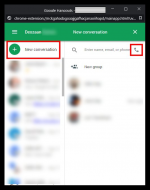
Clicking "New conversation" on the left panel will show what you see on the right panel. Clicking the phone icon will show the image below:
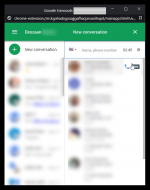
Here you can type in the name or number of anyone in your contacts list or just the number you want to dial (even if it's not in your contact list) and it will give you the option to call or SMS that number.
Or if you already have sent/received calls/texts from a number before, you can open it from the left panel just like an IM conversation and just write stuff to send SMS or click a phone icon to make a call.
P.S. Sorry about the huge ugly black borders on those images. I forgot that JPG doesn't handle transparency and I added drop shadows to the images in Screenshot Captor before converting to JPG.


 Recent Posts


