LATEST OFFICIAL RELEASE:
 Download v1.17.1
- (or get the portable zip)
- Jan 2, 2020 - 2K/XP/Win7/Win8/Win10
HOME USERS:
 Get a free license key
 Donate to author
COMMERCIAL USERS:
 Learn about our commercial / site licenses
HELP AND ASSISTANCE:
 View help/changelog
 Discuss on forum
The FBI is Involved?i am willing to donate $2000.. .. let me have ur phone number,the board of trustees will be holding meeting with the FBI nextweek to determine how fund is been manage i need ur phone number so that they can talk to you.
D.V.

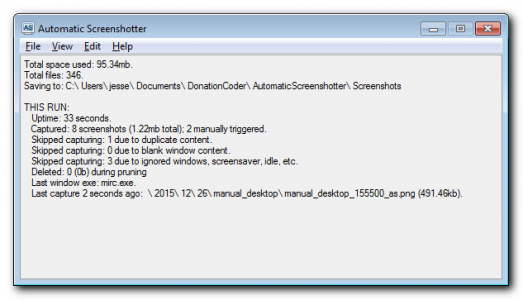
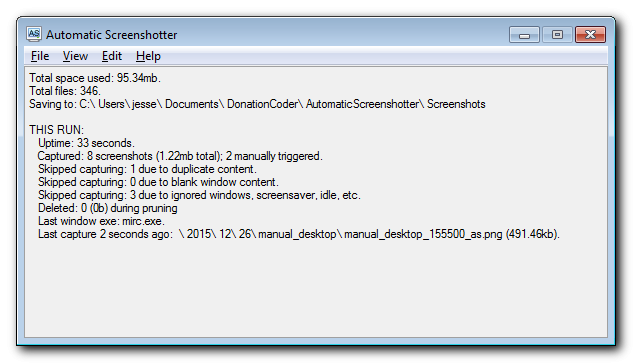
Automatic Screenshotter is a tool that lives down in your system tray and takes regular screenshots of your desk or the active window.
The intention is to be a fairly lightweight primitive "backup" tool, like an airplane black box, so that in a case of last resort (app or system crash) you can go back and see what was on your screen at a certain time in the past.
Future versions may expand to perform more general purpose automatic-screenshotting for folks who want to keep a complete history of what they were doing over time, etc.
Suggestions are welcome.
Features:
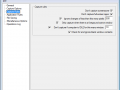
- It's made to run in the background, taking screenshots of either the currently active foreground window, or the entire desktop.
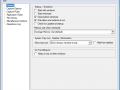
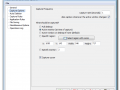
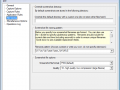
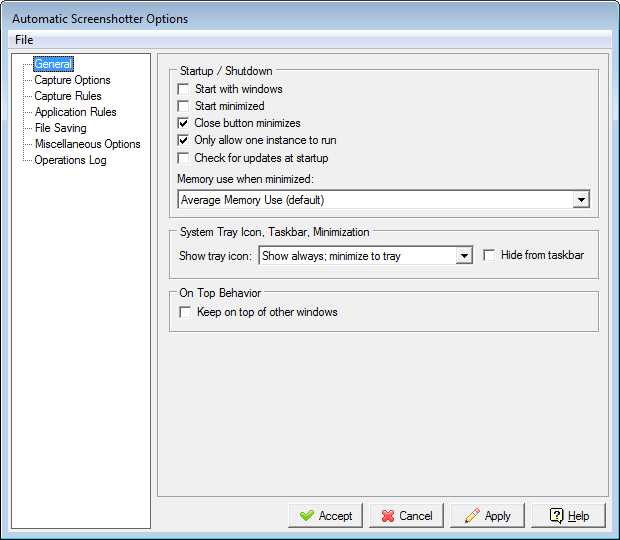
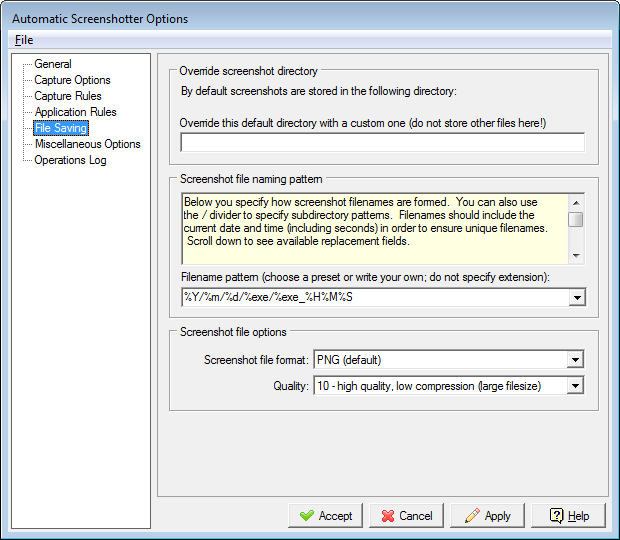
- You can configure how often the screenshots are taken, and how they are named. The naming can include putting them into subdirectories and can be based on the data,time, and application name.
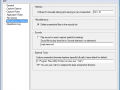
- It will automatically prune older screenshots based on limits you set regarding screenshot age, # screenshots to keep, and total file space you want to use.
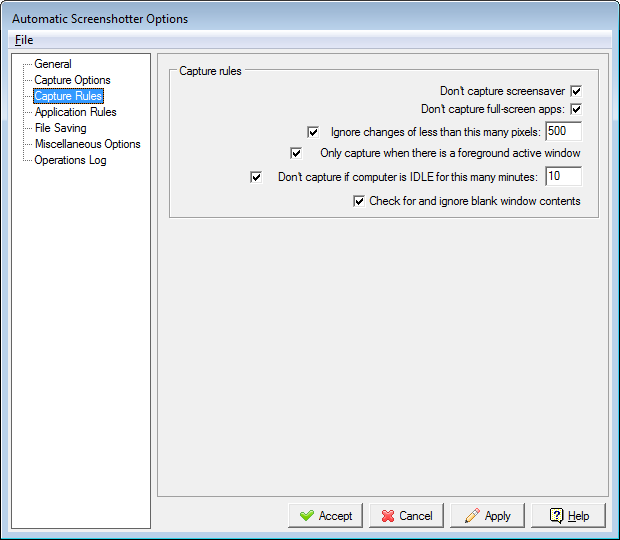
- It will also try to be smart about avoiding saving multiple screenshots when the window (desktop) contents don't actually change, with some configurable tolerances, to minimize disk space used.
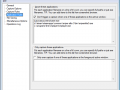
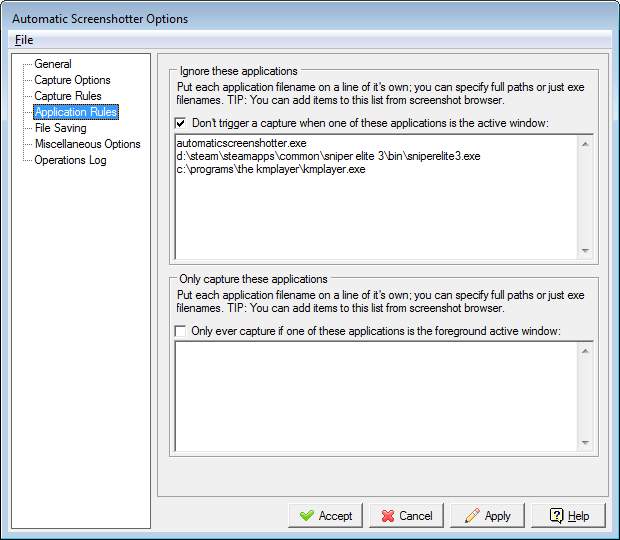
- It can also be told about certain applications to never capture, or alternatively a small list of applications that it should only ever capture.
- It can be configured to ignore capture when your pc has been idle for a certain amount of time, or when screensaver is running, or when full-screen games are running.
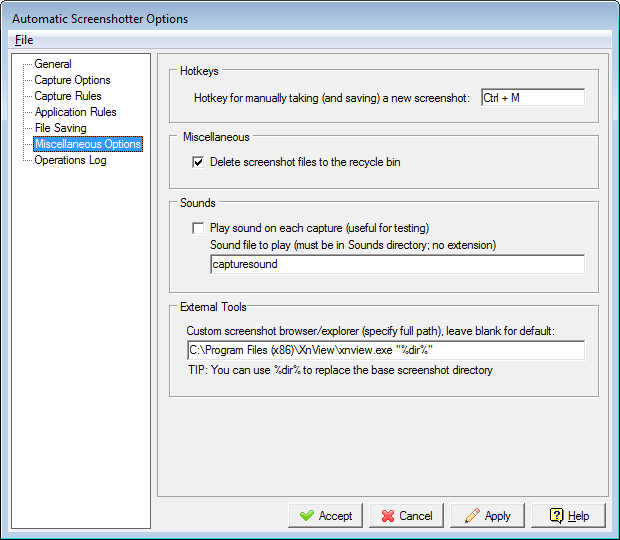
- You can also manually trigger a capture with a hotkey.
- You can also toggle capturing on-and-off easily from system tray menu.
- Screenshots are saved as standard png files.
In summary, the focus is on an automated system of recording recent activity on the screen, and trying to be well behaved regarding disk space usage. You should be able to set it and forget it, until you need to go back and see what was on the screen at a certain time in the near past.