DonationCoder.com forum
 
Read-only archive. This is a static copy of the DonationCoder.com forum. Reading and searching work as before; logging in, posting and private messages do not.
Archive of 2026-10-21 · About this archive · Main site

Author Topic: How to manually set clock in Windows 10 Pro?  (Read 8,517 times)

rjbull

  • Charter Member
  • Joined in 2005
  • ***
  • Posts: 3,217
How to manually set clock in Windows 10 Pro?
« on: October 30, 2020, 12:14 PM »
UK clocks have recently gone back for Daylight Saving time.  My Windows 10 Pro is still showing summer time, not winter time.  I went to Settings > Date & time.  The date is correct.  "Adjust for daylight saving time automatically" was On.  I clicked "Sync now" and had to elevate to Admin (Really?  Just to correct the clock?).  Time server: time.windows.com.  Waited and waited while the little dots trudged around.  Eventually, "Time synchronisation failed."  Tried again with "Adjust for daylight saving time automatically" Off, same result.  Tried again with it On, same again...

Please, is there any way to set the clock MANUALLY?

<rjbull seethes with frustration>

4wd

  • Pedantic Old Bastard
  • Supporting Member
  • Joined in 2006
  • **
  • Posts: 5,652
    • Coding Snacks
Re: How to manually set clock in Windows 10 Pro?
« Reply #1 on: October 30, 2020, 12:29 PM »
Try changing the time server to something other than Microsoft.

The public servers at NTP.org have always been better for me, for the UK try: uk.pool.ntp.org

The above will round-robin through, currently, 329 NTP servers in the UK, (split 213 IPv4/116 IPv6).

And yes, to change the system time requires admin.

If it still won't sync then the usual culprits: firewall, service, etc, Event log may give more info.
"I will not follow where the path may lead, but I will go where there is no path, and I will leave a trail." - Muriel Strode, 1903
« Last Edit: October 30, 2020, 12:40 PM by 4wd »

Shades

  • Member
  • Joined in 2006
  • **
  • Posts: 2,954
Re: How to manually set clock in Windows 10 Pro?
« Reply #2 on: October 30, 2020, 02:02 PM »
As far as I know the US (all Windows installations use time server 'time.windows.com') implement DST when winter solstice/summer solstice occur. Most of the rest of the world use the change of seasons to implement DST. There is usually a 2 to 3 weeks difference between these events.

If you think this is already bad, try living in a country where the president decides the DST implementation. Solstices and season changes are more or less set in stone. Randomness introduced by 'el Presidente' is much more frustrating. Believe me.

Anyway, if you have dealings with other continents, better use the NTP servers available for that continent. Since I have set my router to use the time server '0.south-america.pool.ntp.org' and all computers behind it to use the router as their main clock, there is a lot less headache on my end. The 0 in the name of that server indicates stratum 0, the closest you can get to having the same time as the atomic clocks that are spread over the world. A higher stratum number mean that there can be inaccuracies between the time of that server. Also, when you take the time from a stratum 0 server, the inaccuracies of the clock hardware inside your computer/laptop/tablet/phone automatically turns this in a stratum 1 time registration.

For some types of business it is vital to have a stratum as low as possible. Most people don't need to be on the stratum 0 level of accuracy. Which is good, as capacity is limited.
The easy path is usually downhill...

4wd

  • Pedantic Old Bastard
  • Supporting Member
  • Joined in 2006
  • **
  • Posts: 5,652
    • Coding Snacks
Re: How to manually set clock in Windows 10 Pro?
« Reply #3 on: October 30, 2020, 03:04 PM »
Most of the rest of the world use the change of seasons to implement DST.

Except Australia where we made it easier by just making it the first Sunday in October to the first Sunday in April.

... but only in the southern/eastern states/territories, the northern/western states/territories don't bother with DST at all 😆
"I will not follow where the path may lead, but I will go where there is no path, and I will leave a trail." - Muriel Strode, 1903

Deozaan

  • Charter Member
  • Joined in 2006
  • ***
  • Posts: 9,827
    • Participated in NANY Challenge Eight Times
    • Cody Award
Re: How to manually set clock in Windows 10 Pro?
« Reply #4 on: October 30, 2020, 06:40 PM »
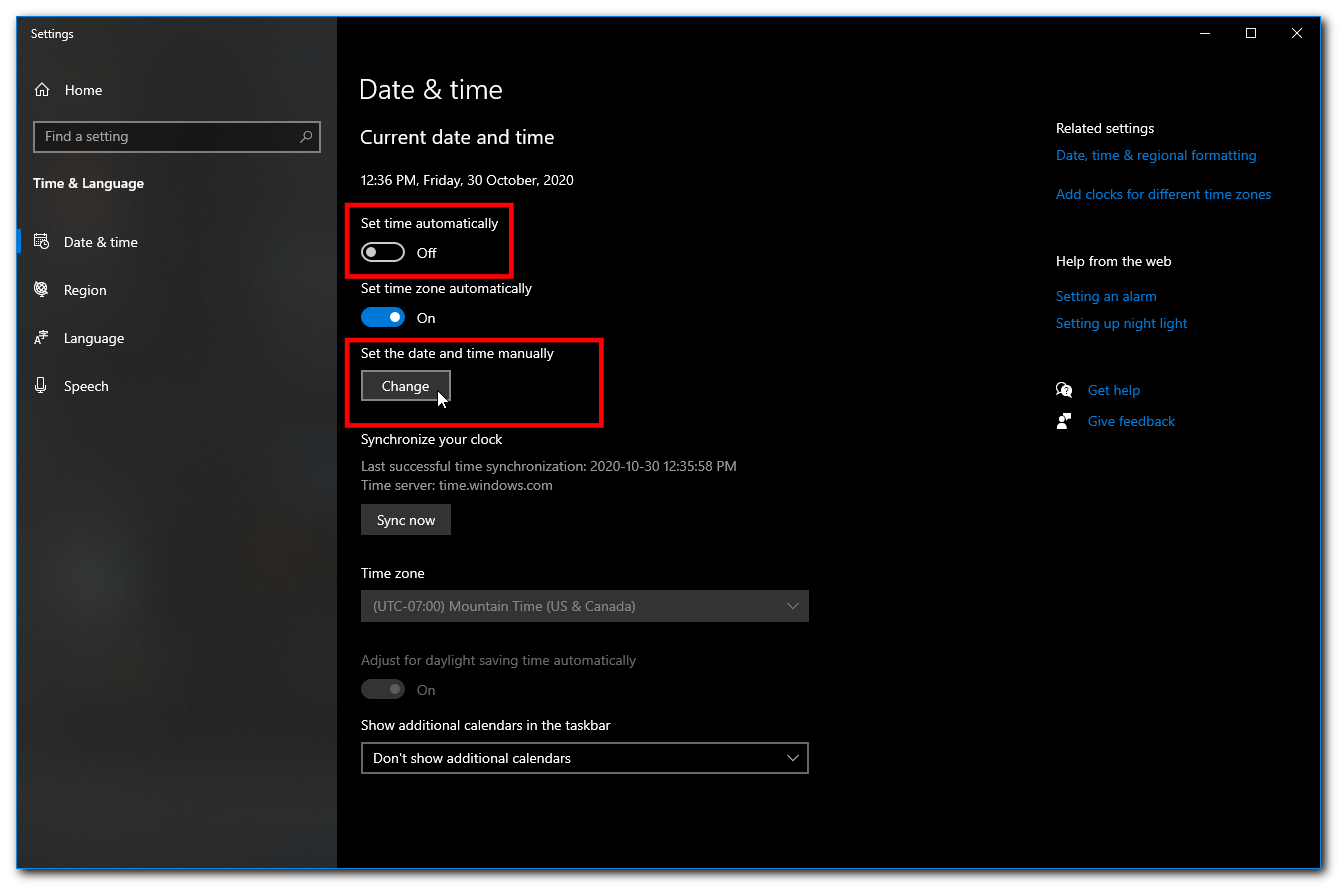
  1. Right-click the clock in the tray.
  2. Select "Adjust Date/Time"
  3. Deselect "Set Time Automatically"
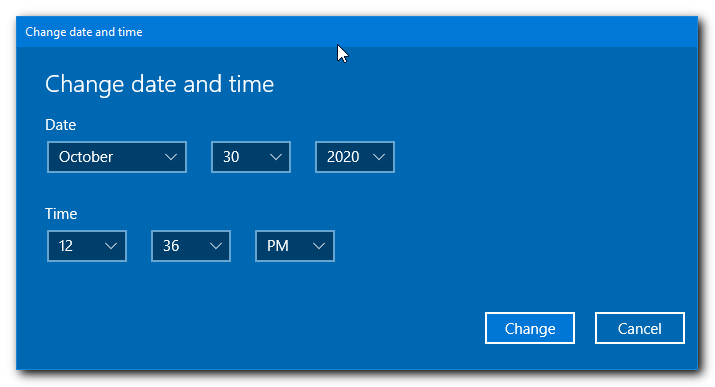
  4. Click "Change" below "Set the date and time manually"
  5. Set the time and date to your preference.
  6. Click "Change" to confirm your changes.

Date & Time Settings.png
Change Date and Time.png

Nod5

  • Supporting Member
  • Joined in 2006
  • **
  • Posts: 1,175
    • Coding Snacks
    • Participated in NANY Challenge Three Times
    • Plugin Coding Medal
Re: How to manually set clock in Windows 10 Pro?
« Reply #5 on: October 30, 2020, 06:41 PM »
Please, is there any way to set the clock MANUALLY?

What Deozaan wrote. Or if you prefer the command line, open windows terminal and use the command "time".
https://ss64.com/nt/time.html

x16wda

  • what am I doing in this handbasket?
  • Supporting Member
  • Joined in 2007
  • **
  • Posts: 888
    • Participated in NANY Challenge Once
Re: How to manually set clock in Windows 10 Pro?
« Reply #6 on: October 31, 2020, 01:33 AM »
Worth mentioning Dimension4 here.
vi vi vi - editor of the beast

Shades

  • Member
  • Joined in 2006
  • **
  • Posts: 2,954
Re: How to manually set clock in Windows 10 Pro?
« Reply #7 on: October 31, 2020, 04:28 AM »
  1. Right-click the clock in the tray.
  2. Select "Adjust Date/Time"
  3. Deselect "Set Time Automatically"
  4. Click "Change" below "Set the date and time manually"
  5. Set the time and date to your preference.
  6. Click "Change" to confirm your changes.

[attachment 1 not found]
[attachment 2 not found]

A change that may be altered back to what the time server at windows.com thinks your clock must be set to. To my knowledge that happens once a day.

Alteration to computer clocks were made by that time server on workstations and servers alike. As you may or may not know, I live in an area where 'el presidente' chooses the moment DST is applied. More often than not that was a different day than what the US or the EU are using for their DST changes.

You think you are irritated by predictable differences between the 2 most common DST systems? Hah! Try mixing a random DST change in, before or after those DST changes. Because sometimes government hated the US, sometimes government was unfriendly with the EU when DST needed to be applied. Politics petty? Damn right it is. Everywhere. And every 6 months a surprise.

How many meetings between employees of us and companies in the EU had to be rescheduled, because of those DST mishaps....

Anyway, Asuncion, the city where I live has its own time zone. To make matters even more fun. You know what truly solved almost all DST problems? Using practically any time server other than the one hiding behind the URL 'time.windows.com'. Yes, the default time server in Windows is the worst NTP time servers around. Seriously, 95% of all my semi-annual DST issues/conflicts went out of the door, by simply adjusting to a time server for the South-Americas. These are maintained by people who take time much more seriously than whoever is in control of the 'time.windows.com' time server.

Changing the clock like the instructions show you here in this thread...that gets old quick if you have to do that daily on every computer under your care for around 2 months a year.

You might think the time server at 'time.windows.com' isn't so bad, but that is only because you live in a time-zone with predictable DST changes. seriously, find out what NTP server is handling time for the continent you live on and use that server instead. After you have done so, I will be the first person you send your Christmas cards to from that moment on...yes, it is that much of a difference.

Look here for your (national/continental) NTP server:
https://www.ntppool.org/en/

As most computers in the world run on Windows, you would think that MS would put competent people to manage 'time.windows.com'. Instead, there are over 4000 different time servers active globally as of this moment. If that is not an indicator the default time server in Windows makes a mess of keeping time...

DST and time zones, from a programmer's perspective:  https://www.youtube.com/watch?v=-5wpm-gesOY
Hell....
The easy path is usually downhill...

rjbull

  • Charter Member
  • Joined in 2005
  • ***
  • Posts: 3,217
Re: How to manually set clock in Windows 10 Pro?
« Reply #8 on: November 03, 2020, 08:45 PM »
Many thanks, folks! :)

I tried 4wd's advice to change to uk.pool.ntp.org, and so far, after a couple of days, things seem to be OK.  I was annoyed with myself for forgetting TIME in a console, considering how much I did at the command line in the old days: too much windows atrophies your brain...  I've also downloaded Dimension4 against need.  If a Windows update resets to time.windows.com, that's what I'll try next.

Original address: https://www.donationcoder.com/forum/index.php?topic=50660.0