


NANY 2021 Entry Information
| Application Name | Incipitor |
| Version | 1.2 |
| Short Description | A handy, dandy tool to add shortcuts to your Start Menu |
| Supported OSes | Windows 7 and Windows 10 |
| Web Page | DC Members: bgmCoder |
| Version History |
|
| Author | Link to Author's Profile page |
Description
At my workstation I like to use Open Shell (revamp of Classic Shell) and to manually organize my Start Menu so it works as an effective and efficient program launcher. Since I often need to add items to the Start Menu's folder structure, I wrote Incipitor (incipit is Latin for "start"). This allows me to add those not-installed applications to the menu.
Features
- Settings for adding and removing Incipitor in the Windows context menu for all files.
- Drag-n-drop onto the main window.
- Customizations for the context menu.
- Allows for renaming of the shortcut file before creation.
- Maybe I'll make an installer so that the context menu can be added/removed without the user having to do it manually from the application.
Planned Features
Cleanup task to remove invalid shortcuts
Backup Start Menu
Screenshots
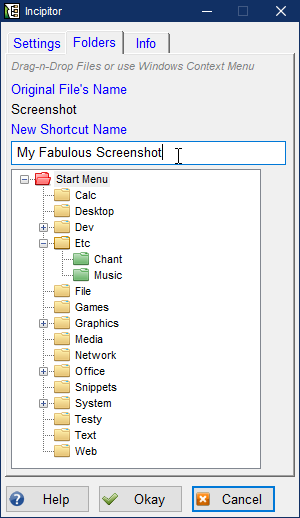
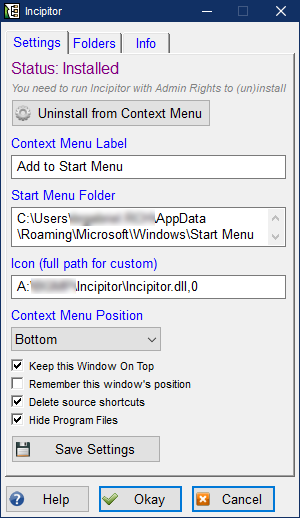
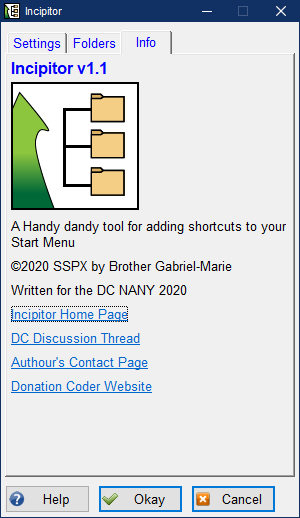
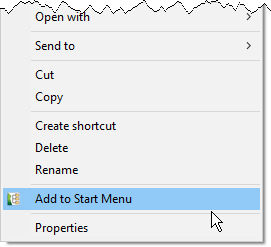
Here is the Context Menu entry
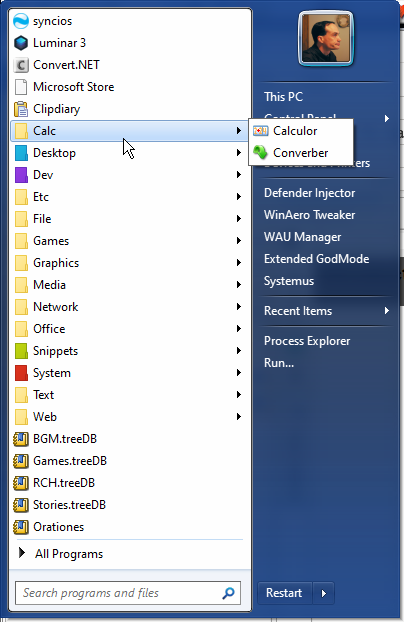
Here is what my Start Menu looks like, using Open Shell and all organized.
Usage
Installation
Unzip the package and run Incipitor.exe. Then click the "Install" button to add to the context menu.
Using the Application
Once installed, you can use the Windows context menu on files to add them to the start menu. Incipitor's window will appear allowing to you choose what folder to place the shortcut into, and allow for you to name it whatever you like.
You need to run Incipitor as Administrator to install it to the context menu. After that you can run it with normal rights.
Uninstallation
Push the uninstall button to remove it from the context menu, then just delete the application folder. It will not do anything to the Start Menu folder.
Version History
version 1.1:
Fixed missing version info in the executable's Resource Table.
Added icons
Added ability to rename the folders
Added a "Save Settings" button
Tips
Use it with Open Shell. It's not so useful when used with the normal Windows 10 Start Menu. However, it would work great on Windows 7.
Known Issues
Just remember to use the "uninstall" button in the main window to remove the context menu entry if you decide to delete Incipitor. Also, the folder structure only dives 2 directories deep. You get all the folders in the Start Menu folder and one level of sub-folders below that, but no further. This isn't so much an issue as a limitation, though. I could change that if anyone really wants it.


 but for this purpose it does sort of make sense to create one. Maybe I'll include it in the download, but specify the reason for it in the readme file and on my website's page (or something like that). However, the program itself will come first, with the install-context-menu item in the GUI, and if I feel froggy enough, I'll make the installer to go with it. But I dont' think this program will be so popular due to it's exclusive nature (for power users, really), so I'm not sure if it's worth the effort of creating an installer.


