


I couldn't find this version:
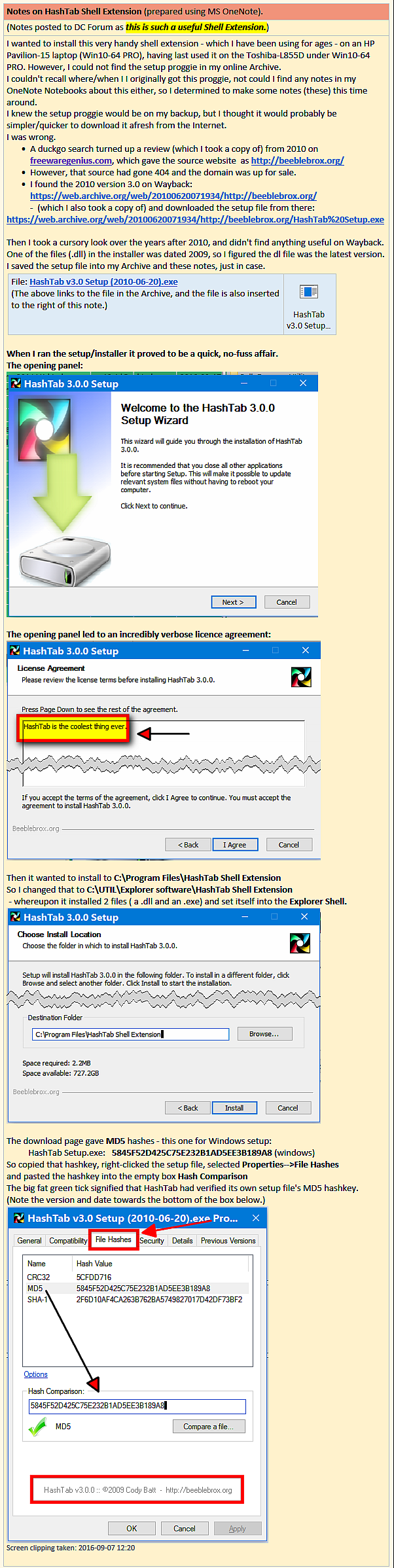
Current notes are in the (sharpened) image below, and the text is copied in the spoiler below that.
Just thought I'd revive this thread to say that I've been using HashTab (v5.1.23) for a while now and am finding it very useful in my file management tasks - e.g., when I am wanting to determine whether two files of the same or different names are in fact the same (duplicated) file.
However, I might dispense with using it on those occasions when the xplorer² Checksum column is likely to be more useful (see below).
Also:
- HashCheck Shell Extension: Thanks to @PhilB66's mention of it in this thread (above), I am about to trial this.
- WinMD5sum: I have been using this on occasion.
- xplorer² Checksum column:: is a column you can invoke in xplorer² to give you a checksum of files in (say) a directory listing. The manual warns that invoking the Checksum column could be a resource hog:
Quotex² extracts certain information from each file and displays it in different columns of the folder pane (e.g. checksum).(A very handy feature.)
However, this additional consumes CPU resources and slows down other operations.
To make the operation more efficient, x² has a provision that it will display the information only if the file-size is below a [settable] threshold value.
Current notes are in the (sharpened) image below, and the text is copied in the spoiler below that.
Spoiler (click to show/hide)
Notes on HashTab Shell Extension (prepared using MS OneNote).
(Notes posted to DC Forum as this is such a useful Shell Extension.)
I wanted to install this very handy shell extension - which I have been using for ages - on an HP Pavilion-15 laptop (Win10-64 PRO), having last used it on the Toshiba-L855D under Win10-64 PRO. However, I could not find the setup proggie in my online Archive.
I couldn't recall where/when I I originally got this proggie, not could I find any notes in my OneNote Notebooks about this either, so I determined to make some notes (these) this time around.
I knew the setup proggie would be on my backup, but I thought it would probably be simpler/quicker to download it afresh from the Internet.
I was wrong.
• A duckgo search turned up a review (which I took a copy of) from 2010 on freewaregenius.com, which gave the source website as http://beeblebrox.org/
• However, that source had gone 404 and the domain was up for sale.
• I found the 2010 version 3.0 on Wayback: https://web.archive.org/web/20100620071934/http://beeblebrox.org/
- (which I also took a copy of) and downloaded the setup file from there:
https://web.archive.org/web/20100620071934/http://beeblebrox.org/HashTab%20Setup.exe
Then I took a cursory look over the years after 2010, and didn't find anything useful on Wayback.
One of the files (.dll) in the installer was dated 2009, so I figured the dl file was the latest version. I saved the setup file into my Archive and these notes, just in case.
File: HashTab v3.0 Setup (2010-06-20).exe
(The above links to the file in the Archive, and the file is also inserted
to the right of this note.)
When I ran the setup/installer it proved to be a quick, no-fuss affair.
The opening panel:
The opening panel led to an incredibly verbose licence agreement:
Then it wanted to install to C:\Program Files\HashTab Shell Extension
So I changed that to C:\UTIL\Explorer software\HashTab Shell Extension
- whereupon it installed 2 files ( a .dll and an .exe) and set itself into the Explorer Shell.
The download page gave MD5 hashes - this one for Windows setup:
HashTab Setup.exe: 5845F52D425C75E232B1AD5EE3B189A8 (windows)
So copied that hashkey, right-clicked the setup file, selected Properties-->File Hashes
and pasted the hashkey into the empty box Hash Comparison
The big fat green tick signified that HashTab had verified its own setup file's MD5 hashkey.
(Note the version and date towards the bottom of the box below.)
Screen clipping taken: 2016-09-07 12:20
(Notes posted to DC Forum as this is such a useful Shell Extension.)
I wanted to install this very handy shell extension - which I have been using for ages - on an HP Pavilion-15 laptop (Win10-64 PRO), having last used it on the Toshiba-L855D under Win10-64 PRO. However, I could not find the setup proggie in my online Archive.
I couldn't recall where/when I I originally got this proggie, not could I find any notes in my OneNote Notebooks about this either, so I determined to make some notes (these) this time around.
I knew the setup proggie would be on my backup, but I thought it would probably be simpler/quicker to download it afresh from the Internet.
I was wrong.
• A duckgo search turned up a review (which I took a copy of) from 2010 on freewaregenius.com, which gave the source website as http://beeblebrox.org/
• However, that source had gone 404 and the domain was up for sale.
• I found the 2010 version 3.0 on Wayback: https://web.archive.org/web/20100620071934/http://beeblebrox.org/
- (which I also took a copy of) and downloaded the setup file from there:
https://web.archive.org/web/20100620071934/http://beeblebrox.org/HashTab%20Setup.exe
Then I took a cursory look over the years after 2010, and didn't find anything useful on Wayback.
One of the files (.dll) in the installer was dated 2009, so I figured the dl file was the latest version. I saved the setup file into my Archive and these notes, just in case.
File: HashTab v3.0 Setup (2010-06-20).exe
(The above links to the file in the Archive, and the file is also inserted
to the right of this note.)
When I ran the setup/installer it proved to be a quick, no-fuss affair.
The opening panel:
The opening panel led to an incredibly verbose licence agreement:
Then it wanted to install to C:\Program Files\HashTab Shell Extension
So I changed that to C:\UTIL\Explorer software\HashTab Shell Extension
- whereupon it installed 2 files ( a .dll and an .exe) and set itself into the Explorer Shell.
The download page gave MD5 hashes - this one for Windows setup:
HashTab Setup.exe: 5845F52D425C75E232B1AD5EE3B189A8 (windows)
So copied that hashkey, right-clicked the setup file, selected Properties-->File Hashes
and pasted the hashkey into the empty box Hash Comparison
The big fat green tick signified that HashTab had verified its own setup file's MD5 hashkey.
(Note the version and date towards the bottom of the box below.)
Screen clipping taken: 2016-09-07 12:20
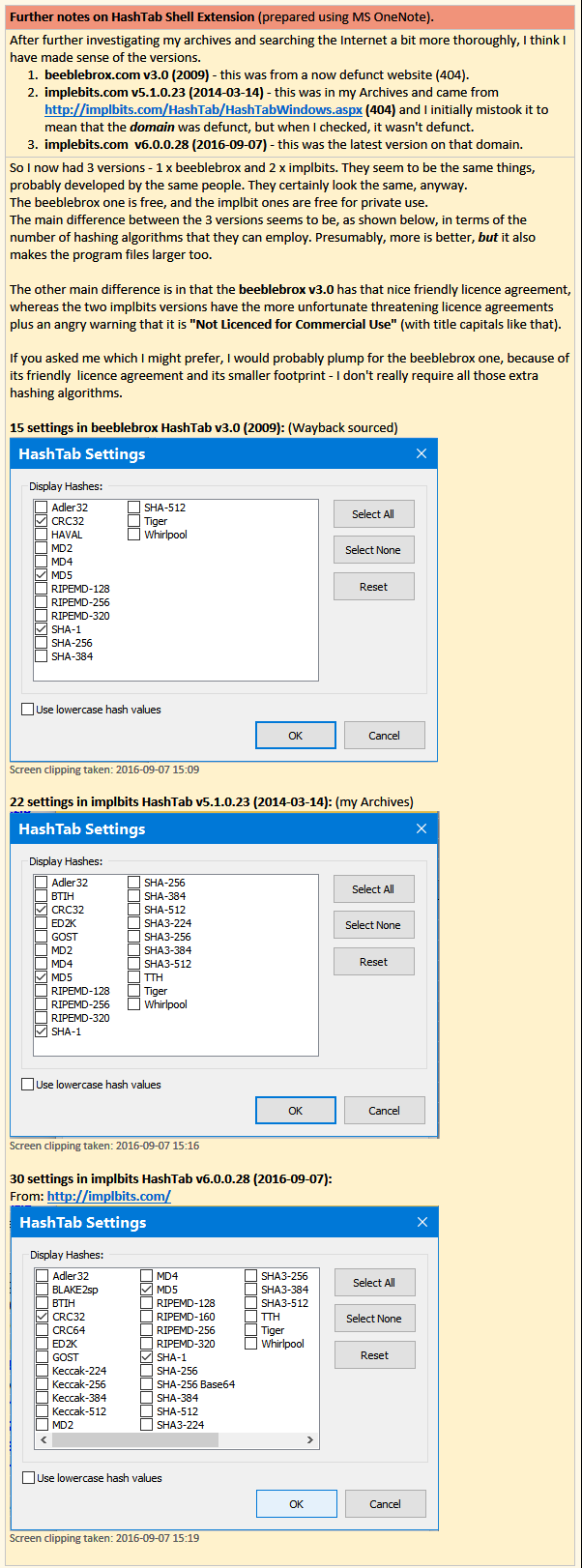


 which adds SHA3, better multithreading, and a few other things.