NANY 2016 Entry Information
| Application Name | SysTrayIconsManage |
| Version | 0.7.0.0 |
| Short Description | 'Manage' new hidden SysTray Icons |
| Supported OSes | Windows Vista and up (.NET 4.5+) |
| Web Page | TODO |
| Download Link | For now: Attached to this post |
| System Requirements |
|
| Version History |
|
| Author | Ath |
Description
From mousers idea in the NANY 2016 idea thread:
Quote
One of the truly TERRIBLE ideas in recent versions of windows is that icons in the system tray are BY DEFAULT set to hide unless they produce a message.
This can frequently (for me at least) lead to me having programs running in the background that I didn't realize were still running.
The option to hide icons is great. The default behavior is not.
It might be nice to have a program that changed the system setting to always show icons for newly discovered apps. That is, the utility would run in the background, and the first time it encounters a new exe running, it would check registry for an entry saying to hide the icon, and change that to say to show the icon. If the user goes so system tray options and chooses to hide it in the future, there will be no effect, as this app is only modifying the setting the first time an app is seen.
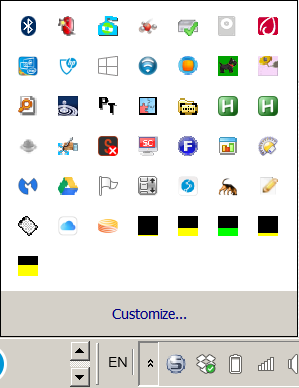
This app sits in the System Tray, and tries to detect* (see: Known Issues) newly installed applications that put an icon in the system tray. When detected, it sets that to always show, stores the application name in a list, and waits for the next application to be added.
Features
Handles the annoying fact that Windows hides new System Tray icons from view after ca. 15 seconds.
Planned Features
- Bugfixes
Find a better icon (more contrast o a white background)- Create the corresponding webpage on my dcmembers site
- Lots of improvements...
Screenshots
TODO
Usage
Installation/Update
- Download the .zip file
- If SysTrayIconsManage is running, close it from the right-click menu
- Unpack into it's own directory
- If portable use is desired, rename settings_portable.xml to settings.xml
- Start SysTrayIconManage.exe
Using the Application
Initially, all known (that's usually many more than visible!) SysTrayIcons will be added to the 'known icons' list.
From then on, new applications will, when detected (see: Known Issues), be set to Show Always.
Right-click the SysTrayIconsManage icon to enable "Restart Explorer to activate", or else you won't see the icon getting visibility. WARNING: This option will close ALL instances of Windows Explorer!
Uninstallation
When used portable:
- Stop SysTrayIconsManage (Double-click the icon or Right-Click and selectr Close)
- Delete the files
- Stop SysTrayIconsManage (Double-click the icon or Right-Click and selectr Close)
- Delete the executable file
- Delete directory %APPDATA%\SysTrayIconsManage
Tips
Delete a line from section ExePaths in settings.xml to set that application to visible (may take up to 15 seconds to detect)
Known Issues
- New applications may not be detected directly, it may take the user to Logoff/Logon or system restart to be recognized
- All Windows Explorer instances that are open will be closed when 'Restart Explorer to activate' is enabled.
This is (unfortunately) the only known way to reload the System Tray setting
 SysTrayIconsManage.zip


 .
.

 There is a sufficiency of mystery in my life.