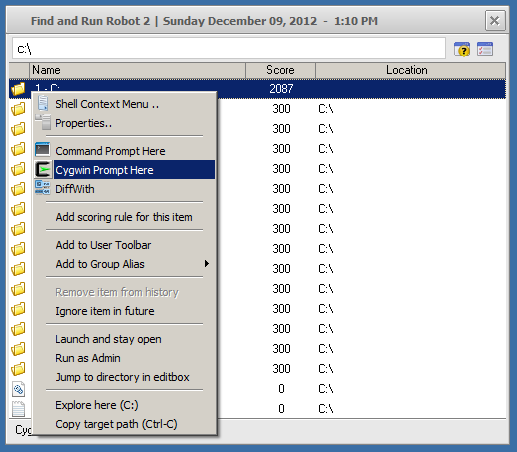
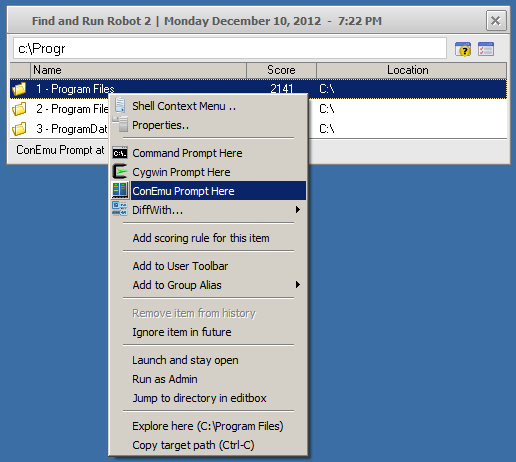
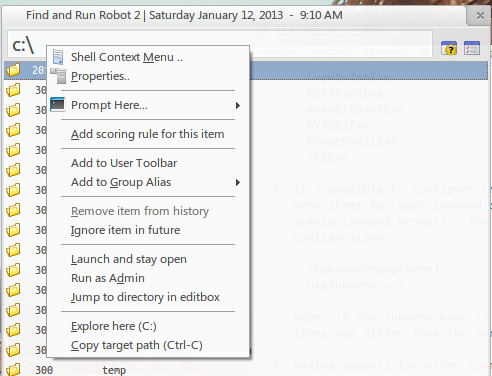
A FARR plugin to provide "Command Prompt Here"-like behavior for FARR file / folder results.
Screenshot
Description
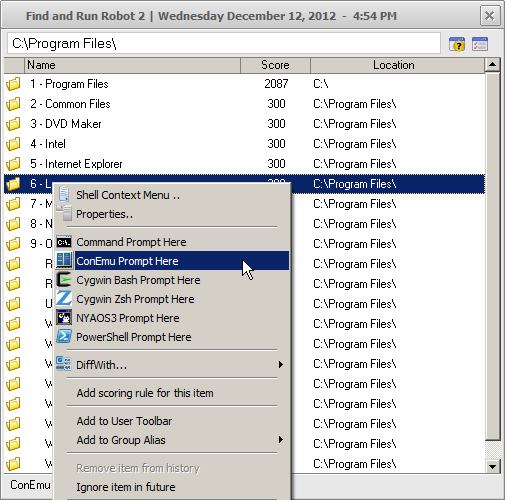
Command prompt access from FARR results -- for files, the containing directory is used as the working directory.
A variety of "command prompts" are supported (though see README.txt for configuration info):
Installation / Uninstallation / Requirements
It's a FARR plugin so installation and uninstallation are as usual. Tested under Windows 7 64-bit with FARR 2.206.01. Brief testing done on Windows XP Pro SP3. May work for other versions of Windows.
Upgrading
If upgrading from an earlier version (0.0.0.2 or below), it may be easiest to start over. The settings are likely compatible, but the arrangement of files in the plugin's directory differ. I recommend copying the old plugin directory somewhere safe first before trying a newer version.
Downloads
Plugin
md5:526e1c4312173d8bc37cf992464d774c
sha1:6d1b55ab42a136e3a7179db2c217c9234066118a
Screenshot
Description
Command prompt access from FARR results -- for files, the containing directory is used as the working directory.
A variety of "command prompts" are supported (though see README.txt for configuration info):
- cmd.exe
- ConEmu
- Cygwin Bash
- Cygwin Zsh
- MSYS Bash
- msysGit Bash
- NYAOS3
- PowerShell
- TCC (or TCC/LE)
Installation / Uninstallation / Requirements
It's a FARR plugin so installation and uninstallation are as usual. Tested under Windows 7 64-bit with FARR 2.206.01. Brief testing done on Windows XP Pro SP3. May work for other versions of Windows.
Upgrading
If upgrading from an earlier version (0.0.0.2 or below), it may be easiest to start over. The settings are likely compatible, but the arrangement of files in the plugin's directory differ. I recommend copying the old plugin directory somewhere safe first before trying a newer version.
Downloads
Plugin
md5:526e1c4312173d8bc37cf992464d774c
sha1:6d1b55ab42a136e3a7179db2c217c9234066118a
README.txt
CommandPromptHere
Purpose:
Convenient access to a command prompt with the current directory set
to match a FARR result:
- for a folder result, the current directory corresponds to the
folder
- for a file result, the current directory corresponds to the
containing folder
Requirements:
Tested with:
- Windows 7 - may work for other versions of Windows (some XP
testing has been done too)
- FindAndRunRobot 2.206.01 - some portion may not work with
earlier versions of FARR
Basic Usage:
1. Bring up a context-sensitive menu for a file or folder in FARR's
result view.
2. Choose "Command Prompt Here".
A command prompt window with an appropriate working directory should
appear.
Other Command Prompts:
It's possible to configure the plugin to work with other "command
prompts" (see the Notes section for details).
Once configured appropriately:
1. Bring up a context-sensitive menu for a file or folder in FARR's
result view.
2. With appropriate configuration, at least one of the following
should appear. Choose one.
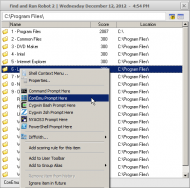
- ConEmu Prompt Here
- Cygwin Bash Prompt Here
- Cygwin Zsh Prompt Here
- MSYS Bash Prompt Here
- msysGit Bash Prompt Here
- NYAOS3 Prompt Here
- PowerShell Prompt Here
- TCC Prompt Here
A command prompt window of the corresponding program with an
appropriate working directory should appear.
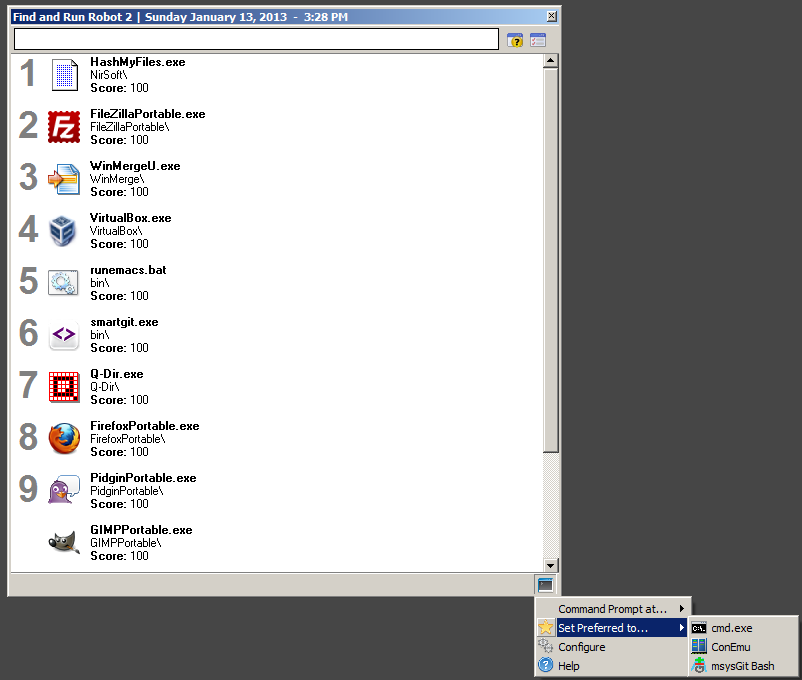
Statusbar Icon Menu:
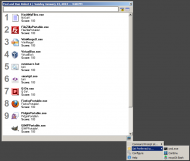
The plugin provides a statusbar icon in FARR's main window. Clicking
this should bring up a menu that may contain some of the following
items:
Command Prompt at...
Set Preferred to...
Configure
Help
"Command Prompt at..." allows one to open a command prompt at
a directory which the plugin previously worked with. (This menu
item may not appear if there are no such directories.)
"Set Preferred to..." allows one to choose the specific command
prompt type (e.g. ConEmu) to use for "Command Prompt at...".
(This menu item may not appear if there is only one command prompt
available for use.)
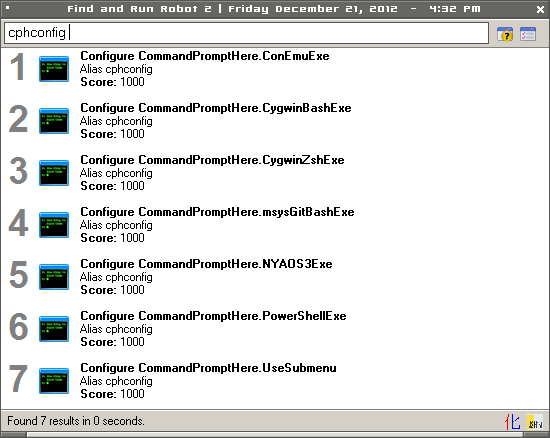
"Configure" displays a list of FARR results, each of which may be
invoked to configure some functionality of the plugin.
"Help" displays this file.
Notes:
1. To bring up a context-sensitive menu for a FARR result, do one of
the following:
- Right-click on the result
- After selecting the result, type one of the following:
- Control+R
- Shift+F10
- Menu / Application key
2. To enable support for a particular command prompt:
Method 1: Via a FARR Result
- Locate the executable using FARR (e.g. c:\cygwin\bin\bash.exe),
- Bring up the context-sensitive menu via the result
corresponding to the executable and choose the appropriate
menu item beginning with "Set as" (e.g. Set as Cygwin Bash).
Method 2: Via the Plugin's Statusbar Icon
There should be a statusbar icon for the plugin on the statusbar
of FARR's main window.
- Click the plugin's statusbar icon.
A menu should appear.
- Choose "Configure".
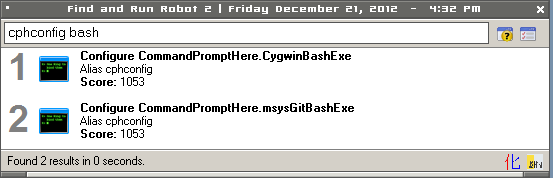
A list of FARR results should appear. Each one corresponds to
configuring the plugin in some way. An example result might be
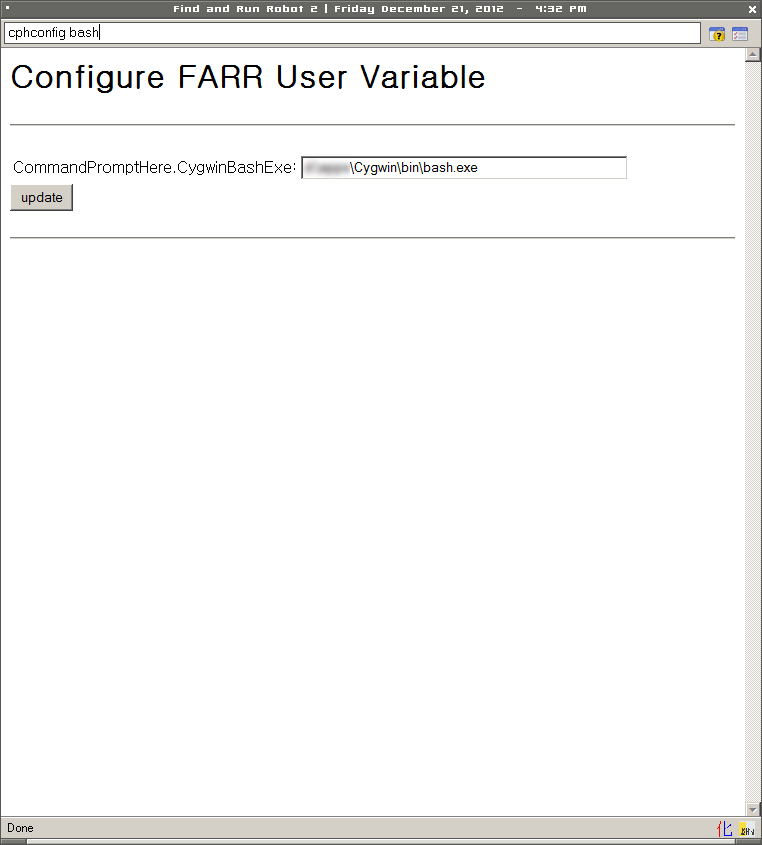
labeled: "Configure msysGit Bash Path".
- Select an appropriate result and launch it.
FARR should switch to a web view with a form for appropriately
configuring the selected choice. An example label might be:
"CommandPromptHere.msysGitBashExe". An appropriate value might
be: c:\apps\msysgit\bin\bash.exe
- Enter an appropriate value in the form field and click the
button labeled "update".
- Dismiss FARR or go back to using it as usual.
Method 3: Via FARR User Variables
Alternatively, manually create an appropriate FARR User Variable
with an appropriate value. For example, for Cygwin Bash, one
configuration might be:
[CommandPromptHere]
CygwinBashExe = c:\cygwin\bin\bash.exe
The following lists names of FARR User Variables for specifying
"command prompt" executables:
ConEmuExe
CygwinBashExe
CygwinZshExe
MSYSBashExe
msysGitBashExe
NYAOS3Exe
PowerShellExe
TCCExe
3. It's possible to configure the plugin to use a submenu to display
menu items for each command prompt if there are two or more
usable command prompts. The following is an example
configuration:
[CommandPromptHere]
UseSubmenu = 1
Note: if the submenu mode is used, the names of some of the menu
items may differ from the earlier descriptions.
4. Adding support for other command prompts may be possible.
Apart from a few exceptions, support for each command prompt is
provided via a corresponding .js file in the plugins subdirectory
of the CommandPromptHere plugin directory and an appropriate
addition to the CommandPromptHere.alias file.
Credits:
Find And Run Robot
mouser
FScript
ecaradec
Discussion and Testing
cranioscopical
mouser
oumu
Icons
https://www.fatcow.com/free-icons
Purpose:
Convenient access to a command prompt with the current directory set
to match a FARR result:
- for a folder result, the current directory corresponds to the
folder
- for a file result, the current directory corresponds to the
containing folder
Requirements:
Tested with:
- Windows 7 - may work for other versions of Windows (some XP
testing has been done too)
- FindAndRunRobot 2.206.01 - some portion may not work with
earlier versions of FARR
Basic Usage:
1. Bring up a context-sensitive menu for a file or folder in FARR's
result view.
2. Choose "Command Prompt Here".
A command prompt window with an appropriate working directory should
appear.
Other Command Prompts:
It's possible to configure the plugin to work with other "command
prompts" (see the Notes section for details).
Once configured appropriately:
1. Bring up a context-sensitive menu for a file or folder in FARR's
result view.
2. With appropriate configuration, at least one of the following
should appear. Choose one.
- ConEmu Prompt Here
- Cygwin Bash Prompt Here
- Cygwin Zsh Prompt Here
- MSYS Bash Prompt Here
- msysGit Bash Prompt Here
- NYAOS3 Prompt Here
- PowerShell Prompt Here
- TCC Prompt Here
A command prompt window of the corresponding program with an
appropriate working directory should appear.
Statusbar Icon Menu:
The plugin provides a statusbar icon in FARR's main window. Clicking
this should bring up a menu that may contain some of the following
items:
Command Prompt at...
Set Preferred to...
Configure
Help
"Command Prompt at..." allows one to open a command prompt at
a directory which the plugin previously worked with. (This menu
item may not appear if there are no such directories.)
"Set Preferred to..." allows one to choose the specific command
prompt type (e.g. ConEmu) to use for "Command Prompt at...".
(This menu item may not appear if there is only one command prompt
available for use.)
"Configure" displays a list of FARR results, each of which may be
invoked to configure some functionality of the plugin.
"Help" displays this file.
Notes:
1. To bring up a context-sensitive menu for a FARR result, do one of
the following:
- Right-click on the result
- After selecting the result, type one of the following:
- Control+R
- Shift+F10
- Menu / Application key
2. To enable support for a particular command prompt:
Method 1: Via a FARR Result
- Locate the executable using FARR (e.g. c:\cygwin\bin\bash.exe),
- Bring up the context-sensitive menu via the result
corresponding to the executable and choose the appropriate
menu item beginning with "Set as" (e.g. Set as Cygwin Bash).
Method 2: Via the Plugin's Statusbar Icon
There should be a statusbar icon for the plugin on the statusbar
of FARR's main window.
- Click the plugin's statusbar icon.
A menu should appear.
- Choose "Configure".
A list of FARR results should appear. Each one corresponds to
configuring the plugin in some way. An example result might be
labeled: "Configure msysGit Bash Path".
- Select an appropriate result and launch it.
FARR should switch to a web view with a form for appropriately
configuring the selected choice. An example label might be:
"CommandPromptHere.msysGitBashExe". An appropriate value might
be: c:\apps\msysgit\bin\bash.exe
- Enter an appropriate value in the form field and click the
button labeled "update".
- Dismiss FARR or go back to using it as usual.
Method 3: Via FARR User Variables
Alternatively, manually create an appropriate FARR User Variable
with an appropriate value. For example, for Cygwin Bash, one
configuration might be:
[CommandPromptHere]
CygwinBashExe = c:\cygwin\bin\bash.exe
The following lists names of FARR User Variables for specifying
"command prompt" executables:
ConEmuExe
CygwinBashExe
CygwinZshExe
MSYSBashExe
msysGitBashExe
NYAOS3Exe
PowerShellExe
TCCExe
3. It's possible to configure the plugin to use a submenu to display
menu items for each command prompt if there are two or more
usable command prompts. The following is an example
configuration:
[CommandPromptHere]
UseSubmenu = 1
Note: if the submenu mode is used, the names of some of the menu
items may differ from the earlier descriptions.
4. Adding support for other command prompts may be possible.
Apart from a few exceptions, support for each command prompt is
provided via a corresponding .js file in the plugins subdirectory
of the CommandPromptHere plugin directory and an appropriate
addition to the CommandPromptHere.alias file.
Credits:
Find And Run Robot
mouser
FScript
ecaradec
Discussion and Testing
cranioscopical
mouser
oumu
Icons
https://www.fatcow.com/free-icons