NANY 2013 Entry Information
| Application Name | FreeNAS Brute Forcer |
| Version | v1 |
| Short Description | Recover lost user names and passwords for FreeNAS |
| Supported OSes | Windows XP SP3, Windows Vista, Windows 7, Windows 8 |
| Web Page | http://cynic.me/2012/11/21/recover-lost-freenas-user-and-password/ |
| Download Link | http://cynic.me/wp-content/uploads/2012/11/FreeNAS-Brute-Forcer.zip |
| System Requirements |
|
| Version History |
|
| Author | http://www.donationcoder.com/forum/index.php?action=profile;u=2492;sa=summary |
Description
I thought that I had forgotten my FreeNAS user name and password, so I wrote this little utility.
It is very simple - enter many possible user names and many possible passwords, and this will find the right combination of the 2 for you.
Instructions are in the program itself.
Check my blog post above (the program page) for more information about the program and why I wrote it.
Features
Brute forces the FreeNAS web interface to find your correct user name and password.
Planned Features
No future features are planned as it does what it is intended to do. If there is any interest in it, I may polish some more, depending on user feedback.
I will not turn this into a general brute force utility as that is too open to abuse.
Screenshots
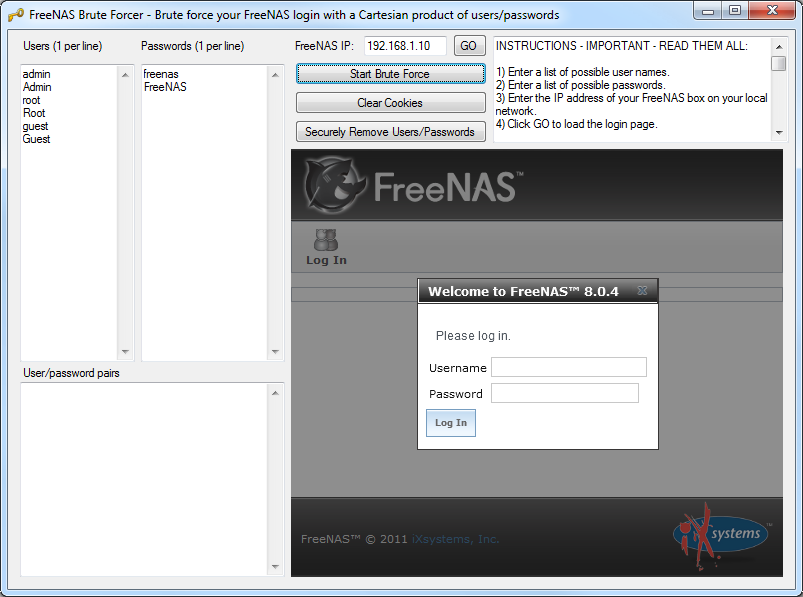
[attachimg=#]
Usage
Installation
Unzip the ZIP file then run the program. No installer. Source code is included.
Using the Application
There are directions in the program. Simply follow them. i.e.:
Quote
INSTRUCTIONS - IMPORTANT - READ THEM ALL:
1) Enter a list of possible user names.
2) Enter a list of possible passwords.
3) Enter the IP address of your FreeNAS box on your local network.
4) Click GO to load the login page.
5) Click the "Start Brute Force" button.
Once you are logged in:
1) Check the title bar for a user name/password pair.
2) Find that in the "User/password pairs" text box.
3) Your proper login is on the line above that.
4) Test it in your regular Internet browser.
SECURITY PRECAUTIONS:
1) To log out, click the "Clear Cookies" button.
2) When you are finished, click the "Securely Remove Users/Passwords" button so that you do not leave any traces of usernames/passwords. The program stores them in plain text while you are using it, and for the next time that you use it.
For more information, check http://cynic.me/.
Cheers,
Ryan
Uninstallation
Simply delete the file. No uninstallation is required.
HOWEVER - read the instructions... it saves your user names and passwords in plain text, but also includes a way to delete them.
Tips
If you have any problems, simply close the program, then reload it. Enter the proper IP address again and try again. It saves your users/passwords as they are longer.
Known Issues
No known issues with the software. However, the .NET WebBrowser control is based on the Trident engine (IE), and the FreeNAS web interface doesn't really like it, so once you are logged in, you need to go to your normal browser and login there to actually use FreeNAS.