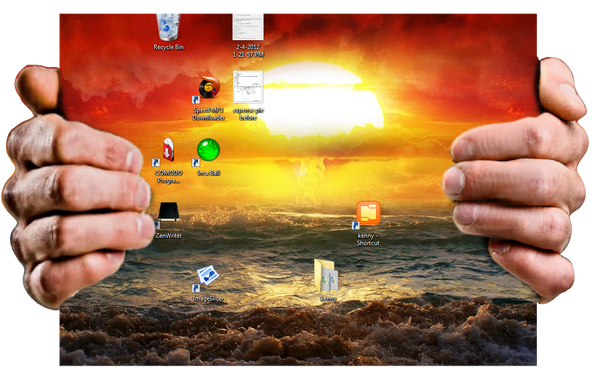
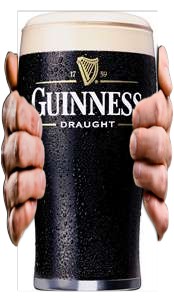
Here we go:
[attach]
[attach]


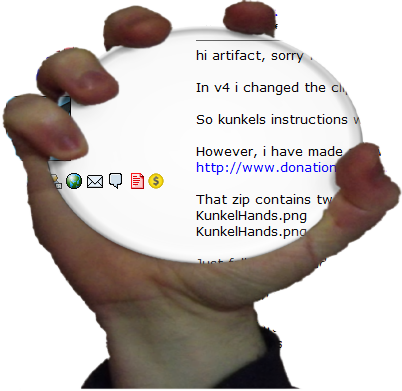
 Topic: "Hands Holding" mask/frame combo... (Read 61,922 times)


you have to account for part of the screenshot getting cut off the ends.
I noticed your RaggedBR2.png and RaggedBR2.png.mask... Just couldn't figure out how to use them...


if people are going to start using this frame/mask feature i just might start making it easier to useGood idea

ah yes, so i think if you just named your frame like: "HandsFrame.png"I tried but couldn't get it to work. Will try again later. I think I have a funky installation, because I have the portable version in Dropbox and am running it from two different PCs.
and then named your mask: "HandsFrame.png.mask"
and put them both in Frames directory, they should get applied both at the same time.


ah yes, so i think if you just named your frame like: "HandsFrame.png"I tried but couldn't get it to work. Will try again later. ...
and then named your mask: "HandsFrame.png.mask"
and put them both in Frames directory, they should get applied both at the same time.

ah yes, so i think if you just named your frame like: "HandsFrame.png"Okay, so I tried and tried, and I'm pretty sure they don't work like this.
and then named your mask: "HandsFrame.png.mask"
and put them both in Frames directory, they should get applied both at the same time.

The key is to save HandsFrame.png as a regular png for the fram, but then save the mask portion as HandsFrame.jpg, then change it's file type (not just rename it) into HandsFrame.png.mask...I played with that earlier but had to drop it for a while.
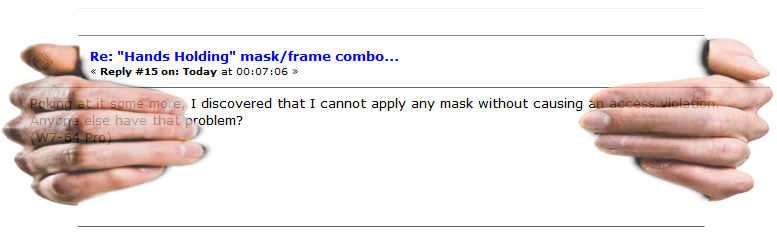
 handsholding.zip
(653.2 KB - downloaded 402 times.)
handsholding.zip
(653.2 KB - downloaded 402 times.)Also remember to turn the Opacity all the way up...
There is a transparency setting for frames, push that to max.

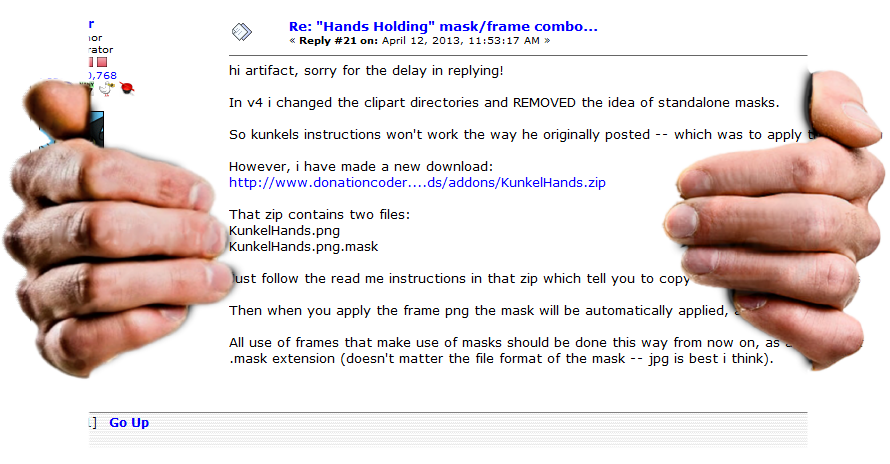

Original address: https://www.donationcoder.com/forum/index.php?topic=29947.0