DonationCoder.com forum
 
Read-only archive. This is a static copy of the DonationCoder.com forum. Reading and searching work as before; logging in, posting and private messages do not.
Archive of 2026-10-21 · About this archive · Main site

Last post Author Topic: IDEA ~ Show List of Shortcuts overlaid on Desktop  (Read 40,703 times)

tomos

  • Charter Member
  • Joined in 2006
  • ***
  • Posts: 11,970
    • Gathering Badge
    • Participated in NANY Challenge Once
IDEA ~ Show List of Shortcuts overlaid on Desktop
« on: September 15, 2011, 10:44 AM »
So far a vague idea -
I'm working with a couple of programmes where I'm not fully familiar with the shortcuts.
Had the idea to show a list of shortcuts overlaid on the desktop (to one side) related to the current focused app.

  • Shown transparently on the desktop could be problematic because of different coloured backgrounds (text not showing clearly)
  • Might be easier (but less elegant) to have a list open in Notepad or whatever
  • Lists would have to be made manually
  • Lists would probably have to be changed manually

I'm not sure if it's worth the effort for many programmes - but for one programme (for me) I think it would be.
I guess I could make the list for that, make a transparent gif/(?) and overlay it on the desktop somehow - was there an app here lately that did that? (couldnt find, but I have a distinct memory of some way of showing an image on top of desktop image...)
Tom

Paul Keith

  • Member
  • Joined in 2008
  • **
  • Posts: 1,989
Re: IDEA ~ Show List of Shortcuts overlaid on Desktop
« Reply #1 on: September 15, 2011, 11:37 AM »
Sounds like something that widgets are for. I haven't really tried Samurize but weren't they the Lifehacker poster child for these kinds of needs?
<reserve space for the day DC can auto-generate your signature from your personal PopUp Wisdom quotes>

tomos

  • Charter Member
  • Joined in 2006
  • ***
  • Posts: 11,970
    • Gathering Badge
    • Participated in NANY Challenge Once
Re: IDEA ~ Show List of Shortcuts overlaid on Desktop
« Reply #2 on: September 15, 2011, 12:38 PM »
thanks Paul
Sounds like something that widgets are for. I haven't really tried Samurize but weren't they the Lifehacker poster child for these kinds of needs?
I have no idea... :)

Quote
Version: 1.64.3
Submitted Date: 2007/4/8
Submitter: AdamC
last updated 2007 - anyone using it with windows 7?


or maybe Rainmeter would be a better candidate...
Will have a look at it later
Tom

nudone

  • Cody's Creator
  • Columnist
  • Joined in 2005
  • ***
  • Posts: 4,119
    • Cody Award
Re: IDEA ~ Show List of Shortcuts overlaid on Desktop
« Reply #3 on: September 15, 2011, 07:17 PM »
This won't be of great help but your request is very similar to an old problem we were discussing on DC. Mouser even started to put a solution together and now I can't remember what it was called - maybe it would be overkill anyway.

A similar solution I've tried myself is to use one of the desktop post-it note like programs. There are ones that will do transparency, always on-top, and also "stick" to a specific window or program. With all those features you can then create shortcut reminders (in a note) that will only appear when the related program is running. Or just have the note visible on the desktop at all times. (This applies to several notes too, of course.)

Mouser's Desktopcoral could also help probably. That could clear space at the side of the screen.

skwire

  • I eat Coding Snacks for breakfast...
  • Global Moderator
  • Joined in 2005
  • *****
  • Posts: 5,297
    • Participated in NANY Challenge Seventeen Times
    • Coding Snacks
    • Superboy Coder
    • Cody Award
    • Volunteers/Staff
    • Gathering Badge
Re: IDEA ~ Show List of Shortcuts overlaid on Desktop
« Reply #4 on: September 15, 2011, 07:26 PM »
@tomos:  Something like this would be rather easy to write as a basic AHK script that you could easily modify and extend to your needs.  I wouldn't want to write a configuration GUI for it, though.  One question, though.  When you say transparency, do you mean full window transparency?  Or, do you mean you only want to see floating text and no other window elements?

tomos

  • Charter Member
  • Joined in 2006
  • ***
  • Posts: 11,970
    • Gathering Badge
    • Participated in NANY Challenge Once
Re: IDEA ~ Show List of Shortcuts overlaid on Desktop
« Reply #5 on: September 15, 2011, 07:52 PM »
I'm looking at Rainmeter but it's certainly not intuitive, options all over the place, and while I have a notes window showing, it is limited height & I cant find how to change that.

@tomos:  Something like this would be rather easy to write as a basic AHK script that you could easily modify and extend to your needs.  I wouldn't want to write a configuration GUI for it, though.  One question, though.  When you say transparency, do you mean full window transparency?  Or, do you mean you only want to see floating text and no other window elements?
hmm :)
text with no other window elements would be very nice if that were possible - but I would still have the problem of what colour to make the text -
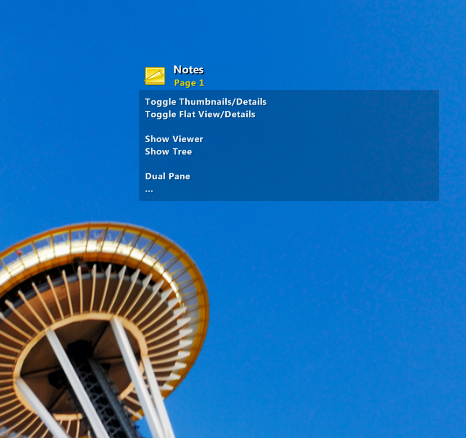
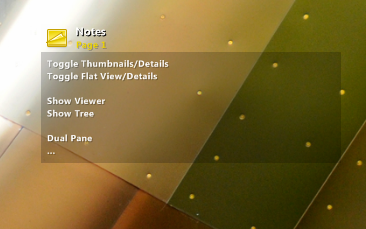
Here's the Rainlender notes "window" with some sample text - it seems to have a background with a tone as opposed to a colour (?) i.e. it darkens the background colour which help the text show clearly.

[attachthumb=#]

[attachthumb=#]

i.e. Skwire, I'm not really sure - I dont want to ask you to reinvent the wheel, but would something like that be (easily) possible?
Tom

nudone

  • Cody's Creator
  • Columnist
  • Joined in 2005
  • ***
  • Posts: 4,119
    • Cody Award
Re: IDEA ~ Show List of Shortcuts overlaid on Desktop
« Reply #6 on: September 15, 2011, 09:45 PM »
At the risk of being a bore, what you have in those screen grabs could easily be done with free desktop post-it note type programs - that's what they are made for.

E.g. Frameless transparent rectangles can easily be done with atnotes.
« Last Edit: September 15, 2011, 09:52 PM by nudone »

wraith808

  • Supporting Member
  • Joined in 2006
  • **
  • Posts: 11,205
    • Participated in NANY Challenge Fourteen Times
    • Coding Snacks
    • Writer
    • Hardware Hacker
Re: IDEA ~ Show List of Shortcuts overlaid on Desktop
« Reply #7 on: September 15, 2011, 09:48 PM »
text with no other window elements would be very nice if that were possible - but I would still have the problem of what colour to make the text -
Here's the Rainlender notes "window" with some sample text - it seems to have a background with a tone as opposed to a colour (?) i.e. it darkens the background colour which help the text show clearly.
(see attachment in previous post) (see attachment in previous post)

It's not darkening it- it's a transparent overlay.  The transparency is blending with the background (i.e. the degree of transparency) and that's where the darkening is coming from.

mouser

  • First Author
  • Administrator
  • Joined in 2005
  • *****
  • Posts: 40,931
    • Gathering Badge
    • Plugin Coding Medal
    • Participated in NANY Challenge Seventeen Times
    • Cody Award
    • Coding Snacks
    • Volunteers/Staff
Re: IDEA ~ Show List of Shortcuts overlaid on Desktop
« Reply #8 on: September 15, 2011, 09:53 PM »
Nudone is right -- this was the foundation of the Cheat Sheeter app that i started and never finished and still plan to code one day.. Maybe i'll revive it for Nany..

nudone

  • Cody's Creator
  • Columnist
  • Joined in 2005
  • ***
  • Posts: 4,119
    • Cody Award
Re: IDEA ~ Show List of Shortcuts overlaid on Desktop
« Reply #9 on: September 15, 2011, 09:55 PM »
Cheat sheeter, oh yes; definitely worth a nany revival.

Target

  • Honorary Member
  • Joined in 2006
  • **
  • Posts: 1,840
    • Coding Snacks
Re: IDEA ~ Show List of Shortcuts overlaid on Desktop
« Reply #10 on: September 15, 2011, 11:46 PM »
what about a popup or slide out window?

something like Stick might do what you want

alternatively you could use AHK to show context sensitive 'tips' to display a list (though that may be onerous depending on how much text you want to display)
Alcohol is photoshop, bottled
Askhole - someone who ask for advice, then ignores it
"Look wise, say nothing, and grunt. Speech was given to conceal thought" - Sir William Osler

skwire

  • I eat Coding Snacks for breakfast...
  • Global Moderator
  • Joined in 2005
  • *****
  • Posts: 5,297
    • Participated in NANY Challenge Seventeen Times
    • Coding Snacks
    • Superboy Coder
    • Cody Award
    • Volunteers/Staff
    • Gathering Badge
Re: IDEA ~ Show List of Shortcuts overlaid on Desktop
« Reply #11 on: September 16, 2011, 01:00 AM »
All the suggestions regarding Post-It Note apps are forgetting one of the main requests from tomos' original request and that is he wants context-sensitive text (based on which app has focus, I'd assume).  I don't know of any note app that will do that.

Target

  • Honorary Member
  • Joined in 2006
  • **
  • Posts: 1,840
    • Coding Snacks
Re: IDEA ~ Show List of Shortcuts overlaid on Desktop
« Reply #12 on: September 16, 2011, 01:02 AM »
do you have a copy of the text you want to use?
Alcohol is photoshop, bottled
Askhole - someone who ask for advice, then ignores it
"Look wise, say nothing, and grunt. Speech was given to conceal thought" - Sir William Osler

Paul Keith

  • Member
  • Joined in 2008
  • **
  • Posts: 1,989
Re: IDEA ~ Show List of Shortcuts overlaid on Desktop
« Reply #13 on: September 16, 2011, 06:54 AM »
All the suggestions regarding Post-It Note apps are forgetting one of the main requests from tomos' original request and that is he wants context-sensitive text (based on which app has focus, I'd assume).  I don't know of any note app that will do that.

Wasn't this one of the features that made app choose Notezilla?

Quote
Attach sticky notes to docs & websites

Stick notes to documents, web pages, programs or any other window. When ever
you open the document or web page, the attached sticky note appear automatically.

Features Highlighted:

Attach notes to any document, website, program or window

Use hotkey to attach sticky note to the current document

<reserve space for the day DC can auto-generate your signature from your personal PopUp Wisdom quotes>

tomos

  • Charter Member
  • Joined in 2006
  • ***
  • Posts: 11,970
    • Gathering Badge
    • Participated in NANY Challenge Once
Re: IDEA ~ Show List of Shortcuts overlaid on Desktop
« Reply #14 on: September 16, 2011, 08:39 AM »
do you have a copy of the text you want to use?

I need to work on that. Below are XYPlorer shortcuts. The full list, and a very quickly edited list.
The edited list is still a long list... I would probably want to cut it down to half that size or smaller.

edited list
File / To Clipboard / Item Path/Name(s)    Ctrl+P
File / To Clipboard / Item Name(s)    Ctrl+Shift+P
File / To Clipboard / Item Path(s)    Ctrl+Shift+Alt+P
File / To Clipboard / Compact File Info    Ctrl+I

File / Rename Special / Batch Rename...    Shift+F2

File / Open with...    Ctrl+Alt+Enter
File / Open Focused Item    Ctrl+Enter

File / Duplicate / Copy Here with Increment    Ctrl+D
File / Duplicate / Copy Here with Current Date    Ctrl+Shift+Alt+D
File / Duplicate / Copy Here with Last Modified Date    Ctrl+Shift+D
File / Duplicate / Copy Here As...    Ctrl+S
File / Duplicate / Copy Here to New Subfolder...    Ctrl+Shift+C
File / Duplicate / Move Here to New Subfolder...    Ctrl+Shift+X

File / File Special / Delete (Skip Locked)    Ctrl+Del
File / File Special / Swap Names    Ctrl+Shift+F2

File / Preview    Ctrl+Q
File / Quick File View    Ctrl+Shift+Q
File / Exit without Saving    Ctrl+Alt+F4

Edit / Redo    Ctrl+Shift+Z
Edit / Action Log...    Ctrl+Alt+Z

Edit / Paste Special / Paste Here to New Subfolder...    Ctrl+Shift+V
Edit / Paste Special / Paste Text Into New File    Ctrl+Alt+V
Edit / Paste Special / Paste Image Into New File    Ctrl+Shift+Alt+V
Edit / Move To...    Shift+F7
Edit / Copy To...    Ctrl+F7
Edit / Backup To...    Ctrl+Shift+F7
Edit / Compare / Compare Current File with Previous File    Ctrl+K
Edit / Compare / Compare Current File with File in Clipboard    Ctrl+Shift+K
Edit / Compare / Compare Current File on Both Panes    Ctrl+Alt+K

Edit / New / New Text File "New Textfile.txt"    Ctrl+Shift+N
Edit / New / New Path...    Ctrl+Alt+N

Edit / Select / Deselect All    Ctrl+Shift+A
Edit / Select / Invert Selection    Ctrl+Shift+I
Edit / Select / Selection Filter...    Ctrl+M
Edit / Select / Select By Selected Type(s)    Ctrl+Alt+M
Edit / Select / Select All Files    Ctrl+Shift+Alt+M
Edit / Select / Select Items...    Ctrl+Shift+M

Edit / Find Now    F3
Edit / Repeat Last Search    Shift+F3
Edit / Show All Items In Branch    Ctrl+F3
Edit / Search Templates...    Ctrl+F9

View / Tab / Columns / Autosize Columns Now    Ctrl+Numpad Add
View / Tab / Columns / Grow Name Column    Ctrl+Shift+Numpad Add
View / Tab / Columns / Shrink Name Column    Ctrl+Shift+Numpad Subtract
View / Tab / Go Home    Alt+Home
View / Tab / Lock Location    Ctrl+L
View / Tab / Set Visual Filter...    Ctrl+J
View / Tab / Toggle Visual Filter    Ctrl+Shift+J
View / Tab / Filter By Selection(s)    Shift+Alt+J
View / Tab / Filter By Selected Extension(s)    Ctrl+Alt+J
View / Tab / Filter Out Selected Extension(s)    Ctrl+Shift+Alt+J
View / Tab / Close All Other Unlocked Tabs    Ctrl+Shift+W
View / Tab / Close Tab    Ctrl+W, Ctrl+F4
View / Refresh    F5
View / Auto-Refresh    Ctrl+Shift+R
View / Suspend Auto-Refresh    Ctrl+R
View / Refresh Tree    F4
View / Reset Tree    Ctrl+Shift+F4
View / Refresh Current Folder    Shift+F4
View / Refresh List    Ctrl+F5
View / Reset List Ctrl+Shift+F5
View / Calculate Folder Sizes    Shift+F5
View / Show Items / Show Hidden Files and Folders    Ctrl+Shift+H
View / Show Items / Show Folders in List    Ctrl+Shift+O
Go / Go to Previous Location    F7
Go / Go to Previous Item in List    Shift+Alt+F7
Go / Go to Last Target    Ctrl+Alt+F7

Go / Down    Shift+Backspace
Go / Breadcrumb...    Ctrl+Backspace
Go / Back    Alt+Left
Go / Forward    Alt+Right
Go / Hotlist...    Ctrl+H
Go / Tablist...    Ctrl+Shift+T
Go / Go to...    Ctrl+G
Go / Go to from Here...    Ctrl+Shift+G
Go / Go to Line...    Ctrl+Shift+L
Go / Go to Application Folder    Ctrl+Shift+Alt+G

Favorites / Toggle Favorite Folder    Ctrl+B
Favorites / Toggle Highlighted Folder    Ctrl+Shift+B
Favorites / Toggle Boxed Branch    Ctrl+Alt+B

User / Manage Commands...    Ctrl+Alt+F9

Tools / Configuration...    F9
Tools / Customize Keyboard Shortcuts...    Shift+F9
Tools / Customize Toolbar...    Ctrl+Shift+F9
Tools / Customize List / Date Column Format / Show Age    Ctrl+Shift+E

Panes / Dual Pane    F10
Panes / Horizontal Panes    Ctrl+F10
Panes / Toggle Active Pane    Ctrl+Alt+F10
Panes / Move to Other Pane    Shift+F6
Panes / Copy to Other Pane    Ctrl+F6
Panes / Backup to Other Pane    Ctrl+Shift+F6

Window / Show Address Bar    Ctrl+Shift+F12
Window / Show Toolbar    Ctrl+F12
Window / Show Navigation Panel    F8
Window / Show Tree    Shift+F8
Window / Show Catalog    Ctrl+F8
Window / Show Info Panel    F12
Window / Last Size/Minimize Info Panel    Alt+F12
Window / Maximize/Minimize Info Panel    Shift+F12

Miscellaneous / General Functions / Open Command Prompt Here    Ctrl+Alt+P
Miscellaneous / General Functions / Show/Hide Main Menu    Alt+Up
Miscellaneous / File Operations / Delete (Skip Locked, No Recycle)    Ctrl+Shift+Del
Miscellaneous / File Operations / Open Selected Item(s) with OS Default    Ctrl+Shift+Enter
Miscellaneous / File Operations / Open in Browser    Shift+F11
Miscellaneous / Preview / Full Screen Preview    F11
Miscellaneous / Preview / Snapshot Video Preview    Ctrl+F11
Miscellaneous / Go To / Go to Focused Item    Ctrl+Alt+Left
Miscellaneous / Tree / Fully Collapse Drive    Ctrl+Numpad Divide
Miscellaneous / Tree / Fully Collapse    Numpad Divide
Miscellaneous / Tree / Fully Expand    Numpad Multiply
Miscellaneous / Tree / Optimize Tree    Shift+Numpad Divide
Miscellaneous / Select Info Panel Tab / Properties    Ctrl+1
Miscellaneous / Select Info Panel Tab / Version    Ctrl+2
Miscellaneous / Select Info Panel Tab / Preview    Ctrl+3
Miscellaneous / Select Info Panel Tab / Raw View    Ctrl+4
Miscellaneous / Select Info Panel Tab / Find Files    Ctrl+5
Miscellaneous / Select Info Panel Tab / Report    Ctrl+6
Miscellaneous / Focus Functions / Cycle Focus    F6
Miscellaneous / Focus Functions / Focus Address Bar    Ctrl+Alt+A
Miscellaneous / Focus Functions / Focus Catalog    Ctrl+Alt+C
Miscellaneous / Focus Functions / Focus List    Ctrl+Alt+L
Miscellaneous / Focus Functions / Focus Tree    Ctrl+Alt+T
Miscellaneous / Focus Functions / Move Focused Item Into View    Shift+Alt+F6
Miscellaneous / Tab Functions / Cycle Tabs Backward    Ctrl+Shift+Tab
Miscellaneous / Tab Functions / Cycle Tabs Forward    Ctrl+Tab
Miscellaneous / Tab Functions / Cycle Tabs Backward, Delay Browsing    Ctrl+PageUp
Miscellaneous / Tab Functions / Cycle Tabs Forward, Delay Browsing    Ctrl+PageDown
Miscellaneous / Find Files / Open Find Files and Reset    Ctrl+Shift+F

full list
File / To Clipboard / Item Path/Name(s) Ctrl+P
File / To Clipboard / Item Name(s) Ctrl+Shift+P
File / To Clipboard / Item Path(s) Ctrl+Shift+Alt+P
File / To Clipboard / Compact File Info Ctrl+I
File / Rename Special / Batch Rename... Shift+F2
File / Open Selected Item(s) Enter
File / Open with... Ctrl+Alt+Enter
File / Open Focused Item Ctrl+Enter
File / Open... Ctrl+O
File / Duplicate / Copy Here with Increment Ctrl+D
File / Duplicate / Copy Here with Current Date Ctrl+Shift+Alt+D
File / Duplicate / Copy Here with Last Modified Date Ctrl+Shift+D
File / Duplicate / Copy Here As... Ctrl+S
File / Duplicate / Copy Here to New Subfolder... Ctrl+Shift+C
File / Duplicate / Move Here to New Subfolder... Ctrl+Shift+X
File / Delete Del
File / Rename F2
File / File Special / Delete (No Recycle Bin) Shift+Del
File / File Special / Delete (Skip Locked) Ctrl+Del
File / File Special / Swap Names Ctrl+Shift+F2
File / Properties Alt+Enter
File / Preview Ctrl+Q
File / Quick File View Ctrl+Shift+Q
File / Exit without Saving Ctrl+Alt+F4
File / Exit Alt+F4
Edit / Undo Ctrl+Z
Edit / Redo Ctrl+Shift+Z
Edit / Action Log... Ctrl+Alt+Z
Edit / Cut Ctrl+X
Edit / Copy Ctrl+C
Edit / Paste Ctrl+V
Edit / Paste Special / Paste Here to New Subfolder... Ctrl+Shift+V
Edit / Paste Special / Paste Text Into New File Ctrl+Alt+V
Edit / Paste Special / Paste Image Into New File Ctrl+Shift+Alt+V
Edit / Move To... Shift+F7
Edit / Copy To... Ctrl+F7
Edit / Backup To... Ctrl+Shift+F7
Edit / Compare / Compare Current File with Previous File Ctrl+K
Edit / Compare / Compare Current File with File in Clipboard Ctrl+Shift+K
Edit / Compare / Compare Current File on Both Panes Ctrl+Alt+K
Edit / New / New Folder "New Folder" Ctrl+N
Edit / New / New Text File "New Textfile.txt" Ctrl+Shift+N
Edit / New / New Path... Ctrl+Alt+N
Edit / Select / Select All Ctrl+A
Edit / Select / Deselect All Ctrl+Shift+A
Edit / Select / Invert Selection Ctrl+Shift+I
Edit / Select / Selection Filter... Ctrl+M
Edit / Select / Select By Selected Type(s) Ctrl+Alt+M
Edit / Select / Select All Files Ctrl+Shift+Alt+M
Edit / Select / Select Items... Ctrl+Shift+M
Edit / Find Files... Ctrl+F
Edit / Find Now F3
Edit / Repeat Last Search Shift+F3
Edit / Show All Items In Branch Ctrl+F3
Edit / Search Templates... Ctrl+F9
View / Tab / New Tab Ctrl+T
View / Tab / Sort By / Random Order Ctrl+Alt+R
View / Tab / Columns / Autosize Columns Now Ctrl+Numpad Add
View / Tab / Columns / Grow Name Column Ctrl+Shift+Numpad Add
View / Tab / Columns / Shrink Name Column Ctrl+Shift+Numpad Subtract
View / Tab / Go Home Alt+Home
View / Tab / Lock Location Ctrl+L
View / Tab / Set Visual Filter... Ctrl+J
View / Tab / Toggle Visual Filter Ctrl+Shift+J
View / Tab / Filter By Selection(s) Shift+Alt+J
View / Tab / Filter By Selected Extension(s) Ctrl+Alt+J
View / Tab / Filter Out Selected Extension(s) Ctrl+Shift+Alt+J
View / Tab / Close All Other Unlocked Tabs Ctrl+Shift+W
View / Tab / Close Tab Ctrl+W, Ctrl+F4
View / Refresh F5
View / Auto-Refresh Ctrl+Shift+R
View / Suspend Auto-Refresh Ctrl+R
View / Refresh Tree F4
View / Reset Tree Ctrl+Shift+F4
View / Refresh Current Folder Shift+F4
View / Refresh List Ctrl+F5
View / Reset List Ctrl+Shift+F5
View / Calculate Folder Sizes Shift+F5
View / Show Items / Show Hidden Files and Folders Ctrl+Shift+H
View / Show Items / Show Folders in List Ctrl+Shift+O
Go / Go to Previous Location F7
Go / Go to Previous Item in List Shift+Alt+F7
Go / Go to Last Target Ctrl+Alt+F7
Go / Up Backspace
Go / Down Shift+Backspace
Go / Breadcrumb... Ctrl+Backspace
Go / Back Alt+Left
Go / Forward Alt+Right
Go / Hotlist... Ctrl+H
Go / Tablist... Ctrl+Shift+T
Go / Go to... Ctrl+G
Go / Go to from Here... Ctrl+Shift+G
Go / Go to Line... Ctrl+Shift+L
Go / Go to Application Folder Ctrl+Shift+Alt+G
Favorites / Toggle Favorite Folder Ctrl+B
Favorites / Toggle Highlighted Folder Ctrl+Shift+B
Favorites / Toggle Boxed Branch Ctrl+Alt+B
User / Manage Commands... Ctrl+Alt+F9
Scripting / Step Mode Ctrl+Alt+S
Tools / Configuration... F9
Tools / Customize Keyboard Shortcuts... Shift+F9
Tools / Customize Toolbar... Ctrl+Shift+F9
Tools / Customize List / Date Column Format / Show Age Ctrl+Shift+E
Panes / Dual Pane F10
Panes / Horizontal Panes Ctrl+F10
Panes / Toggle Active Pane Ctrl+Alt+F10
Panes / Move to Other Pane Shift+F6
Panes / Copy to Other Pane Ctrl+F6
Panes / Backup to Other Pane Ctrl+Shift+F6
Window / Show Address Bar Ctrl+Shift+F12
Window / Show Toolbar Ctrl+F12
Window / Show Navigation Panel F8
Window / Show Tree Shift+F8
Window / Show Catalog Ctrl+F8
Window / Show Info Panel F12
Window / Last Size/Minimize Info Panel Alt+F12
Window / Maximize/Minimize Info Panel Shift+F12
Help / Contents and Index F1
Help / Tip of the Day... Shift+F1
Miscellaneous / General Functions / Stop Esc
Miscellaneous / General Functions / Open Command Prompt Here Ctrl+Alt+P
Miscellaneous / General Functions / Show/Hide Main Menu Alt+Up
Miscellaneous / File Operations / Delete (Skip Locked, No Recycle) Ctrl+Shift+Del
Miscellaneous / File Operations / Open Selected Item(s) with OS Default Ctrl+Shift+Enter
Miscellaneous / File Operations / Open in Browser Shift+F11
Miscellaneous / Preview / Full Screen Preview F11
Miscellaneous / Preview / Snapshot Video Preview Ctrl+F11
Miscellaneous / Go To / Go to Focused Item Ctrl+Alt+Left
Miscellaneous / Tree / Fully Collapse Drive Ctrl+Numpad Divide
Miscellaneous / Tree / Fully Collapse Numpad Divide
Miscellaneous / Tree / Fully Expand Numpad Multiply
Miscellaneous / Tree / Optimize Tree Shift+Numpad Divide
Miscellaneous / Select Info Panel Tab / Properties Ctrl+1
Miscellaneous / Select Info Panel Tab / Version Ctrl+2
Miscellaneous / Select Info Panel Tab / Preview Ctrl+3
Miscellaneous / Select Info Panel Tab / Raw View Ctrl+4
Miscellaneous / Select Info Panel Tab / Find Files Ctrl+5
Miscellaneous / Select Info Panel Tab / Report Ctrl+6
Miscellaneous / Focus Functions / Cycle Focus F6
Miscellaneous / Focus Functions / Focus Address Bar Ctrl+Alt+A
Miscellaneous / Focus Functions / Focus Catalog Ctrl+Alt+C
Miscellaneous / Focus Functions / Focus List Ctrl+Alt+L
Miscellaneous / Focus Functions / Focus Tree Ctrl+Alt+T
Miscellaneous / Focus Functions / Move Focused Item Into View Shift+Alt+F6
Miscellaneous / Tab Functions / Cycle Tabs Backward Ctrl+Shift+Tab
Miscellaneous / Tab Functions / Cycle Tabs Forward Ctrl+Tab
Miscellaneous / Tab Functions / Cycle Tabs Backward, Delay Browsing Ctrl+PageUp
Miscellaneous / Tab Functions / Cycle Tabs Forward, Delay Browsing Ctrl+PageDown
Miscellaneous / Find Files / Open Find Files and Reset Ctrl+Shift+F


EDIT/ anyone know where I can get a list of DOpus shortcuts
Tom
« Last Edit: September 16, 2011, 09:21 AM by tomos »

tomos

  • Charter Member
  • Joined in 2006
  • ***
  • Posts: 11,970
    • Gathering Badge
    • Participated in NANY Challenge Once
Re: IDEA ~ Show List of Shortcuts overlaid on Desktop
« Reply #15 on: September 16, 2011, 09:29 AM »
I'll have a look at Notezilla as well but might be Monday before I get around to trying it...

what about a popup or slide out window?

something like Stick might do what you want

Autohide at the side would be very nice too. Will look.
Tom

nudone

  • Cody's Creator
  • Columnist
  • Joined in 2005
  • ***
  • Posts: 4,119
    • Cody Award
Re: IDEA ~ Show List of Shortcuts overlaid on Desktop
« Reply #16 on: September 16, 2011, 10:06 AM »
There's a free desktop note program that can associate specific notes to an application, as can notezilla, I think I may have used another free one too...

...the problem is I'm away from my work computer for a few more days and can't remember what they are called.

The associated note could also hide itself when the app was minimised, so it behaved like an extension of the main app; cleverly only being visible when you really wanted it. Several apps could be linked to a single note too.

But, having seen the number of reminders tomos wants to have visible, it looks like a note wouldn't be appropriate. Something more suitable for easy scrolling perhaps? Which sounds like Cheat Sheeter again.

Edit:
I think this is the one I used, can't test it here as I'm on an iPad.

http://www.zhornsoftware.co.uk/stickies/
« Last Edit: September 16, 2011, 10:15 AM by nudone »

joiwind

  • carpe momentum
  • Participant
  • Joined in 2009
  • *
  • Posts: 486
Re: IDEA ~ Show List of Shortcuts overlaid on Desktop
« Reply #17 on: September 16, 2011, 10:47 AM »
tomos : take a look at TagKeys. I use it all the time to store and enter logins, unimportant passwords, snippets etc. There are lots of built-in macros and it might just do the job.

It also slides out  :D

On the downside it doesn't seem to be under development any more.

tomos

  • Charter Member
  • Joined in 2006
  • ***
  • Posts: 11,970
    • Gathering Badge
    • Participated in NANY Challenge Once
Re: IDEA ~ Show List of Shortcuts overlaid on Desktop
« Reply #18 on: September 16, 2011, 10:59 AM »
Initially I was thinking of the few shortcuts (per programme) that I wanted to learn. When I saw the XY list I realised how little I know the programme and that this could be a way of learning more about it - I dont know would this (learning) actually work, but I can only tell if I try it out...

So, yes, then scrolling would probably be necessary.

Two more apps on my tryout list (Stickies & TabKeys)
Tom

cranioscopical

  • Friend of the Site
  • Supporting Member
  • Joined in 2006
  • **
  • Posts: 4,776
    • Cody Award
    • Official Forum Clown
    • rotten turkey sandwich - Rotten Turkey Sandwich
Re: IDEA ~ Show List of Shortcuts overlaid on Desktop
« Reply #19 on: September 16, 2011, 01:13 PM »
This might be quite a nice use for one of the little touch screens — to display this sort of information as soon as the subject application gains focus.
Chris

bob99

  • Supporting Member
  • Joined in 2008
  • **
  • Posts: 345
Re: IDEA ~ Show List of Shortcuts overlaid on Desktop
« Reply #20 on: September 16, 2011, 01:32 PM »
@mouser:  Is there a way this could be done with Launchbar Commander?  Not perform the hotkey action but provide the list.
ie create a bar with a node for each program and a dropdown sibling with the hotkey list. It's not an overlay per se but if docked to the top of the screen, somewhat similar. Or even use a hotkey to display it  :tellme:

mouser

  • First Author
  • Administrator
  • Joined in 2005
  • *****
  • Posts: 40,931
    • Gathering Badge
    • Plugin Coding Medal
    • Participated in NANY Challenge Seventeen Times
    • Cody Award
    • Coding Snacks
    • Volunteers/Staff
Re: IDEA ~ Show List of Shortcuts overlaid on Desktop
« Reply #21 on: September 16, 2011, 01:36 PM »
bob99,

Yes -- this is exactly one of the things i am considering.
Actually i've been planning to add this as a standalone feature of LaunchBarCommander for a while now, and that will happen.

The outstanding question is how can i best support a large user repository of application-specific help data in the best way.
« Last Edit: September 16, 2011, 01:53 PM by mouser »

skwire

  • I eat Coding Snacks for breakfast...
  • Global Moderator
  • Joined in 2005
  • *****
  • Posts: 5,297
    • Participated in NANY Challenge Seventeen Times
    • Coding Snacks
    • Superboy Coder
    • Cody Award
    • Volunteers/Staff
    • Gathering Badge
Re: IDEA ~ Show List of Shortcuts overlaid on Desktop
« Reply #22 on: September 16, 2011, 06:51 PM »
Here's a short, proof-of-concept, screencast of what I had in mind.  It uses a system-wide hook that allows you to match window classes, title, etc and changes a small text window accordingly.  Obviously, the GUI is very basic but, again, this is just a proof-of-concept.

Screencast

« Last Edit: September 16, 2011, 08:06 PM by skwire »

tomos

  • Charter Member
  • Joined in 2006
  • ***
  • Posts: 11,970
    • Gathering Badge
    • Participated in NANY Challenge Once
Re: IDEA ~ Show List of Shortcuts overlaid on Desktop
« Reply #23 on: September 16, 2011, 08:21 PM »
Here's a short, proof-of-concept, screencast of what I had in mind.  It uses a system-wide hook that allows you to match window classes, title, etc and changes a small text wint window accordingly.  Obviously, the GUI is very basic but, again, this is just a proof-of-concept.

Screencast

looking good Skwire :up:
I see it's scrollable
Tom

mouser

  • First Author
  • Administrator
  • Joined in 2005
  • *****
  • Posts: 40,931
    • Gathering Badge
    • Plugin Coding Medal
    • Participated in NANY Challenge Seventeen Times
    • Cody Award
    • Coding Snacks
    • Volunteers/Staff
Re: IDEA ~ Show List of Shortcuts overlaid on Desktop
« Reply #24 on: September 16, 2011, 09:42 PM »
What's the procedure for scaring away skwire from a coding request one wants to work on?  Does garlic work on him? kryptonite?

Original address: https://www.donationcoder.com/forum/index.php?topic=28022.0