DonationCoder.com forum
 
Read-only archive. This is a static copy of the DonationCoder.com forum. Reading and searching work as before; logging in, posting and private messages do not.
Archive of 2026-10-21 · About this archive · Main site

Author Topic: IDEA: Keep some folders out of my "Recent places"  (Read 18,948 times)

mayurdotca

  • Participant
  • Joined in 2011
  • *
  • Posts: 6
IDEA: Keep some folders out of my "Recent places"
« on: May 22, 2011, 10:54 AM »
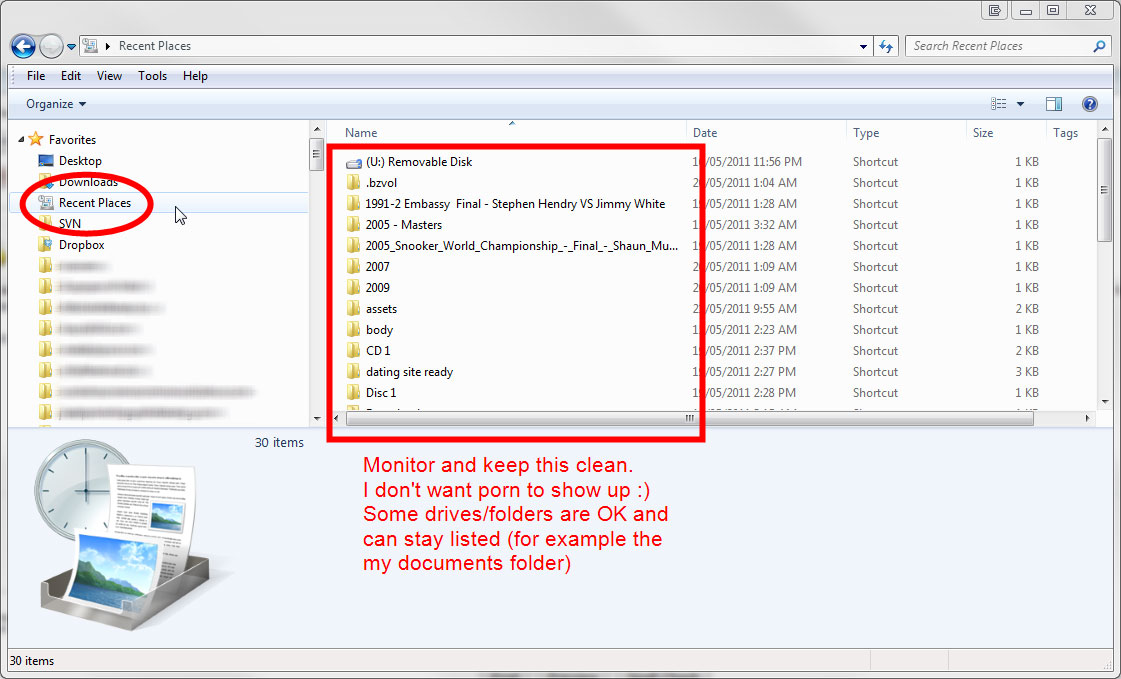
I'm running Windows 7 and like the "Recent places" link in my Windows Explorer.  HOWEVER, it's INCREDIBLY embarrassing when I'm in front of clients/friends because sometimes I have drives and folders list in Recent places that I don't want people to see.  Can you build a system tray utility that will monitor and sanitize my Recent places so that only specific drives or folders are shown there?

I'm running Windows 7 64 bit.

[attach]
« Last Edit: May 22, 2011, 10:59 AM by mayurdotca »

mayurdotca

  • Participant
  • Joined in 2011
  • *
  • Posts: 6
Re: IDEA: Keep some folders out of my "Recent places"
« Reply #1 on: May 22, 2011, 10:56 AM »
If the utility could have a whitelist or blacklist function, that would be cool.  Even if I have to use an ini file, that's OK too cause once it's set, it probably won't change.
« Last Edit: May 22, 2011, 10:59 AM by mayurdotca »

mayurdotca

  • Participant
  • Joined in 2011
  • *
  • Posts: 6
Re: IDEA: Keep some folders out of my "Recent places"
« Reply #2 on: May 22, 2011, 10:58 AM »
Recent places is located at C:\Users\<username>~1\AppData\Roaming\Microsoft\Windows\Recent

MilesAhead

  • Supporting Member
  • Joined in 2009
  • **
  • Posts: 7,736
    • Coding Snacks
Re: IDEA: Keep some folders out of my "Recent places"
« Reply #3 on: May 23, 2011, 07:46 AM »
My suggestion would be just turn off indexing. It's a big drain on resources for little gain.  Use Everything Search instead.

Instead of Recent Places have some shortcuts you use most often in the favorites.  Trying to control how Windows sticks stuff in it's mru lists is pretty much a lost cause.  About the only thing that works is turning it off altogether.

Anyway, I did about 15 minutes of searching and didn't find any utility that claims to do what you want.

Alternatively you might use this to temporarily hide favorites altogether:

http://www.door2windows.com/windows-7-navigation-pane-customizer-show-hide-rename-items-in-windows-explorer-navigation-pane/

I tried it on my W7 32 bit machine and it seemed to work fine.
Just bring it up and uncheck everything but Computer until the onlookers leave. :)
« Last Edit: May 23, 2011, 07:48 AM by MilesAhead »

Stoic Joker

  • Honorary Member
  • Joined in 2008
  • **
  • Posts: 6,652
    • Cody Award
    • Participated in NANY Challenge Five Times
Re: IDEA: Keep some folders out of my "Recent places"
« Reply #4 on: May 23, 2011, 12:25 PM »
Add the folders you want to hide to the recent places list.
Go to the folder you specified earlier.
Apply the Deny Read NTFS permission to the shortcut files that you don't want to have displayed.

Now the shell can't display them in the list because you're not allowed to (read) see them.

mayurdotca

  • Participant
  • Joined in 2011
  • *
  • Posts: 6
Re: IDEA: Keep some folders out of my "Recent places"
« Reply #5 on: May 23, 2011, 07:01 PM »
My suggestion would be just turn off indexing. It's a big drain on resources for little gain.  Use Everything Search instead.

Instead of Recent Places have some shortcuts you use most often in the favorites.  Trying to control how Windows sticks stuff in it's mru lists is pretty much a lost cause.  About the only thing that works is turning it off altogether.

Anyway, I did about 15 minutes of searching and didn't find any utility that claims to do what you want.

Alternatively you might use this to temporarily hide favorites altogether:

http://www.door2windows.com/windows-7-navigation-pane-customizer-show-hide-rename-items-in-windows-explorer-navigation-pane/

I tried it on my W7 32 bit machine and it seemed to work fine.
Just bring it up and uncheck everything but Computer until the onlookers leave. :)

Would turning off indexing stop the ability to search program files on the start menu?  I do use that feature.  Everything Search doesn't search file contents which is a sometimes useful feature.

I use favorites as well for recent projects I'm working on.  Recent places is a useful function as well, just not for some folders I don't want seen.

mayurdotca

  • Participant
  • Joined in 2011
  • *
  • Posts: 6
Re: IDEA: Keep some folders out of my "Recent places"
« Reply #6 on: May 23, 2011, 07:02 PM »
Add the folders you want to hide to the recent places list.
Go to the folder you specified earlier.
Apply the Deny Read NTFS permission to the shortcut files that you don't want to have displayed.

Now the shell can't display them in the list because you're not allowed to (read) see them.

I'm constantly looking at new folders.  Would I have to do this each time a new folder is used via Windows Explorer?  This doesn't seem like a great option but a good idea nonetheless. 

Stoic Joker

  • Honorary Member
  • Joined in 2008
  • **
  • Posts: 6,652
    • Cody Award
    • Participated in NANY Challenge Five Times
Re: IDEA: Keep some folders out of my "Recent places"
« Reply #7 on: May 23, 2011, 08:05 PM »
Would I have to do this each time a new folder is used via Windows Explorer?

Yes and no. Obviously the "Safe" stuff doesn't need fiddled with. But the folders that you want to hide would all need to be given the above treatment.

Assuming the stuff isn't scattered everywhere... :D ...There shouldn't be that many targets to hide.

Might I also suggest using slightly more discreet folder names... ;)

[Nuns Gone Wild Donkey Porn] - Bad Idea.

[Private Vid Files] - Good Idea.

Ya know.

mayurdotca

  • Participant
  • Joined in 2011
  • *
  • Posts: 6
Re: IDEA: Keep some folders out of my "Recent places"
« Reply #8 on: May 23, 2011, 08:37 PM »
Well after not being satisfied with these options, I ended up looking for a directory monitor that would run a VBS file on a regular basis. I found a great little utility from I ended up using: Directory Monitor from http://www.deventerprise.net/Projects.aspx. ; I have included a copy of my script for future reference. Perhaps someone will one day turn the vbs into a little executable. :)

My script will

1. Locate all shortcuts in your \AppData\Roaming\Microsoft\Windows\Recent folder
2. Delete all shortcuts that contain drive letters F through Z. 

If you want to customize this yourself to keep shortcuts for some folders, simply delete the areas in this script that contain drive letters you want to retain in your Recent Places or Recent Items. For example, if you want to keep shortcuts to drive H, then delete the following from the script.

CleanPath = "H:\"
If InStr(shortTarget, CleanPath) then
Set myFileToDelete = objFSO.GetFile(fullname)
myFileToDelete.Delete
End If


Code: (vb)
Dim objShell, objFSO, CleanPath, fileFolder
Dim userFolder, desktopFolder, custFolder, extension
Dim fullname, shortcut, shortTarget

Dim WshS
Set WshS = WScript.CreateObject("WScript.Shell")
Set fso = CreateObject("Scripting.FileSystemObject")

'Expand Environment
'Create const's to spare time and place
usrProfile = WshS.ExpandEnvironmentStrings("%UserProfile%")
Set objShell = CreateObject("WScript.Shell")
Set objFSO = CreateObject("Scripting.FileSystemObject")
Set searchFolder = objFSO.GetFolder(usrProfile & "\AppData\Roaming\Microsoft\Windows\Recent")
Set custFolder = searchFolder.Files

For Each custFile in custFolder
	extension = objFSO.GetExtensionName(LCase(custFile.name))
	If extension = "lnk" then
		'Find full path of target within shortcut
		fullname = objFSO.GetAbsolutePathName(custFile)
		'See http://www.devguru.com/Technologies/wsh/quickref/wshshell_CreateShortcut.html
		'for more information on how this works.
		Set shortcut = objShell.CreateShortcut(fullname)
		shortTarget = shortcut.TargetPath
		Dim myFileToDelete

		CleanPath = "F:\"
		If InStr(shortTarget, CleanPath) then
			Set myFileToDelete = objFSO.GetFile(fullname)
			myFileToDelete.Delete
		End If
		CleanPath = "G:\"
		If InStr(shortTarget, CleanPath) then
			Set myFileToDelete = objFSO.GetFile(fullname)
			myFileToDelete.Delete
		End If
		CleanPath = "H:\"
		If InStr(shortTarget, CleanPath) then
			Set myFileToDelete = objFSO.GetFile(fullname)
			myFileToDelete.Delete
		End If
		CleanPath = "I:\"
		If InStr(shortTarget, CleanPath) then
			Set myFileToDelete = objFSO.GetFile(fullname)
			myFileToDelete.Delete
		End If
		CleanPath = "J:\"
		If InStr(shortTarget, CleanPath) then
			Set myFileToDelete = objFSO.GetFile(fullname)
			myFileToDelete.Delete
		End If
		CleanPath = "K:\"
		If InStr(shortTarget, CleanPath) then
			Set myFileToDelete = objFSO.GetFile(fullname)
			myFileToDelete.Delete
		End If
		CleanPath = "L:\"
		If InStr(shortTarget, CleanPath) then
			Set myFileToDelete = objFSO.GetFile(fullname)
			myFileToDelete.Delete
		End If
		CleanPath = "M:\"
		If InStr(shortTarget, CleanPath) then
			Set myFileToDelete = objFSO.GetFile(fullname)
			myFileToDelete.Delete
		End If
		CleanPath = "N:\"
		If InStr(shortTarget, CleanPath) then
			Set myFileToDelete = objFSO.GetFile(fullname)
			myFileToDelete.Delete
		End If
		CleanPath = "O:\"
		If InStr(shortTarget, CleanPath) then
			Set myFileToDelete = objFSO.GetFile(fullname)
			myFileToDelete.Delete
		End If
		CleanPath = "P:\"
		If InStr(shortTarget, CleanPath) then
			Set myFileToDelete = objFSO.GetFile(fullname)
			myFileToDelete.Delete
		End If
		CleanPath = "Q:\"
		If InStr(shortTarget, CleanPath) then
			Set myFileToDelete = objFSO.GetFile(fullname)
			myFileToDelete.Delete
		End If
		CleanPath = "R:\"
		If InStr(shortTarget, CleanPath) then
			Set myFileToDelete = objFSO.GetFile(fullname)
			myFileToDelete.Delete
		End If
		CleanPath = "S:\"
		If InStr(shortTarget, CleanPath) then
			Set myFileToDelete = objFSO.GetFile(fullname)
			myFileToDelete.Delete
		End If
		CleanPath = "T:\"
		If InStr(shortTarget, CleanPath) then
			Set myFileToDelete = objFSO.GetFile(fullname)
			myFileToDelete.Delete
		End If
		CleanPath = "U:\"
		If InStr(shortTarget, CleanPath) then
			Set myFileToDelete = objFSO.GetFile(fullname)
			myFileToDelete.Delete
		End If
		CleanPath = "V:\"
		If InStr(shortTarget, CleanPath) then
			Set myFileToDelete = objFSO.GetFile(fullname)
			myFileToDelete.Delete
		End If
		CleanPath = "W:\"
		If InStr(shortTarget, CleanPath) then
			Set myFileToDelete = objFSO.GetFile(fullname)
			myFileToDelete.Delete
		End If
		CleanPath = "X:\"
		If InStr(shortTarget, CleanPath) then
			Set myFileToDelete = objFSO.GetFile(fullname)
			myFileToDelete.Delete
		End If
		CleanPath = "Y:\"
		If InStr(shortTarget, CleanPath) then
			Set myFileToDelete = objFSO.GetFile(fullname)
			myFileToDelete.Delete
		End If
		CleanPath = "Z:\"
		If InStr(shortTarget, CleanPath) then
			Set myFileToDelete = objFSO.GetFile(fullname)
			myFileToDelete.Delete
		End If
	End If
Next

How to implement my Recent Places hack described above:

1. Copy the above script into a folder on your computer (anywhere will do) as RecentPlacesSanitizer.vbs
2. Install Directory Monitor
3. Add your Recent Items folder as a folder you want to monitor (c:\users\YOUR USERNAME HERE\AppData\Roaming\Microsoft\Windows\Recent)
3. Specify to run the VB script you have copied above each time this folder changes

Original address: https://www.donationcoder.com/forum/index.php?topic=26826.0