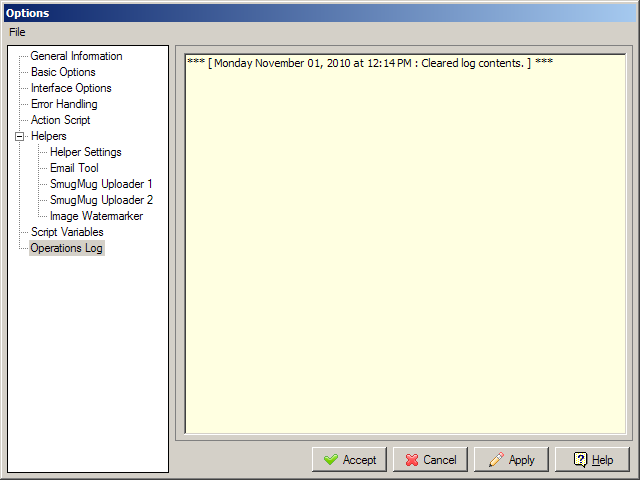
The Options dialog is divided into a series of pages. If you wish to switch between completely different configurations you can do so using the File menu on the Options dialog. You can also choose to cancel any changes you make by hitting the "Cancel" button.
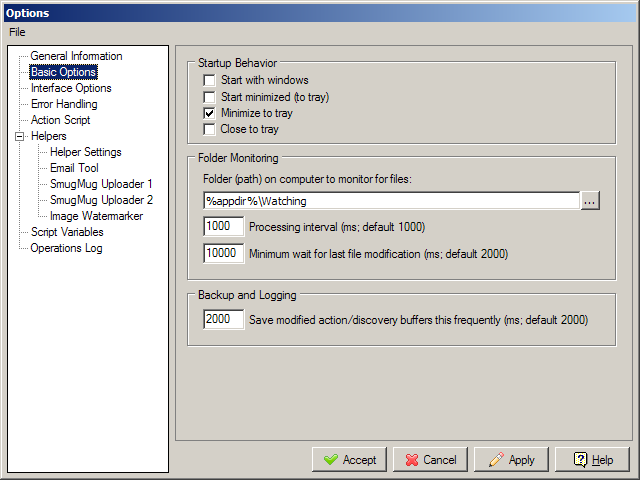
On the "Basic Options" page you configure some options about how the program starts up, and other basic options.
It is safe to leave most of these at their default values. You can decrease the delays to make the program process your files at maximum speed, or set them higher to slow down processing so that you can observe it more easily.
The one thing you will want to customize is the folder that is monitored for new files to be automatically added to the processing queue:
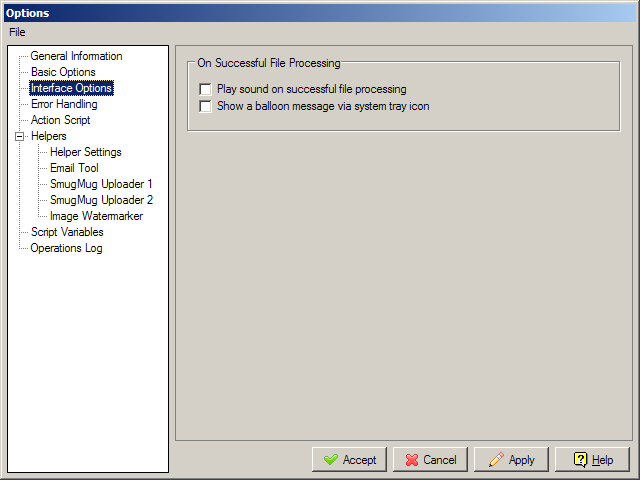
On the Interface Options tab you can control some basic user interface options of the program, including how to alert you about successfully processed files.
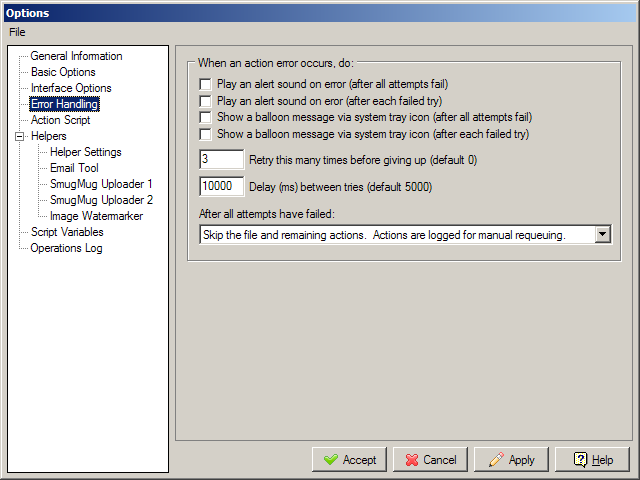
On the "Error Handling" tab you configure a wide variety of options concerning how the program should deal with failed actions. This is an important configuration tab because the options you specify should correspond to your workflow. If you want all processing to stop as soon as an error is encountered you can can figure that. If you are running processes that frequenly fail temporarily, you might configure multiple retries and a more lenient policy of temporarily skipping failed actions.
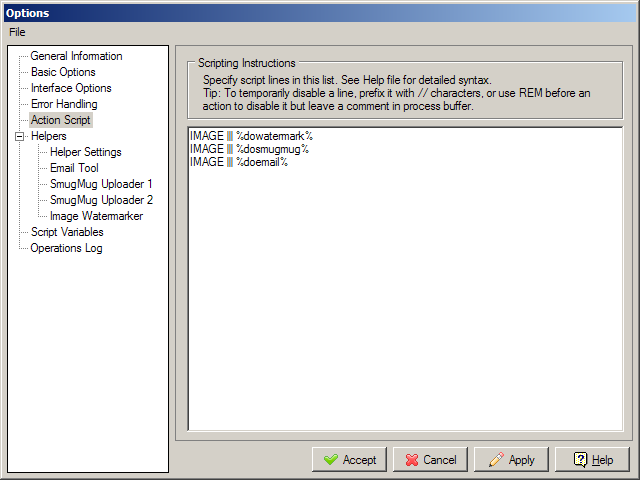
The "Action Script" tab is where you specify your custom script lines that are performed on files.
See the Action Scripts section of the help file for complete help on writing your Action Script lines.
In the Helpers section you will find a number of pages devoted to helping you more easily configure advanced options such as emailing files, uploading them to an online service, or performing common image manipulation functions. Note that the function of these tabs is only to help set variables that can be used in scripts -- they don't do anything else.
In most cases however, they provide a variable that will run the complete action, so for example to email an image you need only configure your options on the File Emailer helper tab, and then add the following line to your action script: IMAGE ||| %doemail%
You can see what the %doemail% variable will expand to on the Script Variables tab, and you can always create your own custom action scripts that use the variables configured in the options if the built in %doemail% (or %dosmugmug% or %dowatermark%, etc.) is not exactly what you want.
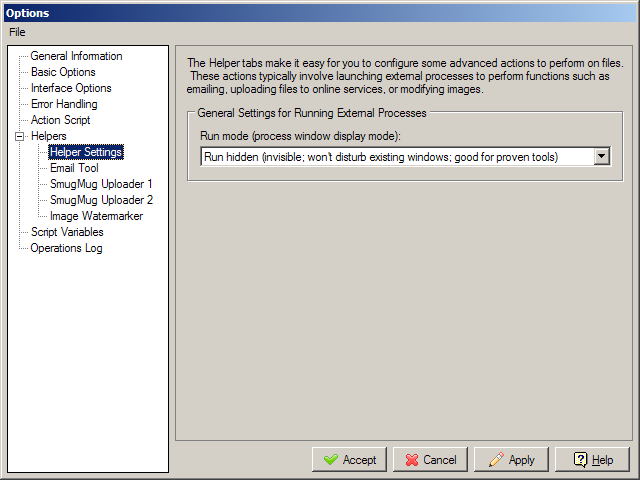
On the "Helper Settings" tab you can control the run mode of the helper tools. All of the helper action variables use the %run% variable to actually invoke external processes that perform advanced actions. This %run% variable comes from the Helper Settings tab, and will be one of (run, runmin, runhid, rem run); by using %run% in your own scripts you can easily toggle the kind of run command that is executed, which is useful for troubleshooting problems. When a process works reliably, you might set this to "Run hidden" so that it doesn't disturb your screen. Leave it as "Run in normal window" if you want to see the application window or if interaction is required. Set it to "Don't run" if you want to just see comments when a process would have been launched (good for testing new scripts).
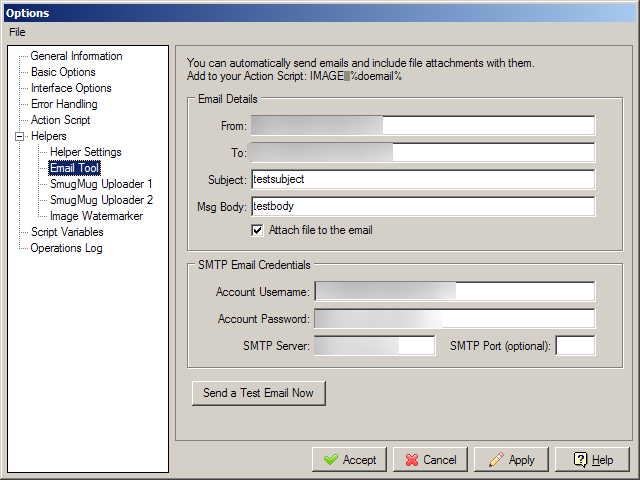
The "Emailer Tool" helper tab lets you configure information needed to send emails automatically. To send emails you need to have credentials for your SMTP server.
These settings are combined into a %doemail% variable that you can use in an action script merely by specifying: IMAGE ||| %doemail%
But advanced users could also specify an email command by referring to individual variables, for example with an action script line that said: IMAGE ||| %run% %emailexe% -f %emailfrom% -t %emailto% -u "%emailsubject%" -m "%emailbody%" -s %emailserver% -xu %emailusername% -xp "%emailpassword%" -a "%filepath%"
In this way you could specify multiple email commands in your script with different informations.
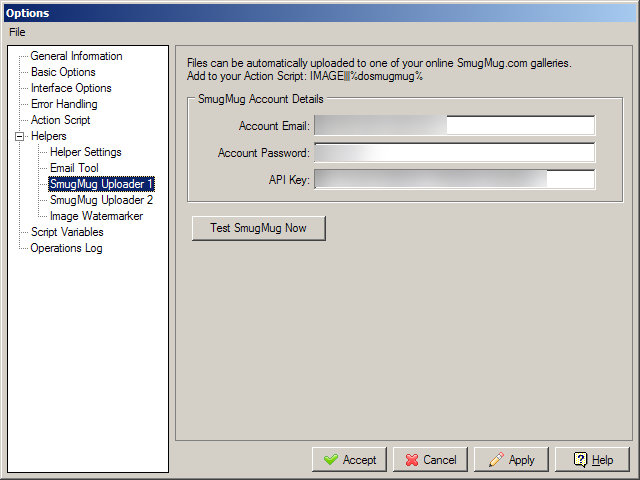
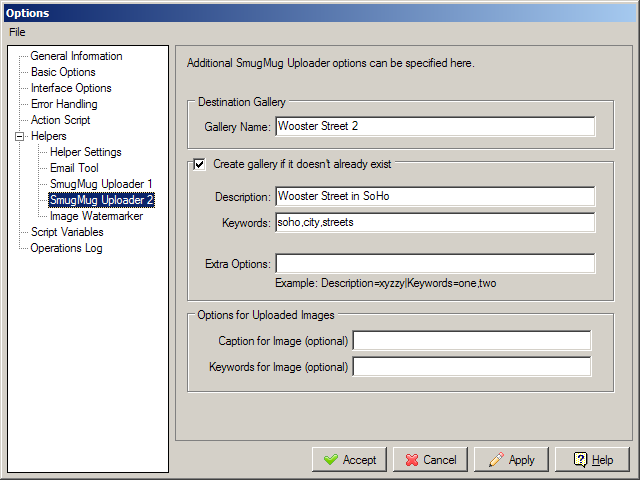
The "SmugMug Uploader" helper tabs let you specify how images should be uploaded to SmugMug; you need to specify your account email address and your password, as well as an API Key that you can request at the SmugMug site. You also need to specify the gallery name to upload the image to, and whether you want the program to create the gallery if it doesn't already exist.
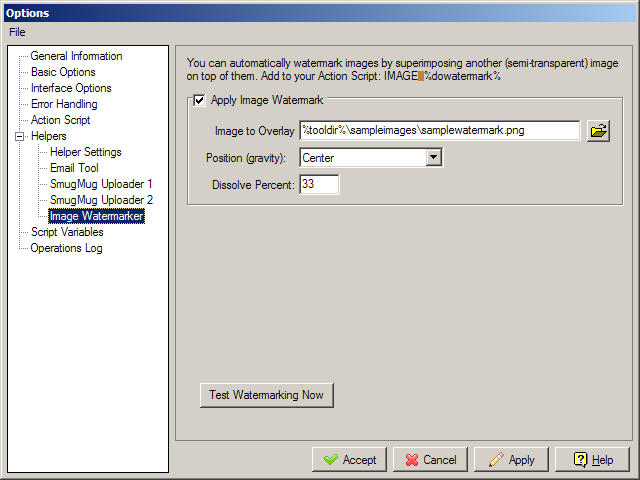
The "Image Watermarker" helper helps you configure a watermark (or superimposition) of one image on top of another. It currently uses the ImageMagick composite.exe commandline tool to perform this action.
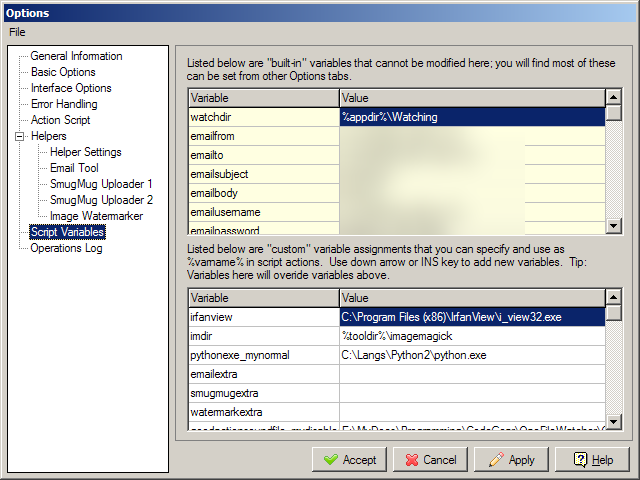
The "Script Variables" tab is where you can view built-in variables and add your own custom variable assignments. Built-in variables (some of which are configured on alternate options pages) are shown on the top and cannot be modified here. The lower list are custom variables that you have complete control over here. Setting custom variables is a very useful way of simplifying your scripts and reusing certain parameters and values. Use the down arrow or INS key to add new variables; clear values to remove them. When referring to variables from your script make sure to use the %varname% form, but do not specify the % when filling out the Variable table on this page. Note that most of the built-in variables are derived from other tabs in the options -- so you can modify these values by finding the appropriate option in the Options dialog. TIP: You may also override any built-in variable by providing your own custom value for it in the "custom" variable list.
The "Action Script" tab is where you specify the actual script to run on found files. The helper tools each set a variable that consists of the complete script line to run them. So by default you can use %dowatermark% to apply a watermark, %dosmugmug% to upload to smugmug, and %doemail% to send an email. But you have complete control over specifying advanced script lines that run arbitrary application processes, or do things like move, copy, delete, and rename files.
The last page of the options dialog contains the Operations Log, which logs any important program actions and is preserved between multiple runs of the program. You can right-click in the log to bring up a menu that will let you clear the log contents. The log file is saved in a file called OperationsLog.txt which is backed up to OperationsLog.txt.old if it gets too big. You can delete these files manually if they get too large.