The program is designed to operate without any interaction from the user. It will proceed to process any found files, logging any errors.
You can run it minimized to the system tray if you like, or view the different tabs in order to observe it as it works.
To bring up the Options dialog, choose it in the View menu. The Help menu let's you bring up this help file, enter a license key, check for updates, or visit the program homepage.
NOTE: In addition to watching for new files in the configured directory, you can manually drag and drop files into the "Discovered Files" window.
The most important control is the Checkbox at the very top of the window labeled "Process discovered files". When enabled, the program will actively "process" (run script commands) on new files detected in the watched directory (specified in Options), or on files that are manually dropped into the "Discovered Files" window. Toggle this checkbox to pause processing of files. Keep in mind that even when disabled, newly discovered files will be added to this list -- but no actions will be performed on them until you check the box.
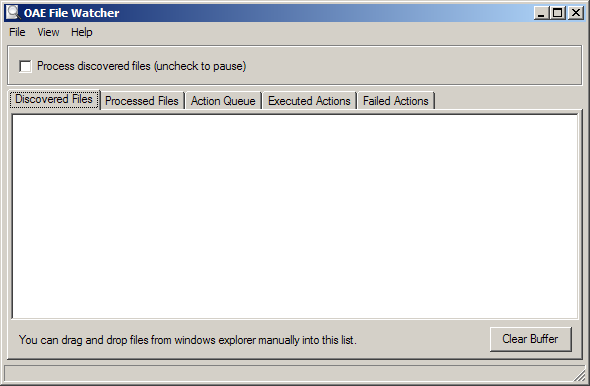
On the "Discovered Files" tab you will see a list of discovered (or dropped) files, waiting to be processed. You can right click here to clear the list.
The list will be preserved on exit and restored the next time you start the program, so you can continue processing files where you left off. As files are acted upon they are removed from the list.
The "Processed Files" tab shows a list of files that have been processed from the Discovered File queue; those that were skipped with errors will have a '-' prefix.
You can requeue failed (or all) files into the Discovered File list.
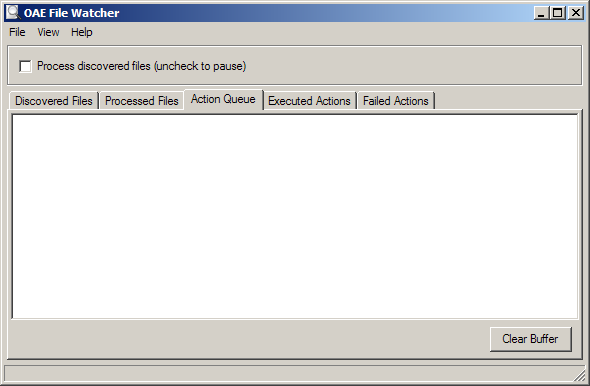
On the "Action Queue" tab you will see the pending list of actions for the file currently being processed (at the top of the Discovered File queue). These actions correspond to the Action Script lines from the Options Dialog, but only those that match tests specified there for the given file type.
You will also see some extra lines like "SET filepath=.." and separator lines "-----" that delineate groups of actions that are considered part of a group that will be marked as failing if any action in the group fails. The SET command helps the program keep track of what file was being processed if it needs to re-run a failed action later.
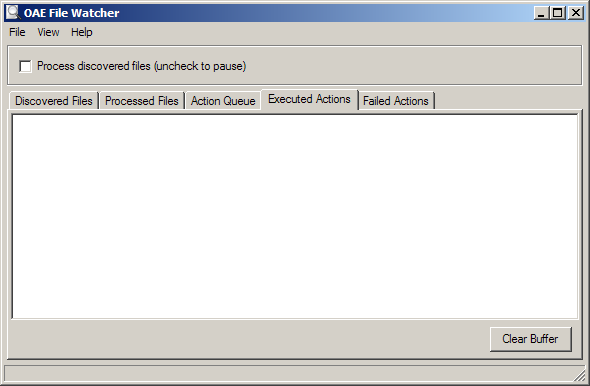
The "Executed Actions" tab is basically a temporary log where you can see what actions are being performed, and any output from launched external processes, including errors. It is not preserved across multiple runs of the program, as it is only a log to aid you in observing what is going on. However if a launched external process encounters an error, you might want to go to this tab to examine the complete output of the utility.
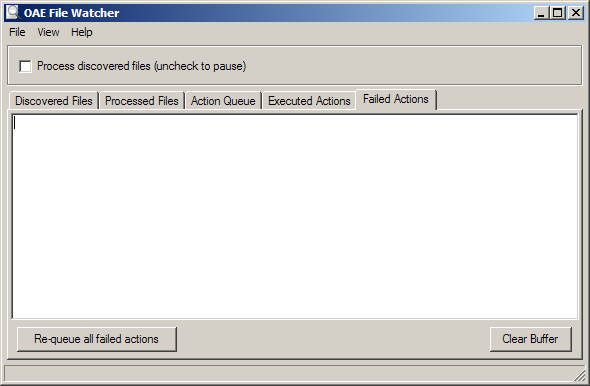
On the "Failed Actions" tab you will see groups of actions that have failed and should be re-queued to be run again in the future if the problem has been fixed. For example if you have a command that is attempting to email a screenshot, but your internet connection was down, the action will get put into this Failed Action list, where you can re-queue it at a later time (or later day, etc.) by pushing the "Re-queue all failed actions" button.
The "Failed Actions" list is preserved across multiple runs, and so even if the computer crashes you can restart the program later and re-queue any failed actions.
As with all of the tabs, you can right-click to clear the list.