Ctrl Deck V1.8 is now available — new Favorites, 14-day trial, 10 languages, and a more refined Windows workspace experienceHi everyone,
I'm back with a substantial update to Ctrl Deck, the Windows productivity application I've been developing under COMBOX.
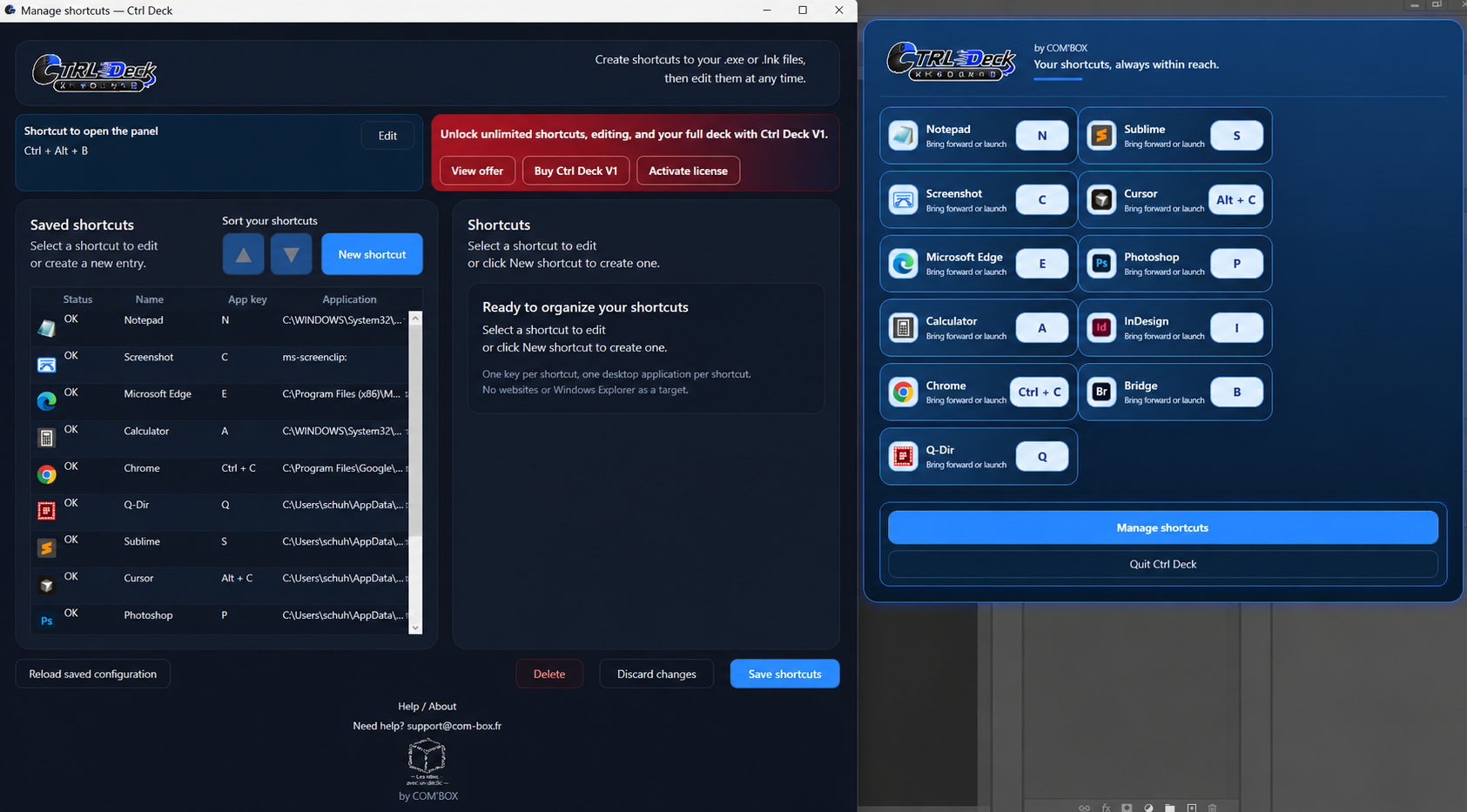
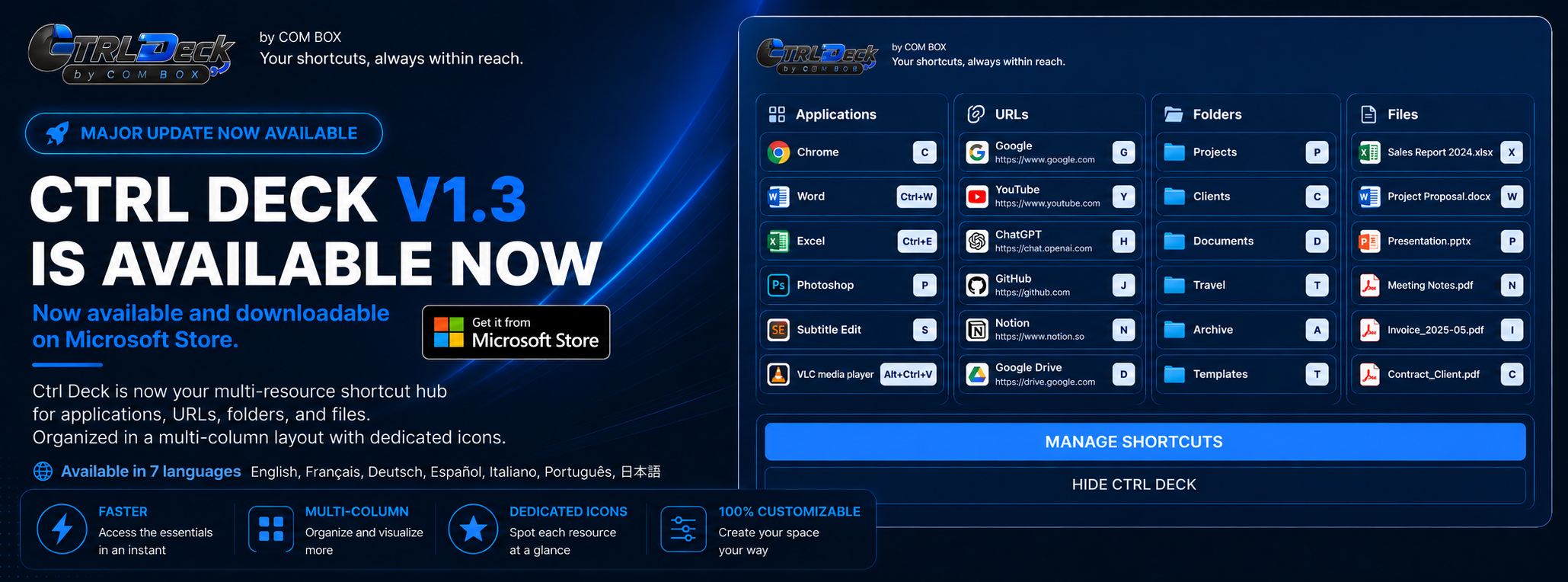
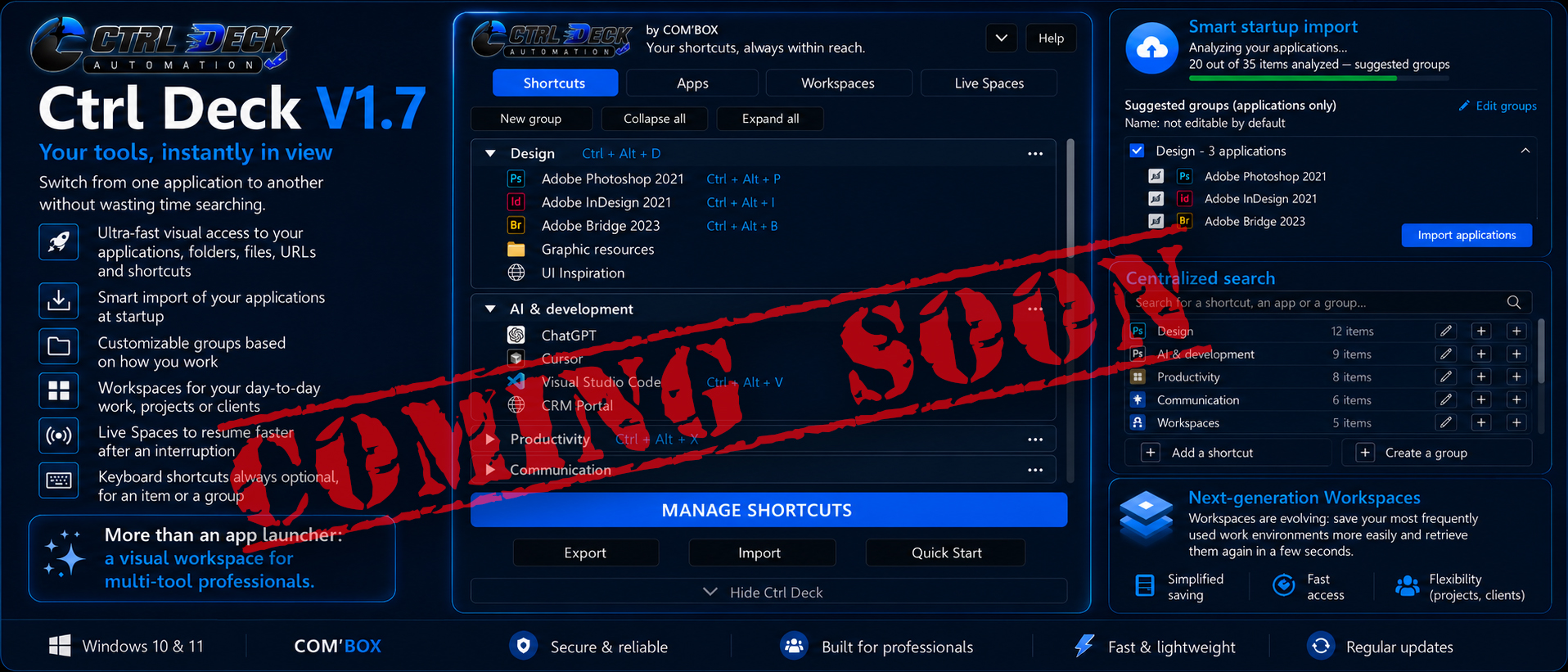
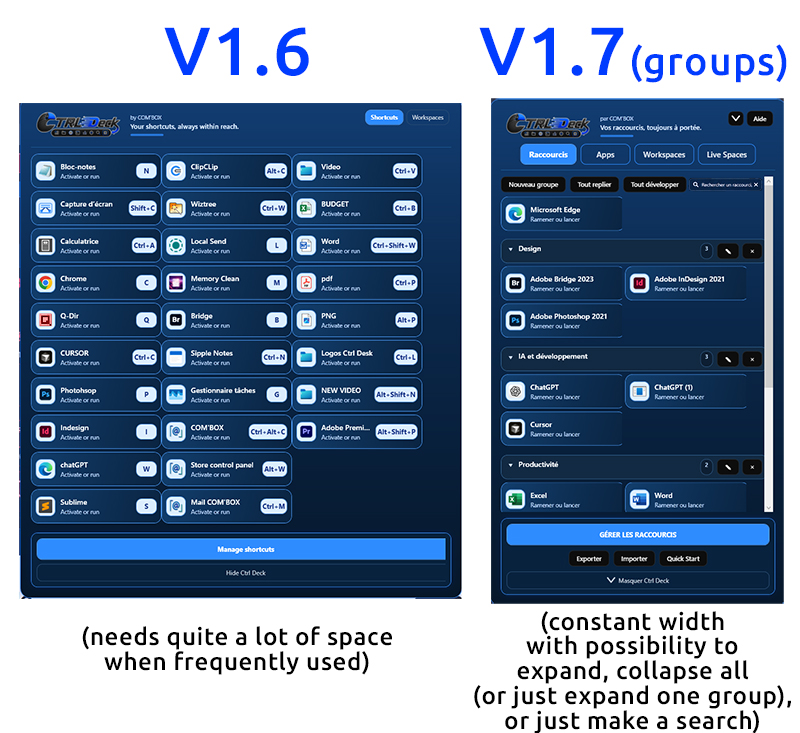
When I first introduced Ctrl Deck here in May, it was primarily a visual launcher for everyday resources. My June update introduced the much broader V1.7 direction: Groups, application discovery, Workspaces, Live Spaces, workspace capture, keyboard shortcuts and smarter window handling.
Today, Ctrl Deck V1.8 is officially available.This release builds on that foundation, making its more advanced features easier to discover, understand and use every day. I've also substantially improved the documentation, added three languages and doubled the full-feature trial period.
1. NEW FAVORITES — YOUR MOST IMPORTANT RESOURCES FIRSTFavorites are one of the main new features in V1.8.
You can now mark important Groups, Workspaces and individual applications inside your Groups as Favorites.
A simple star identifies them, and your favorite resources are brought together more prominently in the panel, with automatic alphabetical organization.
For example, you might have:
- A Development Workspace containing your editor, terminal, project folders and documentation.
- A Design Group containing your creative applications.
- Your most frequently used applications within different Groups.
- A Workspace dedicated to your daily administrative tasks.
You no longer need to navigate through the complete organization whenever you want to access your essentials.
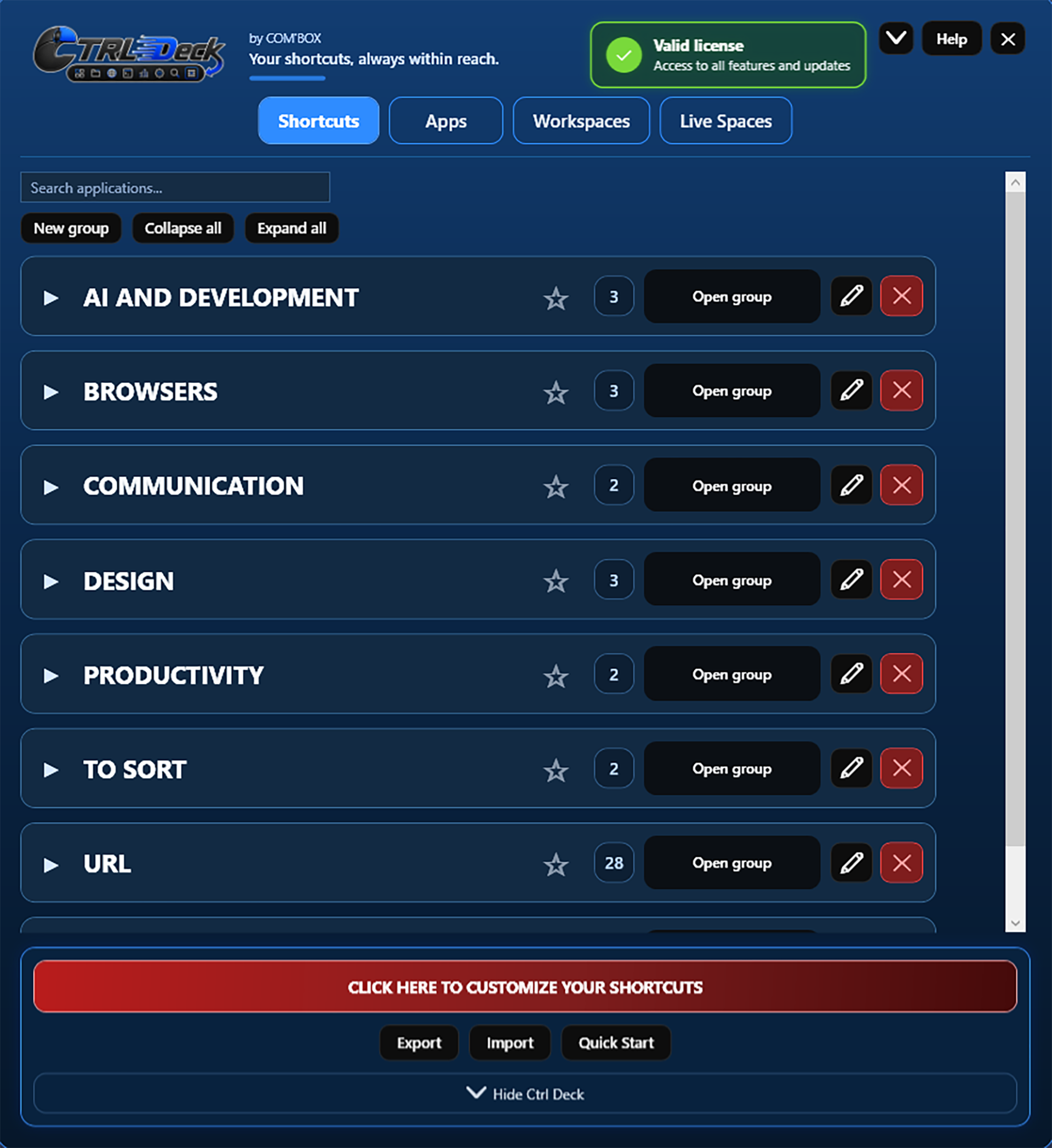
Screenshot 1 — Ctrl Deck V1.8 main panel with Favorites and license status 2. WORKSPACES — REUSABLE ENVIRONMENTS FOR DAILY WORK
Workspaces were introduced before V1.8, but they remain one of the capabilities I particularly want new users to discover.
A Workspace is a collection of applications and resources associated with an activity, project or routine.
For instance:
- A developer might combine an IDE, project folders, a browser and documentation.
- A designer might organize creative tools, asset folders and reference pages.
- An office worker might prepare a reporting environment with spreadsheets, documents and web applications.
- A freelancer might keep separate Workspaces for different clients.
You can build a Workspace manually, or capture compatible resources from an existing work environment and turn that configuration into a reusable Workspace.
The purpose isn't to replace Windows or provide full system-state virtualization. It's to reduce the repetitive work of finding and reopening the same resources.
V1.8 improves the accessibility, clarity and everyday usability of these features.
Screenshot 2 — Organizing applications and resources into Workspaces 3. LIVE SPACES — CONTINUITY WHEN YOUR WORK IS INTERRUPTED
Live Spaces complement Workspaces.
Imagine having several applications, folders and web resources open when you suddenly need to interrupt your work.
Instead of trying to remember everything afterward, you can capture a compatible working context and return to those resources more easily.
A Live Space can also serve as a starting point for creating a permanent Workspace.
To be clear, this does not recover unsaved document contents or guarantee restoration of every internal application state. It is a practical way to remember and reopen compatible resources.
For users who regularly switch between projects or work with many open windows, this can substantially reduce repetitive navigation.
4. BETTER KEYBOARD SHORTCUTS AND CONFLICT HANDLINGCtrl Deck offers two complementary ways of working.
You can use the visual panel to see and select your resources, or configure keyboard shortcuts and trigger actions without displaying the panel.
The shortcut system was already present in V1.7, but V1.8 improves the configuration experience, visibility of relevant options and feedback surrounding shortcut conflicts.
This matters because keyboard combinations are already widely used by Windows and individual applications.
Ctrl Deck helps identify overlapping combinations and allows users to manage shortcut behavior rather than blindly overriding familiar commands.
The objective is to give users flexibility without making everyday operations unpredictable.
Screenshot 4 — Shortcut configuration and conflict detection 5. MORE INTUITIVE APPLICATION DETECTION AND WINDOW MANAGEMENT
Ctrl Deck can help discover compatible applications installed on your Windows PC.
It also provides an Apps Library, resource search and a detection function for applications that need to be identified manually.
V1.8 introduces clearer feedback during application detection and refines the way users understand and manage detected resources.
Ctrl Deck can also recognize an application window that is already running and bring it to the foreground when appropriate, instead of unnecessarily launching another instance.
This is particularly helpful when moving between several open applications and working environments.
6. A CLEARER INTERFACE AND EASIER PERSONALIZATIONA major part of V1.8 has been about removing friction.
Some of Ctrl Deck's most useful functions were already available, but were not necessarily obvious to someone opening the software for the first time.
I've worked on:
- Making important settings easier to find.
- Clarifying contextual menus and their actions.
- Improving the visibility of Groups, Workspaces and personalization options.
- Making the main interface more understandable.
- Improving feedback during application detection.
- Simplifying access to license and trial information.
- Refining drag-and-drop and resource-management interactions.
The license status is now clearly visible and clickable from the main panel.
The previous Developer Actions feature has also been removed as part of the product's simplification.
7. TEN INTERFACE LANGUAGESCtrl Deck V1.8 is now available in ten languages:
English, French, German, Spanish, Italian, Portuguese, Simplified Chinese, Japanese, Korean and Hindi.
Japanese, Korean and Hindi are the three additions introduced with this version.
8. A MUCH MORE COMPLETE QUICK START GUIDEThis was another major area of work.
Ctrl Deck is deliberately designed to be approachable through its visual interface, but there are many capabilities behind that initial simplicity.
To make those capabilities easier to understand, the Quick Start documentation has been substantially expanded with annotated screenshots, explanations and short demonstrations.
It covers topics such as:
- First launch and initial application import.
- Selecting and organizing detected resources.
- Groups and Favorites.
- The Apps Library.
- Creating and managing Workspaces.
- Capturing working environments.
- Live Spaces.
- Drag-and-drop organization.
- Keyboard shortcuts and conflict handling.
The goal is to help people become productive without needing extensive technical knowledge or a lengthy manual.
Quick Start:
https://www.com-box.fr/en/ctrl-deck/#quick-start
9. FULL 14-DAY TRIAL — ALL FEATURES INCLUDEDThe full-feature trial has been extended from seven days to fourteen days.
During the trial, users can explore the complete application without purchasing a license or entering a credit card.
After the trial, the full version is available through a one-time license purchase.
No recurring subscription.10. PERFORMANCE, RELIABILITY AND GENERAL REFINEMENTSAlongside the visible changes, V1.8 includes additional work on interface responsiveness, everyday usability, stability, reliability and smaller fixes.
Not every improvement is immediately noticeable in a screenshot. A large part of this release is about making the complete experience more consistent and predictable.
A FEW PRACTICAL POINTSCtrl Deck is an installed Windows application, not a browser-based service.
- Windows 10 and Windows 11, 64-bit.
- Available through Microsoft Store.
- Also available as an official digitally signed Windows installer.
- No third-party bundles, adware or unwanted toolbars.
- A 14-day full-feature trial.
- One-time licensing rather than a subscription.
- Ten supported interface languages.
OFFICIAL LINKSCtrl Deck product page:
https://www.com-box.fr/en/ctrl-deck/
Official Microsoft Store listing:
https://apps.microsoft.com/detail/9N2RWL5GNVH9
Detailed Quick Start:
https://www.com-box.fr/en/ctrl-deck/#quick-start
Feedback:
https://www.com-box.fr/en/feedback/
I'D REALLY APPRECIATE YOUR FEEDBACKI originally opened this thread because I wanted to hear from people who enjoy practical Windows utilities, launchers and workflow tools. That is still the reason I'm posting here.
I'm particularly interested in your opinions on a few questions:
1. Do Favorites, Workspaces and Live Spaces seem like a useful combination, or would you organize them differently?
2. Would you prefer to use Ctrl Deck mainly through its visual panel, through keyboard shortcuts, or both?
3. When managing several projects or applications, which repetitive Windows actions frustrate you the most?
4. Is there anything missing that would make Ctrl Deck more useful in your own workflow?
Constructive criticism is just as welcome as positive feedback.
Thanks to everyone who has taken the time to read the previous updates. Ctrl Deck has evolved significantly since its first public release, and I'm continuing to refine it around practical, everyday Windows workflows.
Bruno
COMBOX — Developer of Ctrl Deck