




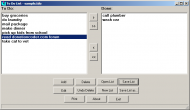
In honor of the great GTD experiment, I have done a little more work on my ToDoList program. I have added the ability to print lists and resize the window. I also made the list text larger so it will be easier to read.
I use this, myself, for tons of things from my grocery list, tasks that need to be done on projects, party planning, links that need to be checked for my ebook site, etc.
It's pretty basic, but it gets the job of making a list done, very quickly. It also makes recycling lists very easy.
Enjoy!
http://appsapps.info/todolist.php
I use this, myself, for tons of things from my grocery list, tasks that need to be done on projects, party planning, links that need to be checked for my ebook site, etc.
It's pretty basic, but it gets the job of making a list done, very quickly. It also makes recycling lists very easy.
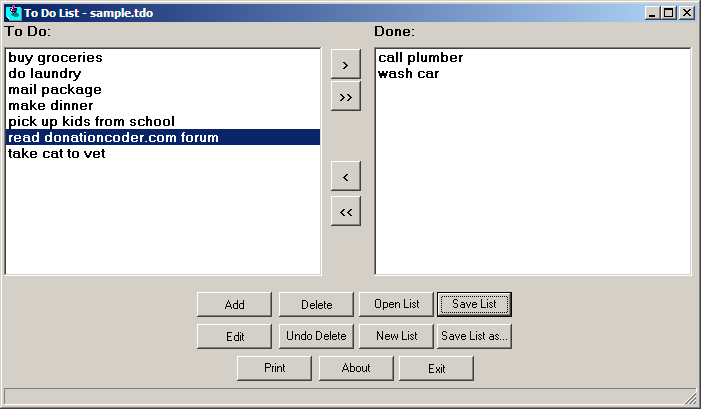
- To create a new list, click the New List button. (If you have an unsaved list loaded, you will be prompted to save it.)
- To add an item click the Add button and type in your text. Then click OK or hit your Enter key again. Click the Add button or hit your Enter key to add additional entries.
- To edit an item, just click the Edit button and change the text. Then click OK or hit your Enter key.
- To delete an item from the ToDo side, select it and click the Delete button. (Note: You can not delete entries from the Done side. The must be moved back to ToDo side in order to be deleted.)
- To undo a delete, click the Undo Delete button.
- To open an existing list, click the Open List button and navigate to the location of list file (filename.tdo).
- To save a list, click Save.
- To save an existing list with a new name or save a new list, click Save List as... (Note: Lists are saved in a pair of files; one having a .tdo extension (your todo list) and one having a .don extension (your done list). If you move one of these files to a new location, you must move them both. They must be kept together as a pair.)
- To print your ToDo list, click the Print button. (Note: You can only print the ToDo side. You can not print your Done side. If you want to print the Done side, you will have to open the .don file in notepad and print it from there.)
- To move an item from the ToDo side to the Done side, click the > button located in the center, between the 2 lists.
- To move all items from ToDo to Done, click the >> button located in the center, between the 2 lists.
- To move an item from Done back to ToDo, click the < button located in the center, between the 2 lists.
- To move all items from Done back to ToDo, click the << button located in the center, between the 2 lists.
Enjoy!
http://appsapps.info/todolist.php


