Do you think a Powershell Core implementation would make sense?
Yes, definitely ... but since I've only used Windows PowerShell up til now ...
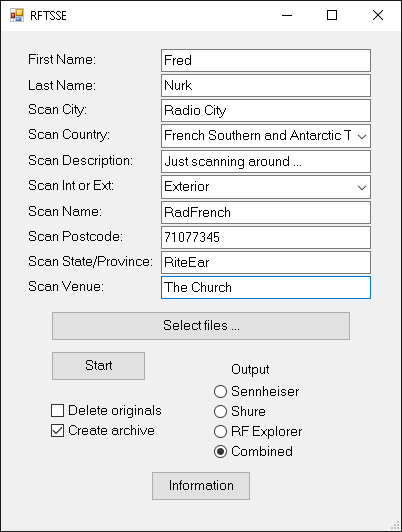
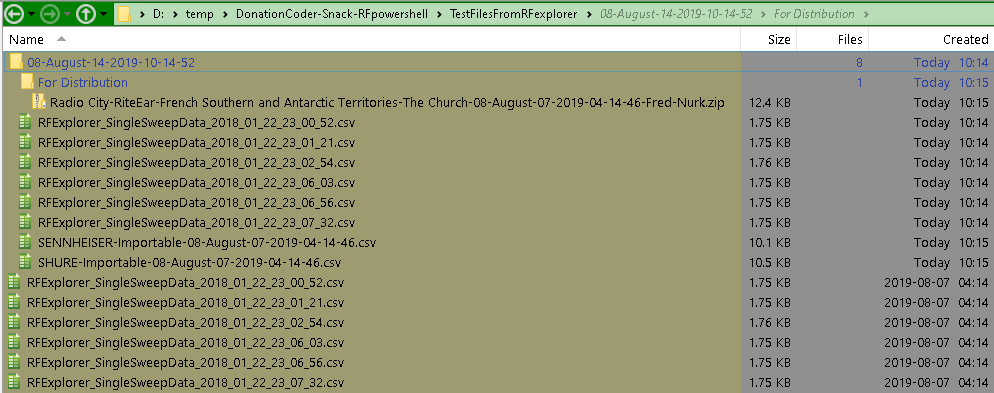
The below is functionally similar to the original PoSh script, the changes are:
- Put almost everything into Functions so they can be transplanted into other scripts.
- Added a WPF GUI (the implemented version is just something simple but more than doubles the size of the script) - it would benefit from having a ListBox that shows the selected files and a TextBox that shows the progress of the operation. I kept it simple so as to not invest too much time into something that might be replaced with either, for example, an Avalonia based interface or some other language/GUI, (eg. Python).
- Added the ability to convert between RF Explorer, Sennheiser, and Shure input CSVs. For example, select a Sennheiser file, select the Shure output option, hit Start.
- Options to either delete the original files and create a distribution archive.
NOTE: In my limited testing it worked fine but there are most likely bugs and
there is no error checking, (the original script didn't have any either).
Tested on: Windows 10 Pro x64, PowerShell 5.1.18362.145, .NET 4.8
Broken down into sections, you have:
- Global variables - there are three, two of them are defined later in the script by prefacing with $global:
- Functions - file request and working directory creation, conversions, archive creation
- GUI - everything else plus what happens when you click the buttons
RFExplorer.ps1
<# This form was created using POSHGUI.com  a free online gui designer for PowerShell
.NAME
    .\RFExplorer.ps1
#>

# Global variables
$initMessage = 'This script lets you browse to and select the pertinent .csv spectrum scan files that were output by your RF Explorer device, sort them by creation time, join them together and output 2 seperate files plus the original un-modified scan files into a newly created subdirectory named with the current date and time.

1. SHURE-importable
	Shure Wireless workbench accepts .csv files consisting of
	2 columns (no Headers) -> Frequency in MHz,Level in DBm
	(columns seperated by a comma)
		492.6,-103
		492.625,-96
		492.65,-102
2. SENNHEISER-Importable
	Sennheiser Wireless Systems Manager is more complicated. They expect a descriptive 2 column header then 3 columns of data -> Frequency in KHz;;Level in DB (columns seperated by a semi-colon)

		Receiver;01
		Date/Time;$lastwrittentime
		RFUnit;dB
		Owner;$FirstName $LastName
		ScanCity;$ScanCity
		ScanComment;
		ScanCountry;$ScanCountry
		ScanDescription;$ScanDescription
		ScanInteriorExterior;$ScanInteriorORExterior
		ScanLatitude;
		ScanLongitude;
		ScanName;$ScanName
		ScanPostalCode;$ScanPostalCode

		Frequency Range [kHz];$FreqRangeL;$FreqRangeH;$FreqSpan
		Frequency;RF level (%);RF level
		492600;;4
		492625;;11
		492650;;5

The $variables in the Sennheiser header get pulled from the info you enter into an initial popup dialog so you can archive AND/OR upload a zip file of the original RF Explorer scan chunks along with the 2 formatted files and a descriptive text file to an online database of venue scans from around the world    http://www.bestaudio.com/spectrum-scans/
I am using Nuts AboutNets Touchstone Pro Software $49US   http://nutsaboutnets.com/touchstone/    to interact with the RF Explorer for setting scan parameters and actually running the scans. The native software that comes with RF explorer can do everything but I found it time consuming to break the spectrum down into smaller chunks to increase resolution'

Function Get-Files {
  # Show an Open File Dialog and return the files selected by the user.
  $FileBrowser = New-Object System.Windows.Forms.OpenFileDialog -Property @{
    InitialDirectory = $scanDirectory
#    InitialDirectory = [Environment]::GetFolderPath('MyDocuments')
    Filter = 'RF Explorer Files|*.csv|All Files|*.*'
    MultiSelect = $true
  }

  $null = $FileBrowser.ShowDialog()

  if ($FileBrowser.FileNames.Count -eq 0) {
    return
  } else {
    $RFexplorerDataDirectory = Split-Path $FileBrowser.FileNames[0] -Parent
    $global:lastwrittentime = (Get-ItemProperty -Path $FileBrowser.FileNames[0]).LastWriteTime.tostring("MM-MMMM-dd-yyyy-hh-mm-ss")
  }

  $currentdatetime = Get-Date -f ("MM-MMMM-dd-yyyy-hh-mm-ss")
  $destDir = "$($RFexplorerDataDirectory)\$($currentdatetime)"
  New-Item -ItemType Directory "$($destDir)" | Out-Null

  # Copy/Move selected files to Destination directory
  for ($i = 0; $i -lt $FileBrowser.FileNames.Count; $i++) {
  # Clear out non-CSV files from destination directory
    if ($CheckBox1.CheckState) {
      Move-Item $FileBrowser.FileNames[$i] -dest "$destDir"
    } else {
      Copy-Item $FileBrowser.FileNames[$i] -dest "$destDir"
    }
  }
  return $destDir
}

Function Senn-RFE {
  param (
    [double]$n1,
    [double]$n2
  )
  if ($n1 -gt 1000) {
    $n1 /= 1000
    $n2 -= 107
  }
  return "$($n1);$($n2)"
}

Function ConvertTo-RFE {
  param (
    [string]$file
  )
  Get-Content $file | `
    Where-Object {$_ -match '^\d+.+'} | `
    Foreach-Object {$_ -replace ";;" , ";"} | `
    Foreach-Object {$_ -replace "," , ";"} | `
    ForEach-Object {$fields = $_.Split(";") ;
      Out-File -FilePath "intermediate.tmp" -InputObject (Senn-RFE $fields[0] $fields[1]) -Append -Encoding utf8}
}

Function ConvertTo-Shure {
  param (
    [string]$file
  )
  (Get-Content $file) | `
    Foreach-Object {$_ -replace " -" , "-"} | `
    Foreach-Object {$_ -replace ";" , ","} | `
    Set-Content -Path "SHURE-Importable-$($lastwrittentime).csv"
}


Function ConvertTo-Sennheiser {
  param (
    [string]$file
  )
  # Create a new array to temporarily house the dBm to dB conversion data that comes later
  $BeingModified = New-Object System.Collections.ArrayList

  (Get-Content $file) | `
#    Foreach-Object {$_ -replace "(\d{3})\.(\d{2})" , '$1$2'} |
#    Foreach-Object {$_ -replace "(-\d{3})(\d{2})" , '$1.$2'} |
    Foreach-Object {$_ -replace ";" , ";;"} | `
    Foreach-Object {$_ -replace "," , ";;"} | `
# Change the RF Level data from dBm to Sennheisers' dB by adding 107
    Foreach-Object {$_
      $fields = $_.Split(";")
      $freq = [double]$fields[0]*1000
      #$blank = $fields[1]
      $dBm = [double]$fields[2]
      [double]$dB = $dBm + 107
      # Create array with the new values to use later to replace things in the new output file
      [void]$BeingModified.Add("$freq;;$dB")
    }

  $BeingModified | Set-Content $file
  $wwbbasefile = "$($destDirectory)\$($file)"

  # Get FreqRange and Span Data into variables

  $FreqRangeL = Get-Content $wwbbasefile | Select -First 1
  $FreqRangeH = Get-Content $wwbbasefile | Select -Last 1
  $FreqRange_ = Get-Content $wwbbasefile | Select -Last 2

  # parse the CSV data back into separate variables, one for each column

  $dataArrayL = $FreqRangeL.Split(";")
  $FreqRangeL = $dataArrayL[0]

  $dataArrayH = $FreqRangeH.Split(";")
  $FreqRangeH = $dataArrayH[0]

  $dataArray_ = $FreqRange_.Split(";")
  $FreqRange_ = $dataArray_[0]

  # Calculate the frequency span
  $FreqSpan = $FreqRangeH - $FreqRange_

  # Define the Header required for Sennheiser Wireless Systems Manager to be able to read the .csv file

  $sennheader=
@"
Receiver;01
Date/Time;$lastwrittentime
RFUnit;dB
Owner;$($TextBox1.Text) $($TextBox2.Text)
ScanCity;$($TextBox3.Text)
ScanComment;
ScanCountry;$($ComboBox1.Text)
ScanDescription;$($TextBox4.Text)
ScanInteriorExterior;$($ComboBox2.Text)
ScanLatitude;
ScanLongitude;
ScanName;$($TextBox5.Text)
ScanPostalCode;$($TextBox6.Text)
Frequency Range [kHz];$FreqRangeL;$FreqRangeH;$FreqSpan
Frequency;RF level (%);RF level
"@


  # Insert the header text into  a text file
  $sennheader | Set-Content sennheader.txt

  # Join the header file and .csv data into final output file
  Get-Content sennheader.txt, $wwbbasefile | Set-Content "SENNHEISER-Importable-$($lastwrittentime).csv"
}

Function Create-Distribution {
  # Create a directory to store the zipped results for upload to Pet Erskines database
  New-Item -ItemType Directory "$destDirectory\For Distribution" | Out-Null
  $zipName = "$($destDirectory)\For Distribution\$($TextBox3.Text)-$($TextBox7.Text)-$($ComboBox1.Text)-$($TextBox8.Text)-$($lastwrittentime)-$($TextBox1.Text)-$($TextBox2.Text).zip"
  Compress-Archive -Path "$($destDirectory)\*.csv" -DestinationPath "$($zipName)"
}

Add-Type -AssemblyName Microsoft.VisualBasic
Add-Type -AssemblyName System.Windows.Forms
[System.Windows.Forms.Application]::EnableVisualStyles()

$Form                            = New-Object system.Windows.Forms.Form
$Form.ClientSize                 = '400,500'
$Form.text                       = "RFTSSE"
$Form.TopMost                    = $false

$Label1                          = New-Object system.Windows.Forms.Label
$Label1.text                     = "First Name:"
$Label1.AutoSize                 = $true
$Label1.width                    = 25
$Label1.height                   = 10
$Label1.location                 = New-Object System.Drawing.Point(25,20)
$Label1.Font                     = 'Microsoft Sans Serif,10'

$TextBox1                        = New-Object system.Windows.Forms.TextBox
$TextBox1.multiline              = $false
$TextBox1.width                  = 210
$TextBox1.height                 = 20
$TextBox1.location               = New-Object System.Drawing.Point(160,18)
$TextBox1.Font                   = 'Microsoft Sans Serif,10'

$Label2                          = New-Object system.Windows.Forms.Label
$Label2.text                     = "Last Name:"
$Label2.AutoSize                 = $true
$Label2.width                    = 25
$Label2.height                   = 10
$Label2.location                 = New-Object System.Drawing.Point(25,46)
$Label2.Font                     = 'Microsoft Sans Serif,10'

$TextBox2                        = New-Object system.Windows.Forms.TextBox
$TextBox2.multiline              = $false
$TextBox2.width                  = 210
$TextBox2.height                 = 20
$TextBox2.location               = New-Object System.Drawing.Point(160,43)
$TextBox2.Font                   = 'Microsoft Sans Serif,10'

$Label3                          = New-Object system.Windows.Forms.Label
$Label3.text                     = "Scan City:"
$Label3.AutoSize                 = $true
$Label3.width                    = 25
$Label3.height                   = 10
$Label3.location                 = New-Object System.Drawing.Point(25,70)
$Label3.Font                     = 'Microsoft Sans Serif,10'

$TextBox3                        = New-Object system.Windows.Forms.TextBox
$TextBox3.multiline              = $false
$TextBox3.width                  = 210
$TextBox3.height                 = 20
$TextBox3.location               = New-Object System.Drawing.Point(160,68)
$TextBox3.Font                   = 'Microsoft Sans Serif,10'

$Label4                          = New-Object system.Windows.Forms.Label
$Label4.text                     = "Scan Country:"
$Label4.AutoSize                 = $true
$Label4.width                    = 25
$Label4.height                   = 10
$Label4.location                 = New-Object System.Drawing.Point(25,95)
$Label4.Font                     = 'Microsoft Sans Serif,10'

$ComboBox1                       = New-Object system.Windows.Forms.ComboBox
$ComboBox1.width                 = 210
$ComboBox1.height                = 20
@("Afghanistan","Albania","Algeria","American Samoa","Andorra","Angola","Anguilla","Antarctica","Antigua and Barbuda","Argentina","Armenia","Aruba","Australia","Austria","Azerbaijan","Bahamas","Bahrain","Bangladesh","Barbados","Belarus","Belgium","Belize","Benin","Bermuda","Bhutan","Bolivia","Bosnia and Herzegovina","Botswana","Bouvet Island","Brazil","British Antarctic Territory","British Indian Ocean Territory","British Virgin Islands","Brunei","Bulgaria","Burkina Faso","Burundi","Cambodia","Cameroon","Canada","Canton and Enderbury Islands","Cape Verde","Cayman Islands","Central African Republic","Chad","Chile","China","Christmas Island","Cocos [Keeling] Islands","Colombia","Comoros","Congo - Brazzaville","Congo - Kinshasa","Cook Islands","Costa Rica","Croatia","Cuba","Cyprus","Czech Republic","Côte d’Ivoire","Denmark","Djibouti","Dominica","Dominican Republic","Dronning Maud Land","East Germany","Ecuador","Egypt","El Salvador","Equatorial Guinea","Eritrea","Estonia","Ethiopia","Falkland Islands","Faroe Islands","Fiji","Finland","France","French Guiana","French Polynesia","French Southern Territories","French Southern and Antarctic Territories","Gabon","Gambia","Georgia","Germany","Ghana","Gibraltar","Greece","Greenland","Grenada","Guadeloupe","Guam","Guatemala","Guernsey","Guinea","Guinea-Bissau","Guyana","Haiti","Heard Island and McDonald Islands","Honduras","Hong Kong SAR China","Hungary","Iceland","India","Indonesia","Iran","Iraq","Ireland","Isle of Man","Israel","Italy","Jamaica","Japan","Jersey","Johnston Island","Jordan","Kazakhstan","Kenya","Kiribati","Kuwait","Kyrgyzstan","Laos","Latvia","Lebanon","Lesotho","Liberia","Libya","Liechtenstein","Lithuania","Luxembourg","Macau SAR China","Macedonia","Madagascar","Malawi","Malaysia","Maldives","Mali","Malta","Marshall Islands","Martinique","Mauritania","Mauritius","Mayotte","Metropolitan France","Mexico","Micronesia","Midway Islands","Moldova","Monaco","Mongolia","Montenegro","Montserrat","Morocco","Mozambique","Myanmar [Burma]","Namibia","Nauru","Nepal","Netherlands","Netherlands Antilles","Neutral Zone","New Caledonia","New Zealand","Nicaragua","Niger","Nigeria","Niue","Norfolk Island","North Korea","North Vietnam","Northern Mariana Islands","Norway","Oman","Pacific Islands Trust Territory","Pakistan","Palau","Palestinian Territories","Panama","Panama Canal Zone","Papua New Guinea","Paraguay","People's Democratic Republic of Yemen","Peru","Philippines","Pitcairn Islands","Poland","Portugal","Puerto Rico","Qatar","Romania","Russia","Rwanda","Réunion","Saint Barthélemy","Saint Helena","Saint Kitts and Nevis","Saint Lucia","Saint Martin","Saint Pierre and Miquelon","Saint Vincent and the Grenadines","Samoa","San Marino","Saudi Arabia","Senegal","Serbia","Serbia and Montenegro","Seychelles","Sierra Leone","Singapore","Slovakia","Slovenia","Solomon Islands","Somalia","South Africa","South Georgia and the South Sandwich Islands","South Korea","Spain","Sri Lanka","Sudan","Suriname","Svalbard and Jan Mayen","Swaziland","Sweden","Switzerland","Syria","São Tomé and Príncipe","Taiwan","Tajikistan","Tanzania","Thailand","Timor-Leste","Togo","Tokelau","Tonga","Trinidad and Tobago","Tunisia","Turkey","Turkmenistan","Turks and Caicos Islands","Tuvalu","U.S. Minor Outlying Islands","U.S. Miscellaneous Pacific Islands","U.S. Virgin Islands","Uganda","Ukraine","Union of Soviet Socialist Republics","United Arab Emirates","United Kingdom","United States","Unknown or Invalid Region","Uruguay","Uzbekistan","Vanuatu","Vatican City","Venezuela","Vietnam","Wake Island","Wallis and Futuna","Western Sahara","Yemen","Zambia","Zimbabwe","Åland Islands") | ForEach-Object {[void] $ComboBox1.Items.Add($_)}
$ComboBox1.location              = New-Object System.Drawing.Point(160,93)
$ComboBox1.Font                  = 'Microsoft Sans Serif,10'

$Label5                          = New-Object system.Windows.Forms.Label
$Label5.text                     = "Scan Description:"
$Label5.AutoSize                 = $true
$Label5.width                    = 25
$Label5.height                   = 10
$Label5.location                 = New-Object System.Drawing.Point(25,121)
$Label5.Font                     = 'Microsoft Sans Serif,10'

$TextBox4                        = New-Object system.Windows.Forms.TextBox
$TextBox4.multiline              = $false
$TextBox4.width                  = 210
$TextBox4.height                 = 20
$TextBox4.location               = New-Object System.Drawing.Point(160,119)
$TextBox4.Font                   = 'Microsoft Sans Serif,10'

$Label6                          = New-Object system.Windows.Forms.Label
$Label6.text                     = "Scan Int or Ext:"
$Label6.AutoSize                 = $true
$Label6.width                    = 25
$Label6.height                   = 10
$Label6.location                 = New-Object System.Drawing.Point(25,146)
$Label6.Font                     = 'Microsoft Sans Serif,10'

$ComboBox2                       = New-Object system.Windows.Forms.ComboBox
$ComboBox2.width                 = 210
$ComboBox2.height                = 20
@('Interior','Exterior') | ForEach-Object {[void] $ComboBox2.Items.Add($_)}
$ComboBox2.location              = New-Object System.Drawing.Point(160,144)
$ComboBox2.Font                  = 'Microsoft Sans Serif,10'

$Label7                          = New-Object system.Windows.Forms.Label
$Label7.text                     = "Scan Name:"
$Label7.AutoSize                 = $true
$Label7.width                    = 25
$Label7.height                   = 10
$Label7.location                 = New-Object System.Drawing.Point(25,172)
$Label7.Font                     = 'Microsoft Sans Serif,10'

$TextBox5                        = New-Object system.Windows.Forms.TextBox
$TextBox5.multiline              = $false
$TextBox5.width                  = 210
$TextBox5.height                 = 20
$TextBox5.location               = New-Object System.Drawing.Point(160,170)
$TextBox5.Font                   = 'Microsoft Sans Serif,10'

$Label8                          = New-Object system.Windows.Forms.Label
$Label8.text                     = "Scan Postcode:"
$Label8.AutoSize                 = $true
$Label8.width                    = 25
$Label8.height                   = 10
$Label8.location                 = New-Object System.Drawing.Point(25,197)
$Label8.Font                     = 'Microsoft Sans Serif,10'

$TextBox6                        = New-Object system.Windows.Forms.TextBox
$TextBox6.multiline              = $false
$TextBox6.width                  = 210
$TextBox6.height                 = 20
$TextBox6.location               = New-Object System.Drawing.Point(160,195)
$TextBox6.Font                   = 'Microsoft Sans Serif,10'

$Label9                          = New-Object system.Windows.Forms.Label
$Label9.text                     = "Scan State/Province:"
$Label9.AutoSize                 = $true
$Label9.width                    = 25
$Label9.height                   = 10
$Label9.location                 = New-Object System.Drawing.Point(25,222)
$Label9.Font                     = 'Microsoft Sans Serif,10'

$TextBox7                        = New-Object system.Windows.Forms.TextBox
$TextBox7.multiline              = $false
$TextBox7.width                  = 210
$TextBox7.height                 = 20
$TextBox7.location               = New-Object System.Drawing.Point(160,220)
$TextBox7.Font                   = 'Microsoft Sans Serif,10'

$Label10                         = New-Object system.Windows.Forms.Label
$Label10.text                    = "Scan Venue:"
$Label10.AutoSize                = $true
$Label10.width                   = 25
$Label10.height                  = 10
$Label10.location                = New-Object System.Drawing.Point(25,247)
$Label10.Font                    = 'Microsoft Sans Serif,10'

$TextBox8                        = New-Object system.Windows.Forms.TextBox
$TextBox8.multiline              = $false
$TextBox8.width                  = 210
$TextBox8.height                 = 20
$TextBox8.location               = New-Object System.Drawing.Point(160,245)
$TextBox8.Font                   = 'Microsoft Sans Serif,10'

$Button1                         = New-Object system.Windows.Forms.Button
$Button1.text                    = "Select files ..."
$Button1.width                   = 300
$Button1.height                  = 30
$Button1.location                = New-Object System.Drawing.Point(50,280)
$Button1.Font                    = 'Microsoft Sans Serif,10'

$Button2                         = New-Object system.Windows.Forms.Button
$Button2.text                    = "Start"
$Button2.width                   = 95
$Button2.height                  = 30
$Button2.location                = New-Object System.Drawing.Point(50,320)
$Button2.Font                    = 'Microsoft Sans Serif,10'

$Label11                         = New-Object system.Windows.Forms.Label
$Label11.text                    = "Output"
$Label11.AutoSize                = $true
$Label11.width                   = 25
$Label11.height                  = 10
$Label11.location                = New-Object System.Drawing.Point(228,330)
$Label11.Font                    = 'Microsoft Sans Serif,10'

$RadioButton1                    = New-Object system.Windows.Forms.RadioButton
$RadioButton1.text               = "Sennheiser"
$RadioButton1.AutoSize           = $true
$RadioButton1.width              = 104
$RadioButton1.height             = 20
$RadioButton1.location           = New-Object System.Drawing.Point(213,350)
$RadioButton1.Font               = 'Microsoft Sans Serif,10'

$RadioButton2                    = New-Object system.Windows.Forms.RadioButton
$RadioButton2.text               = "Shure"
$RadioButton2.AutoSize           = $true
$RadioButton2.width              = 104
$RadioButton2.height             = 20
$RadioButton2.location           = New-Object System.Drawing.Point(213,370)
$RadioButton2.Font               = 'Microsoft Sans Serif,10'

$RadioButton3                    = New-Object system.Windows.Forms.RadioButton
$RadioButton3.text               = "RF Explorer"
$RadioButton3.AutoSize           = $true
$RadioButton3.width              = 104
$RadioButton3.height             = 20
$RadioButton3.location           = New-Object System.Drawing.Point(213,390)
$RadioButton3.Font               = 'Microsoft Sans Serif,10'

$RadioButton4                    = New-Object system.Windows.Forms.RadioButton
$RadioButton4.text               = "Combined"
$RadioButton4.AutoSize           = $true
$RadioButton4.width              = 104
$RadioButton4.height             = 20
$RadioButton4.Checked            = $true
$RadioButton4.location           = New-Object System.Drawing.Point(213,410)
$RadioButton4.Font               = 'Microsoft Sans Serif,10'

$CheckBox1                       = New-Object system.Windows.Forms.CheckBox
$CheckBox1.text                  = "Delete originals"
$CheckBox1.AutoSize              = $false
$CheckBox1.width                 = 120
$CheckBox1.height                = 20
$CheckBox1.location              = New-Object System.Drawing.Point(50,370)
$CheckBox1.Font                  = 'Microsoft Sans Serif,10'

$CheckBox2                       = New-Object system.Windows.Forms.CheckBox
$CheckBox2.text                  = "Create archive"
$CheckBox2.AutoSize              = $false
$CheckBox2.width                 = 120
$CheckBox2.height                = 20
$CheckBox2.Checked               = $true
$CheckBox2.location              = New-Object System.Drawing.Point(50,390)
$CheckBox2.Font                  = 'Microsoft Sans Serif,10'

$Button3                         = New-Object system.Windows.Forms.Button
$Button3.text                    = "Information"
$Button3.width                   = 100
$Button3.height                  = 30
$Button3.location                = New-Object System.Drawing.Point(150,440)
$Button3.Font                    = 'Microsoft Sans Serif,10'

$Form.controls.AddRange(@($Label1,$Label2,$Label3,$Label4,$Label5,$Label6,$Label7,$Label8,$Label9,$Label10,$Label11,$TextBox1,$TextBox2,$TextBox3,$TextBox4,$TextBox5,$TextBox6,$TextBox7,$TextBox8,$ComboBox1,$ComboBox2,$Button1,$Button2,$Button3,$RadioButton1,$RadioButton2,$RadioButton3,$RadioButton4,$CheckBox1,$CheckBox2))

# Select Files Button
$Button1.Add_Click({
  # Get the directory the working files are in
  $global:destDirectory = Get-Files

  # Destination directory becomes working directory, so Push it
  Push-Location -Path "$destDirectory"

  # Sort RF Explorer created .csv files by date and time, concat them into a temporary file
  Get-ChildItem *.csv | sort LastWriteTime | % {$(Get-Content $_)} | Set-Content joined.tmp
})

# Start Button
$Button2.Add_Click({
  if ($RadioButton1.Checked) {
    ConvertTo-RFE joined.tmp
    ConvertTo-Sennheiser intermediate.tmp
  }
  if ($RadioButton2.Checked) {
    ConvertTo-RFE joined.tmp
    ConvertTo-Shure intermediate.tmp
  }
  if ($RadioButton3.Checked) {
    ConvertTo-RFE joined.tmp
  }
  if ($RadioButton4.Checked) {
    ConvertTo-Shure joined.tmp
    ConvertTo-Sennheiser joined.tmp
  }

  # Remove non-CSV files
  Remove-Item -Path "$($destDirectory)\*" -Exclude *.csv

  # Create archive for distribution
  if ($CheckBox2.CheckState) {
    Create-Distribution
  }

  Pop-Location
})

# Information Button
$Button3.Add_Click({
  $result = [Microsoft.VisualBasic.Interaction]::MsgBox($initMessage, 'OKOnly,SystemModal,Information', 'RFTSSE')
})

[void]$Form.ShowDialog()


 DonationCoder-Snack-RFpowershell.zip