Something
simple in PowerShell while skwire whips up a masterpiece

: DCIMover.ps1
Updated version:
- Lists all removable drives that have a DCIM folder,
- Saves the destination folder when you click Start,
- Defaults to Copy,
- Creates destination folders as per Year\Month, eg. 2017\03_Mar,
- Will not overwrite any existing file,
- Works on JPEG, DNG, AVI, MOV, MP4 files, (uses Date Created for video formats),
- Can easily add more image/video formats, (just edit the .ini file),
- Will open your default file manager at the last folder created, (works for DOpus, File Explorer), for both images and videos (if it's the same folder then normally the already open file manager window is brought to the front),
- Multi-threaded so the GUI doesn't become unresponsive,
- Progressbar updates as it goes and a window shows the current operation and any errors,
- Can cancel the operation by just closing the GUI, (might implement a Stop button later),
- Sets the creation date of the destination file to the Date Taken of the image, (or Date Created if it's video),
- You can set the initial folder to select a destination folder in the .ini file,
- Interface controls are disabled while it's running, (so you don't go swapping between Copy/Move),
- If any errors occurred the log file will be opened at the end of the operation.
There's a small video, (1:16), in the archive that shows it working, (original files shown on the left, folder tree being created with files on the right).
It requires Powershell v3+, (TBH I'm not sure what minimum version is required for some cmdlets - I can only test against v5).
Installation:Extract the archive and copy the contents somewhere.
If you need to move the shortcut somewhere else, open the properties of the shortcut and edit the Target field to include the path to the script.
Edit the DCIMover.ini file for some basic preferences.
DCIMover.ini[General]
dest=K:\a_folder\test place
initfolder=c:\users\fred\pictures\photos
images=.dng,.jpg
videos=.3gp,.avi,.mov,.mp4
- dest - The last destination folder used, saved whenever the Start button is pressed.
- initfolder - The "top level" folder used for the folder browser when selecting a destination, if it doesn't exist the folder browser will default to My Computer.
- images - The extensions of image files, comma separated. These are files that contain Date Taken metadata so can include any other file type that has that data, (eg. maybe some video formats)
- videos - The extensions of video files, comma separated. The Date Created metadata will be used for these file types.
Running:- Run it from the shortcut, a Powershell console will open for a second then close, the script GUI will then open.
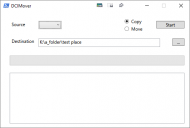
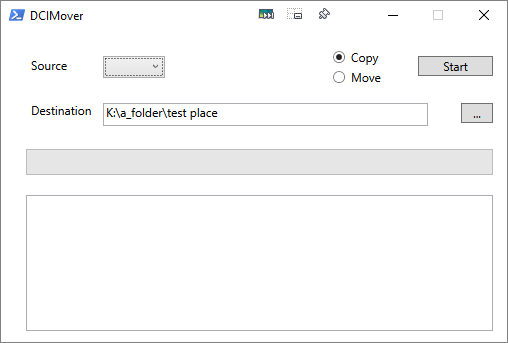
- Select your source drive from the drop-down list, (any removable drive with a folder named DCIM in the root will be in the list).
- Select your destination folder, the files will be copied here in the appropriate year\month sub-folders.
- Select Copy or Move, (I suggest Copy until you're are sure it's working correctly).
- Hit Start.
$Global:SyncHash = [hashtable]::Synchronized(@{})
$newRunspace =[runspacefactory]::CreateRunspace()
$newRunspace.ApartmentState = "STA"
$newRunspace.ThreadOptions = "ReuseThread"
$newRunspace.Open()
$newRunspace.SessionStateProxy.SetVariable("SyncHash",$SyncHash)

# Load WPF assembly if necessary
[void][System.Reflection.Assembly]::LoadWithPartialName('presentationframework')

$psCmd = [PowerShell]::Create().AddScript({
  [xml]$xaml = @"
<Window x:Class="DCIMover.MainWindow"
        xmlns="http://schemas.microsoft.com/winfx/2006/xaml/presentation"
        xmlns:x="http://schemas.microsoft.com/winfx/2006/xaml"
        Title="DCIMover" Height="350" Width="522" ResizeMode="CanMinimize">
    <Grid>
        <TextBox x:Name="TextBox1" HorizontalAlignment="Left" Height="23" Margin="102,72,0,0" TextWrapping="Wrap" VerticalAlignment="Top" Width="325" ToolTip="Destination folder for photos/videos"/>
        <Label x:Name="Label1" Content="Destination" HorizontalAlignment="Left" Margin="25,66,0,0" VerticalAlignment="Top" Width="72"/>
        <Button x:Name="Button1" Content="..." HorizontalAlignment="Left" Margin="460,72,0,0" VerticalAlignment="Top" Width="32" ToolTip="Select destination folder"/>
        <Label x:Name="Label2" Content="Source" HorizontalAlignment="Left" Margin="25,21,0,0" VerticalAlignment="Top"/>
        <ComboBox x:Name="ComboBox1" HorizontalAlignment="Left" Margin="102,25,0,0" VerticalAlignment="Top" Width="62" ToolTip="Select source card from list"/>
        <ProgressBar x:Name="ProgressBar1" HorizontalAlignment="Left" Height="26" Margin="25,118,0,0" VerticalAlignment="Top" Width="467" IsTabStop="False"/>
        <TextBox x:Name="TextBox2" HorizontalAlignment="Left" Height="136" Margin="25,164,0,0" TextWrapping="Wrap" VerticalAlignment="Top" Width="467" ToolTip="Status messages" AllowDrop="False" Focusable="False" IsTabStop="False" VerticalScrollBarVisibility="Auto" IsUndoEnabled="False" IsReadOnly="True" HorizontalScrollBarVisibility="Auto" ScrollViewer.CanContentScroll="True"/>
        <Button x:Name="Button2" Content="Start" HorizontalAlignment="Left" Margin="417,25,0,0" VerticalAlignment="Top" Width="75"/>
        <RadioButton x:Name="RadioButton1" Content="Copy" HorizontalAlignment="Left" Margin="331,19,0,0" VerticalAlignment="Top" IsChecked="True" ToolTip="Copy files from card"/>
        <RadioButton x:Name="RadioButton2" Content="Move" HorizontalAlignment="Left" Margin="331,39,0,0" VerticalAlignment="Top" ToolTip="Move files from card"/>

    </Grid>
</Window>
"@

  # Remove XML attributes that break a couple things.
  #   Without this, you must manually remove the attributes
  #   after pasting from Visual Studio. If more attributes
  #   need to be removed automatically, add them below.
  $AttributesToRemove = @(
    'x:Class',
    'mc:Ignorable'
  )

  Foreach ($Attrib in $AttributesToRemove) {
    if ($xaml.Window.GetAttribute($Attrib)) {
      $xaml.Window.RemoveAttribute($Attrib)
    }
  }

  $reader = (New-Object System.Xml.XmlNodeReader $xaml)

  $SyncHash.Window = [Windows.Markup.XamlReader]::Load( $reader )

  [xml]$XAML = $xaml
  $xaml.SelectNodes("//*[@*[contains(translate(name(.),'n','N'),'Name')]]") | %{
  #Find all of the form types and add them as members to the synchash
    $SyncHash.Add($_.Name, $SyncHash.Window.FindName($_.Name) )
  }

  $Script:JobCleanup = [hashtable]::Synchronized(@{})
  $Script:Jobs = [system.collections.arraylist]::Synchronized((New-Object System.Collections.ArrayList))

  #region Background runspace to clean up jobs
  $jobCleanup.Flag = $True
  $newRunspace = [runspacefactory]::CreateRunspace()
  $newRunspace.ApartmentState = "STA"
  $newRunspace.ThreadOptions = "ReuseThread"
  $newRunspace.Open()
  $newRunspace.SessionStateProxy.SetVariable("jobCleanup", $jobCleanup)
  $newRunspace.SessionStateProxy.SetVariable("jobs", $jobs)
  $jobCleanup.PowerShell = [PowerShell]::Create().AddScript({
  #Routine to handle completed runspaces
    Do {
      Foreach($runspace in $jobs) {
        If ($runspace.Runspace.isCompleted) {
          [void]$runspace.powershell.EndInvoke($runspace.Runspace)
          $runspace.powershell.dispose()
          $runspace.Runspace = $null
          $runspace.powershell = $null
        }
      }
  #Clean out unused runspace jobs
      $temphash = $jobs.clone()
      $temphash | Where {$_.runspace -eq $Null} | ForEach {$jobs.remove($_)}
      Start-Sleep -Seconds 1
    } while ($jobCleanup.Flag)
  })
  $jobCleanup.PowerShell.Runspace = $newRunspace
  $jobCleanup.Thread = $jobCleanup.PowerShell.BeginInvoke()
  #endregion Background runspace to clean up jobs


  $SyncHash.Button1.Add_Click({
    $objShell = new-object -com shell.application
    # Special Folders: https://docs.microsoft.com/en-us/windows/desktop/api/shldisp/ne-shldisp-shellspecialfolderconstants
    # eg. Pictures = 0x27
    $objFolder = $objShell.BrowseForFolder(0, "Select destination folder", 0x00000074, $SyncHash.InitFolder)
    if ($objfolder.self.path -ne $null) {
      $SyncHash.TextBox1.Text = $objfolder.self.path
    }
  })

  $SyncHash.Button2.Add_Click({
# Start-Job -Name Sleeping -ScriptBlock {start-sleep 5}
# while ((Get-Job Sleeping).State -eq 'Running'){
# region Boe's Additions
    $newRunspace =[runspacefactory]::CreateRunspace()
    $newRunspace.ApartmentState = "STA"
    $newRunspace.ThreadOptions = "ReuseThread"
    $newRunspace.Open()
    $newRunspace.SessionStateProxy.SetVariable("SyncHash", $SyncHash)
    $PowerShell = [PowerShell]::Create().AddScript({
      Function Update-Window {
        Param (
          $Control,
          $Property,
          $Value,
          [switch]$AppendContent
        )
# This is kind of a hack, there may be a better way to do this
        If ($Property -eq "Close") {
          $SyncHash.Window.Dispatcher.invoke([action]{$SyncHash.Window.Close()}, "Normal")
          Return
        }
# This updates the control based on the parameters passed to the function
        $SyncHash.$Control.Dispatcher.Invoke([action]{
# This bit is only really meaningful for the TextBox control, which might be useful for logging progress steps
          If ($PSBoundParameters['AppendContent']) {
            $SyncHash.$Control.AppendText($Value)
          } Else {
            $SyncHash.$Control.$Property = $Value
          }
        }, "Normal")
      }

      Function Get-MetaData {
        Param (
          [PARAMETER(Mandatory=$true)]
          [string]$path = '',
#          [PARAMETER( Mandatory = $true, HelpMessage = 'extension eg. .mp3, .txt or .mov')]
          [boolean]$images,
#          [string]$type = '', # 'mp3'
          [switch]$recurse
        )

        if ($images) {
          $types = $SyncHash.imageTypes
        } else {
          $types = $SyncHash.videoTypes
        }

        $path += 'DCIM'
        if ($recurse) {
          $LPath = Get-ChildItem -Path $path -Directory -Recurse
        } else {
          $LPath = $path
        }

#        $DirectoryCount = 1
        $RetrievedMetadata = $true
        $OutputList = New-Object 'System.Collections.generic.List[psobject]'

        Foreach ($pa in $LPath) {
          $shell = New-Object -ComObject shell.application

          if ($recurse) {
            $objshell = $shell.NameSpace($pa.FullName)
          } else {
            $objshell = $shell.NameSpace($pa)
          }
          # Build data list
          $count = 0

          # Filter on filetype
          for ($i = 0; $i -lt $types.Count; $i++) {
            $filter = $null
            Update-Window -Control ProgressBar1 -Property Value -Value 0
            Start-Sleep -Milliseconds 500
            $filter = $objshell.Items() | where {$_.Name -match $types[$i]}
            Write-Message  "Collecting Metadata for '$($types[$i])' files ..."
<#
$filter.Count > 0 if more than one matching file
$filter.Count = 0 if no matching files
$filter.Count = $null if one matching file
#>
            Foreach ($file in $filter) {
              if ($RetrievedMetadata) {
# Build metanumbers
                $Metanumbers = New-Object -TypeName 'System.Collections.Generic.List[int]'
                for ($a = 0; $a -le 400; $a++) {
                  if ($objshell.GetDetailsOf($file, $a)) {
                    $Metanumbers.Add([int]$a)
                  }
                }
                $RetrievedMetadata = $false
              }

              $count++
              $CurrentDirectory = Get-ChildItem -Path $file.path

              if ($filter.Count -gt 0) {
                try {
                  Update-Window -Control ProgressBar1 -Property Value -Value ([math]::Round((($count / $filter.count) * 100)))
                } catch {}
              } else {
                try {
                  Update-Window -Control ProgressBar1 -Property Value -Value 100
                } catch {}
              }

# Build Hashtable for each file
              $hash = $null
              $Hash = @{}
              foreach ($nr in $Metanumbers) {
                $PropertyName = $($objshell.GetDetailsOf($objshell.Items, $nr))
                $PropertyValue = $($objshell.GetDetailsOf($File, $nr))
                $Hash[$PropertyName] = $PropertyValue
              }

              $Hash.Remove("")
              $FileMetaData = New-Object -TypeName PSobject -Property $hash
              $OutputList.Add($FileMetaData)
            }
          }
        }
        Process-OutputList $OutputList $images
      }

      Function Process-OutputList {
        Param (
          [object]$files,
          [string]$images
        )

        $dest = $SyncHash.Window.Dispatcher.invoke([System.Func[String]] {$SyncHash.TextBox1.Text})

        if ($files.Count -eq $null) {
          Write-Message  "Copy/Move one file ..."
          switch ($images) {
            $true { $takenDate = [datetime]((Select-Object -InputObject $files[$j] -ExpandProperty 'Date Taken') -replace '[^\d:/ -_.,]', '') }
            $false { $takenDate = [datetime](Select-Object -InputObject $files[$j] -ExpandProperty 'Date Created') }
          }
          if ($takenDate -ne $null) {
            $outPath = ($dest + '\' + $takenDate.Year + '\' + ($takenDate.Month).ToString('00') + '_' + ((Get-Culture).DateTimeFormat.GetAbbreviatedMonthName($takenDate.Month)) + '\' + $files.Name) -replace '\\', '\'
            Move-File $files.'Path' $outPath $takenDate
            Update-Window -Control ProgressBar1 -Property Value -Value 100
          } else {
            Write-Message "[Warn]: $($files.Name): Date Taken not found, Copy/Move not performed" $true
          }
        } else {
          if ($files.Count -gt 0) {
            Write-Message  "Copy/Move $($files.Count) files ..."
            for ($j = 0; $j -lt $files.Count; $j++) {
              $outPath = $null
              $takenDate = $null
                switch ($images) {
                  $true {
                      if (((Select-Object -InputObject $files[$j] -ExpandProperty 'Date Taken')).Length -gt 1 ) {
                        $takenDate = [datetime]((Select-Object -InputObject $files[$j] -ExpandProperty 'Date Taken') -replace '[^\d:/ -_.,]', '')
                      } else {
                        Write-Message "[Warn]: $($files[$j].'Name'): Date Taken not found, Copy/Move not performed" $true
                      }
                    }
                  $false {
                      $takenDate = [datetime](Select-Object -InputObject $files[$j] -ExpandProperty 'Date Created')
                    }
                }
              if ($takenDate -ne $null) {
                $outPath = ($dest + '\' + $takenDate.Year + '\' + ($takenDate.Month).ToString('00') + '_' + ((Get-Culture).DateTimeFormat.GetAbbreviatedMonthName($takenDate.Month)) + '\' + $files[$j].'Name') -replace '\\', '\'
                Move-File $files[$j].'Path' $outPath $takenDate
              }
              Update-Window -Control ProgressBar1 -Property Value -Value ([math]::Round((($j + 1) / $files.Count) * 100))
            }
          } else {
            Write-Message  "No matching files found ..."
          }
        }
        Invoke-Item (Split-Path -Path $outPath)
      }

      Function Move-File {
        param (
          [string]$source,
          [string]$dest,
          [datetime]$date
        )
        if (!(Test-Path -Path (Split-Path -Path $dest))) {
          New-Item (Split-Path -Path $dest) -ItemType Directory
          if (!$?) {
            Write-Message "[Error] Failed to create folder: $(Split-Path -Path $dest)" $true
          }
        }

        if (!(Test-Path $dest)) {
          if ($SyncHash.Window.Dispatcher.invoke([System.Func[string]] {$SyncHash.RadioButton1.IsChecked}) -eq 'True') {
            Copy-Item $source $dest
            if (!$?) {
              Write-Message "[Error] $(Split-Path $source -Leaf): Copy failed" $true
            }
          } else {
            Move-Item $source $dest
            if (!$?) {
              Write-Message "[Error] $(Split-Path $source -Leaf): Move failed" $true
            }
          }
          Set-ItemProperty -Path $dest -Name CreationTime -Value $date
        } else {
          Write-Message "[Warn] $(Split-Path $source -Leaf): Exists in destination" $true
        }
      }

      Function Write-Message {
        Param (
          [string]$message,
          [boolean]$err = $false
        )
        Update-Window -Control TextBox2 -Property Text -Value "$($message)`r`n" -Append
        if ($err) {
          $SyncHash.hadError = $true
          $message | Out-File -FilePath $SyncHash.LogFile -Append
        }
      }

# Button2 Main
      $srceFol = $SyncHash.Window.Dispatcher.invoke([System.Func[String]] {$SyncHash.ComboBox1.SelectedItem})
      $destFol = $SyncHash.Window.Dispatcher.invoke([System.Func[String]] {$SyncHash.TextBox1.Text})
      $SyncHash.hadError = $false

      if (($destFol -ne $null) -and ($destFol -ne '')) {
        if (($srceFol -ne $null) -and ($srceFol -ne '')) {
          $ini = "[General]`r`ndest=$($destFol)`r`ninitfolder=$($SyncHash.InitFolder)`r`nimages=$($SyncHash.h.Get_Item('images'))`r`nvideos=$($SyncHash.h.Get_Item('videos'))"
          Out-File -FilePath $SyncHash.iniFile -InputObject $ini
          $SyncHash.LogFile = ("$($env:TEMP)\$(Get-Date -Format 'yyyyMMdd_HHmmss').txt").Replace('\\', '\')
          Update-Window -Control Button2 -Property IsEnabled -Value $false
          Update-Window -Control RadioButton1 -Property IsEnabled -Value $false
          Update-Window -Control RadioButton2 -Property IsEnabled -Value $false
          Update-Window -Control TextBox1 -Property IsEnabled -Value $false
          Update-Window -Control ComboBox1 -Property IsEnabled -Value $false
          Update-Window -Control Button1 -Property IsEnabled -Value $false
          $SyncHash.hadError = $false
          Update-Window -Control TextBox2 -Property Text -Value ''
          Write-Message "---- START ----`r`nLogfile: $($SyncHash.LogFile)`r`nProcessing image files ..."
          Get-MetaData -Path $srceFol $true -Recurse
          Write-Message "Finished image files`r`nProcessing video files ..."
          Get-MetaData -Path $srceFol $false -Recurse
          Write-Message  "Finished video files`r`n---- END ----"
          Update-Window -Control RadioButton1 -Property IsEnabled -Value $true
          Update-Window -Control RadioButton2 -Property IsEnabled -Value $true
          Update-Window -Control TextBox1 -Property IsEnabled -Value $true
          Update-Window -Control ComboBox1 -Property IsEnabled -Value $true
          Update-Window -Control Button1 -Property IsEnabled -Value $true
          Update-Window -Control Button2 -Property IsEnabled -Value $true
          if ($SyncHash.hadError) {
            "--- SAVE THIS FILE ---`r`n" + (Get-Content $SyncHash.LogFile -Raw) | Set-Content $SyncHash.LogFile
            Write-Message  "*** There were errors, refer to log file ***"
            Invoke-Item $SyncHash.LogFile
          }
        }
      }
# End Button2 Main

    })
    $PowerShell.Runspace = $newRunspace
    [void]$Jobs.Add((
    [pscustomobject]@{
      PowerShell = $PowerShell
      Runspace = $PowerShell.BeginInvoke()
    }
    ))
  })

    #region Window Close
    $SyncHash.Window.Add_Closed({
      Write-Verbose 'Halt runspace cleanup job processing'
      $jobCleanup.Flag = $False

      #Stop all runspaces
      $jobCleanup.PowerShell.Dispose()
    })
    #endregion Window Close
    #endregion Boe's Additions


# GUI Main + Functions
  Function Add-Drives {
    $usb = ([System.IO.DriveInfo]::GetDrives() | Where DriveType -match 'Removable')
    for ($i = 0; $i -lt $usb.Count; $i++) {
      $dcimFol = ($usb[$i].Name) + 'DCIM'
      if (Test-Path -Path $dcimFol) {
        [void] $SyncHash.ComboBox1.Items.Add($usb[$i])
      }
    }
  }

  Function Read-Ini {
    if (Test-Path -Path $SyncHash.iniFile) {
      Get-Content $SyncHash.iniFile | foreach-object -begin {$SyncHash.h=@{}} -process { $k = [regex]::split($_,'='); `
        if (($k[0].CompareTo("") -ne 0) -and ($k[0].StartsWith("[") -ne $True)) { $SyncHash.h.Add($k[0], $k[1]) } }
      $SyncHash.TextBox1.Text = $SyncHash.h.Get_Item('dest')
      $SyncHash.InitFolder = $SyncHash.h.Get_Item('initfolder')
      $SyncHash.imageTypes = ($SyncHash.h.Get_Item('images')).Split(',')
      $SyncHash.videoTypes = ($SyncHash.h.Get_Item('videos')).Split(',')
    }
  }

  if ($PSVersionTable.PSVersion.Major -lt 3) {
    [System.Windows.MessageBox]::Show("This script requires Powershell v3+`r`n`r`nClick OK to exit")
    Exit
  }
  $SyncHash.iniFile = '.\DCIMover.ini'
  Read-Ini
  Add-Drives
# End GUI Main + Functions


  $SyncHash.Window.ShowDialog() | Out-Null
  $SyncHash.Error = $Error
})
$psCmd.Runspace = $newRunspace
$data = $psCmd.BeginInvoke()
Other things I might look at doing:
- If Date Taken doesn't exist, default to Date Created, (usually happens with photos that are manipulated in the phone/camera, eg. panoramas).
- For video files look for Media Created first before using Date Created, (one problem is Media Created uses UTC as defined by the camera setting, which can be different from Date Created).
- Find some way of outputting Powershell errors, (the red ones), to a log file.




 DCIMover.7z
 I've been traveling for work a lot lately, so I won't be able to get to this for at least a few days. Thank you for coming up with your rendition of the original ask!

