


NANY 2018 Entry Information
| Application Name | Dualcopy |
| Version | 1.0.0 |
| Short Description | A helper app for copy with Teracopy & Fastcopy |
| Supported OSes | Windows (tested in W7 32&64) |
| Web Page | https://dual-copy.blogspot.com/ |
| Download Link | https://goo.gl/v7eF54 |
| System Requirements | None |
| Version History |
|
| Author | antekgla |
Description
Dualcopy is a helper application for copy/move your files with two of the best copy programs for Windows: Teracopy and Fastcopy.
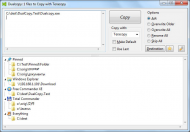
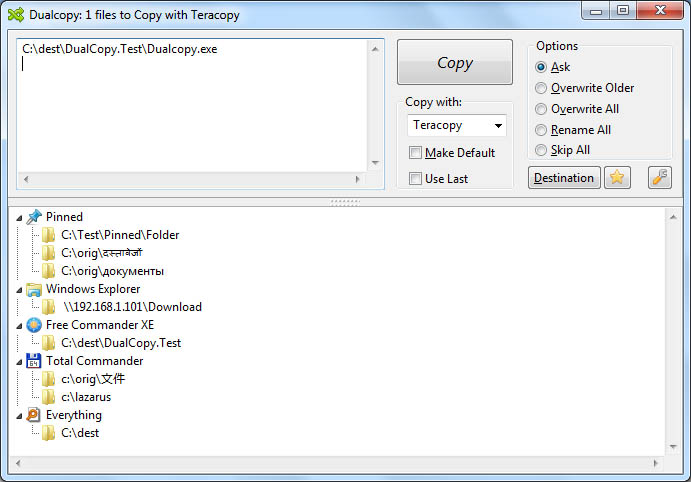
Dualcopy don't have any funcionality by itself. It is a better interface for this two programs, adding Favorites, Recent Used Folders, and Monitoring other apps like Everything, Total Commander, FreeCommander and other.
His main goal is make easy for you to choose a destination for your files.
Features
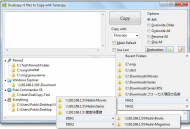
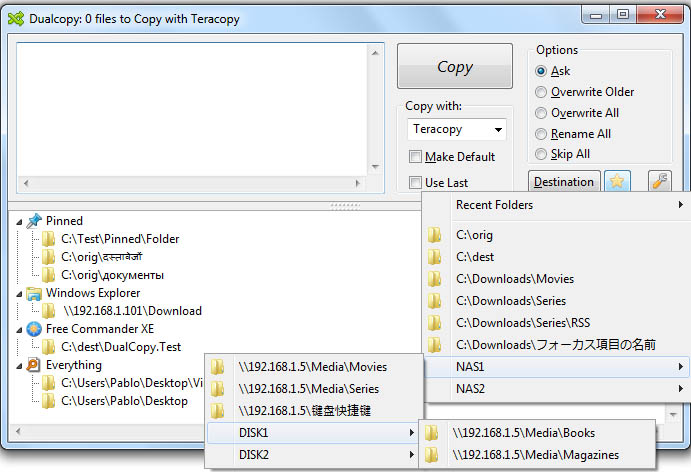
- Favorites menu: Easily configurable only by a text file with a list of your favorite folders. Include submenus for group your favorites as you like.
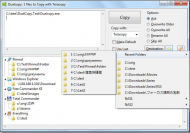
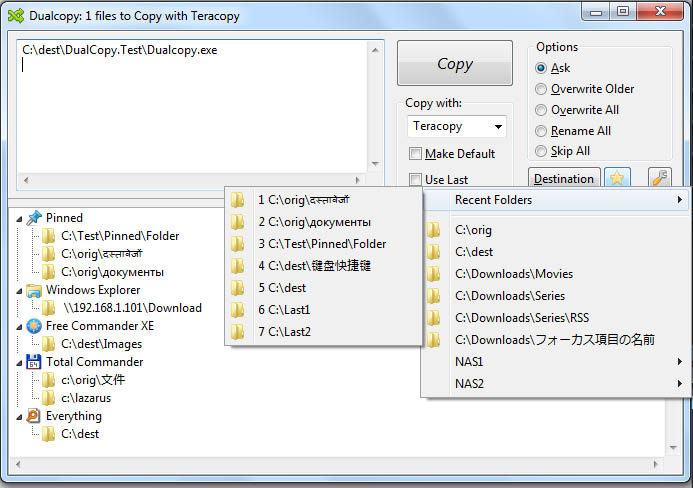
- Recent Used Folder Menu: Dualcopy remember the last folders used and make a menu for easy access. The number of folders in the History is configurable by you.
- Pinned folders: You can pin any folder (and folders in your history too) for fast access.
- Monitor file managers: Dualcopy can monitor several file managers (Total Commander, FreeCommander & Windows Explorer) and display that folders like a destination for your copy/move operations. In addition Dualcopy also can display the folder selected in the excellent search engine Everything and any folder o file path copied to the clipboard.
- Full Unicode support.
- All configurable by a ini file: Dualcopy store all his options in a ini file. So is fully portable.
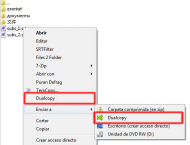
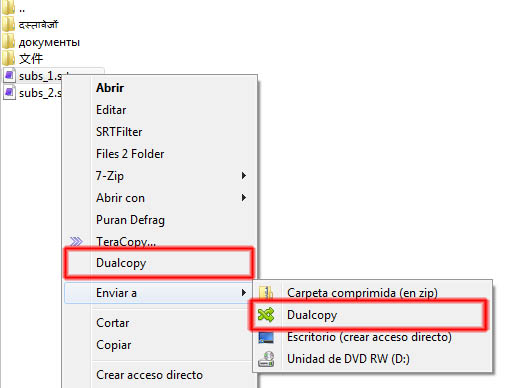
- Windows Shell Extension: for easy access to Dualcopy from any file or folder in your file manager install the Shell Extension (32 or 64 bits). If you dont want to install a shell extension Dualcopy can make a link in the Send To folder automatically.
Planned Features
You have any suggestion? I'm interested.
Screenshots
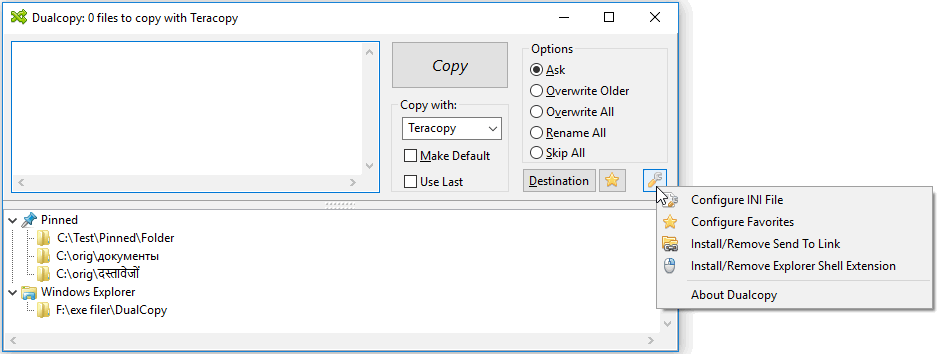
Main Window
Favorites Menu
Recent Menu
Windows Shell Extension & Send To folder link
UsageMain Window
Favorites Menu
Recent Menu
Windows Shell Extension & Send To folder link
Installation
Portable. Simply unzip the folder anywhere you have write permissions and run from there.
Using the Application
View the F.A.Q in the page program.
Uninstallation
Simply delete the folder with the program. If you have installed the Shell Extension, first Un-install Shell Extension, reboot computer and then delete the folder.
Tips
Install the Shell Extension. Make the program so much easy to launch.
Known Issues
Not what i know.






 )
)