| Originally posted: | 2013-11-23 |
| Last updated | 2016-05-03 |
Basic Info
| App Name (2 apps used consecutively) | AOMEI Backupper FREE (used to clone a drive) AOMEI Partition Assistant FREE (used to resize a partition) |
| Thumbs-Up Rating |  - that's just for the cloning and partition management; backup was not trialled/tested. - that's just for the cloning and partition management; backup was not trialled/tested. |
| App URL | http://www.backup-utility.com/download.html On that page AOMEI Backupper has two alternative installation files: One size: 60MB, supports both Windows 7/8/Vista/XP and Windows Server 2003/2008/2012 (link to CNET download) The other size: 20MB, it only supports Windows 7/8 and Server 2008 R2/2012. (link to a "local" download) |
| App Version Reviewed | AOMEI Backupper v1.6 AOMEI Partition Assistant SE v5.2 |
| Test System Specs | MS Win7-64 Home Premium |
| Supported OSes | PC Windows (various) |
| Support Methods | Support website: http://www.backup-utility.com/support.html |
| Upgrade Policy | Free upgrades. |
| Trial Version Available? | Not applicable - this is FREEware. |
| Pricing Scheme | AOMEI Backupper + AOMEI Partition Assistant are FREEware. See also: AOMEI Partition Assistant Professional Edition 5.5 free |
Intro and Overview:
For a while now, my trusty HDS PRO - refer Hard Disk Sentinel PRO - Mini-Review - has been telling me about the failing health of my laptop's hard drive - a Seagate 2.5 inch 500GB SATA 7200RPM 16MB Cache Hard Drive Model: ST9500420AS.
The drive's performance status was 100%, but the calculated statistical relevance of several non-fatal error events meant that its health status - that had initially dropped from 100% to 69% and then been stable at that point for months - had started frequently edging downwards in progressive small increments to 55%.
The HDS report Overview at this point stated:
Quote
_____________________________
There are 21 bad sectors on the disk surface. The contents of these sectors were moved to the spare area.
Based on the number of remapping operations, the health of the disk was decreased in different steps.
There are 1 weak sectors found on the disk surface. They may be remapped anytime in the later use of the disk.
7408 errors occured during data transfer. This may indicate problem of the device or with data/power cables. It is recommended to examine and replace the cables if possible.
At this point, warranty replacement of the disk is not yet possible, only if the health drops further.
it is recommended to examine the log of the disk regularly. All new problems found will be logged there.
It is recommended to continuously monitor the hard disk status.
_____________________________
So yesterday (a Friday) I took the bull by the horns, figuring that I had better do something about it before it failed completely (though it was fully backed up), otherwise I'd probably have to commit a mountain of time to the recovery.
So I went online and ordered a hard drive I had been keeping my eyes on - a Western Digital Scorpio Black 750GB 16MB 7200rpm 2.5Inch SATA3 Hard Drive Model: WD7500BPKX. (The failing Seagate drive was a discontinued model.)
The supplier is in the same city as myself, so after some thought I sent them a follow-up email asking if they could send it by URGENT courier same day, rather than the normal 2 business days courier delivery.
I got a call from them telling me that it would cost NZ$30 to do that, so I agreed and paid via credit card. I figured it was worth it as it would give me a weekend to sort out any wrinkles. The package duly arrived about 2 hours later that afternoon.
I put the new drive in a USB3 portable hard drive carrier that I bought a while back (it's proved to be a very useful purchase). Then I ran a few tests/inspections on it using HDS - including its 3-built-in tests:
- Short Self-test.
- Extended Self-test.
- Conveyance Self-test.
The latter 2 tests would have run for hours, but I stopped them after about 30mins. with no evidence of any problems. I took screenshots as I went. The old (failing) hard drive had failed its built-in Short and Extended Self-tests within a few minutes.
I then formatted the drive and repeated the inspections/tests. I took screenshots as I went, but there was no difference before/after the formatting. HDS said the new drive was in 100% performance status and 100% health status and all the SMART flags were good.
So I figured it was safe to go ahead and use the disk - it was AOK.
The next thing was - What to do? I had started to use the Win7 system image tool that gives you a once-only chance to write the image to 6 or so CD-ROMs, but it was so incredibly constipated, and I was running out of CD-ROMS (which I rarely use for anything), so I stopped it before writing to the first CD. It said it could resume from there. This was archaic.
So I did what I usually do - gathered some more information. I chanced across a new report that I had been given automatic access to in my Gdrive (Comparison- AwardSpace vs Freehostia- Best Free Hosting). It was from BearWare, so I went to the website and right there I saw the recommendation for AOMEI Backupper. Now BearWare doesn't usually recommend anything unless it meets certain high standards, and his post of the thing mentioned images and clones, so I took a look at the AOMEI Backupper website.
AOMEI Technologies is based in China - as it says here - AOMEI Company:
Quote
CHENGDU AOMEI® Tech Co., Ltd.- so that probably explains the awkward use of English. It took me a while to understand that the Cloning function is part of AOMEI Backupper.
Address: 3F, SOHO Business Port, No.5 HongJiXin Rd, Chengdu, China
Postcode: 610000
On the download page, it distinguished between two alternative installation files for AOMEI Backupper:
- One size: 60MB, supports both Windows 7/8/Vista/XP and Windows Server 2003/2008/2012 (link to CNET download)
- The other size: 20MB, it only supports Windows 7/8 and Server 2008 R2/2012. (link to a "local" download)
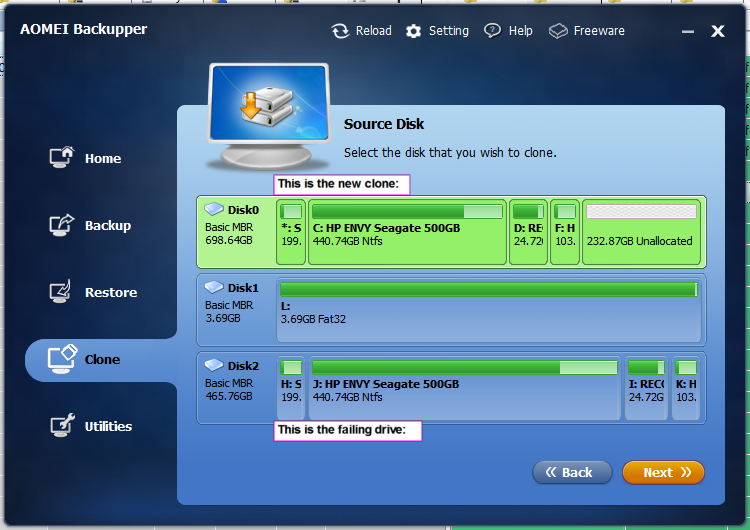
I downloaded and installed the smaller file, then executed AOMEI Backupper. Click-click-click with the mouse - and in less than 20 seconds I had started cloning my failing Seagate drive to the new WD drive.
It was by then Saturday 2AM. I sat with it for a couple of hours, interested in seeing its progress reports, and making sure that the laptop would not go to sleep and set the screen to switch off after 2 minutes of no keyboard activity (so as to keep the temps down inside the laptop). I estimated that at the rate it was going it would take about 8 hours to complete, and so I went to bed. I was awoken at about 8AM by the HDS alarm gong telling me that the health of the Seagate drive had deteriorated another 1% to 54%, and I noticed that AOMEI Backupper was still busy making the clone with apparently no problem. By 10:05AM, AOMEI Backupper had completed the cloning process and shut the laptop down (as I had set it to do in the options).
So I swapped the old/new drives around. started up the laptop and ran the HP BIOS and system checks. Everything was perfect.
So I let it continue and boot into Windows. No problem.
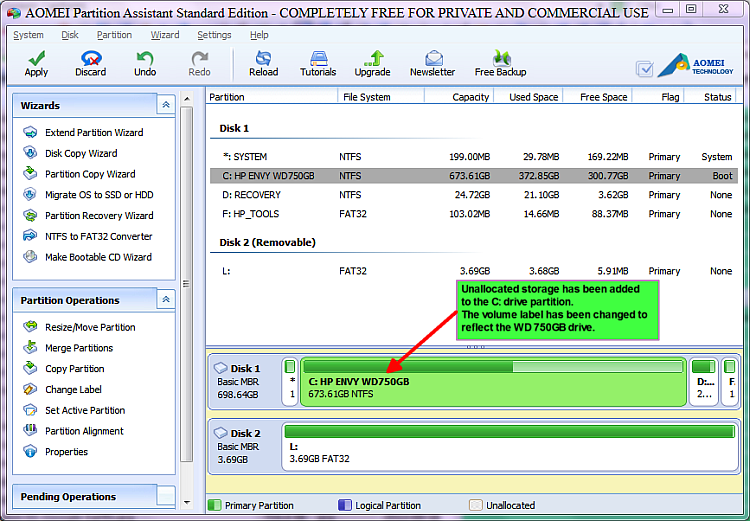
After running some more tests and fossicking about and making notes, I started up AOMEI Backupper and took screenshots as I went (see following).
Examples - screenshots/clips:
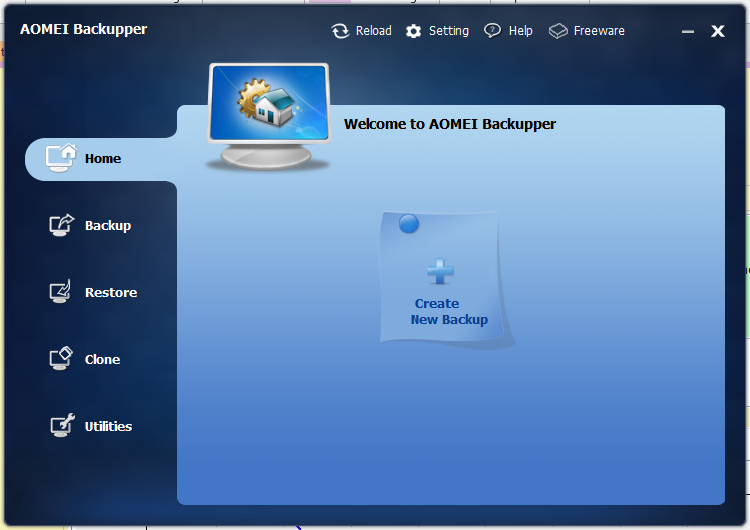
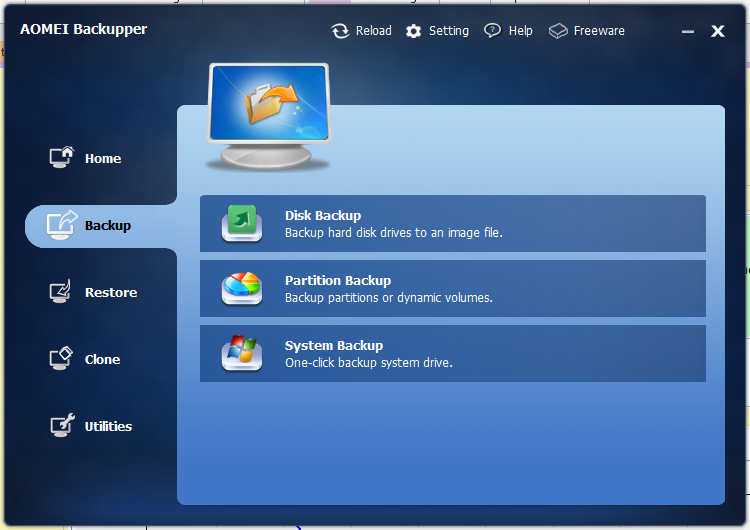
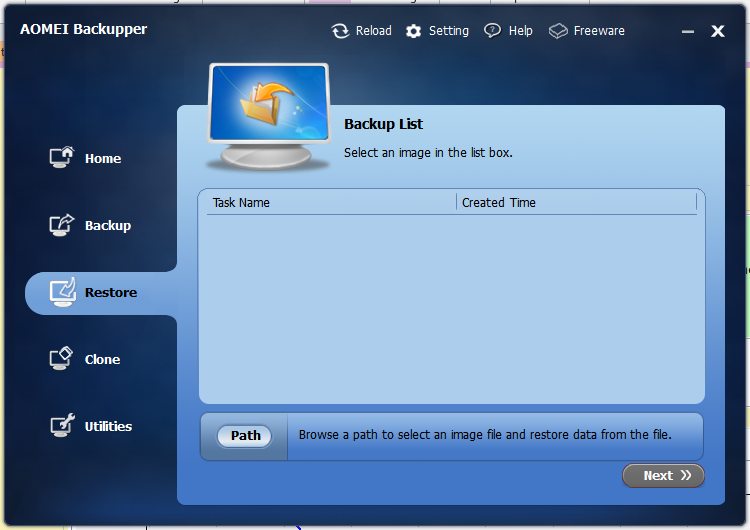
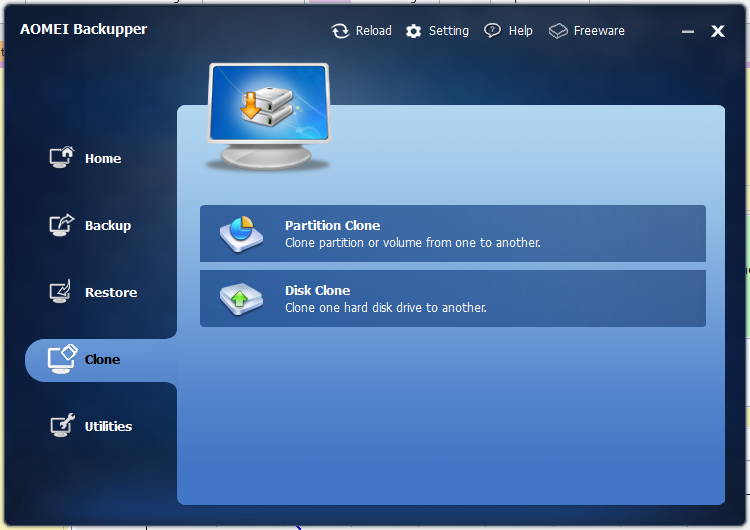
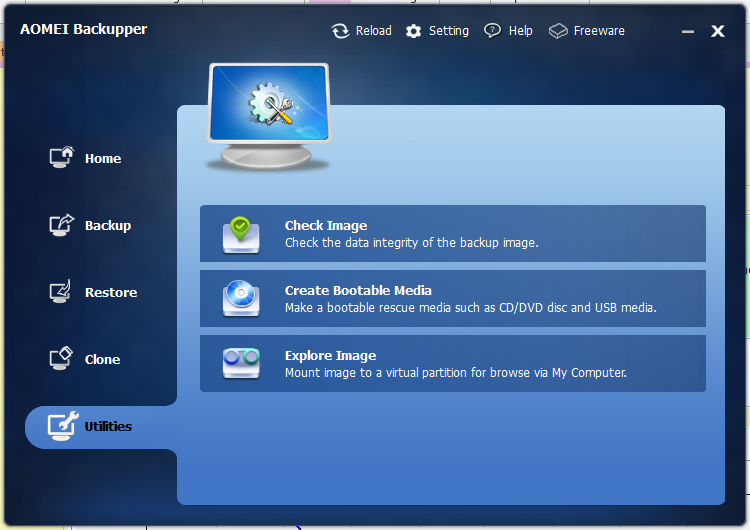
Main GUI window: (going to each menu item)
[attach]