


Running comparison programs on FARR results.
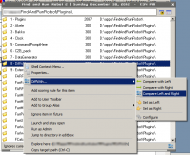
Screenshot
Installation / Uninstallation / Requirements
It's a FARR plugin so installation and uninstallation are as usual. Tested under Windows 7 64-bit with FARR 2.203.01. May work for other versions of Windows.
Some kind of comparison program needs to be installed. I've tested with WinMerge, KDiff3, and SmartSynchronize and I've heard that BeyondCompare can be made to work too.
The plugin also needs to be told how to invoke the comparison program. See the README.txt file for details.
Downloads
Plugin
md5:2fd0fb573872e8c9de712e4809d9be76
sha1:8f92e4b18dcaf654999f09c0c683df4926801a5e
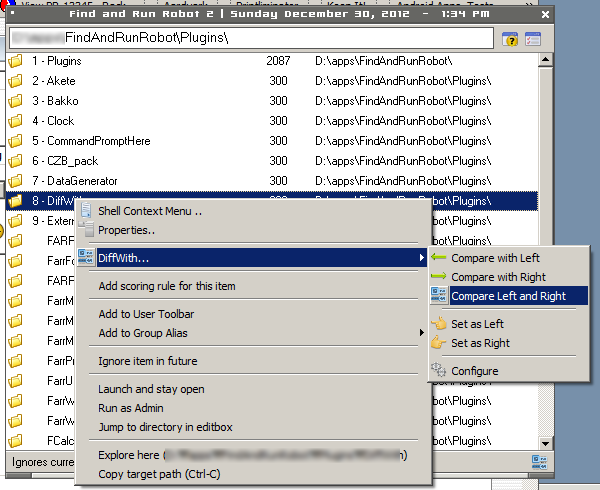
Screenshot
Installation / Uninstallation / Requirements
It's a FARR plugin so installation and uninstallation are as usual. Tested under Windows 7 64-bit with FARR 2.203.01. May work for other versions of Windows.
Some kind of comparison program needs to be installed. I've tested with WinMerge, KDiff3, and SmartSynchronize and I've heard that BeyondCompare can be made to work too.
The plugin also needs to be told how to invoke the comparison program. See the README.txt file for details.
Downloads
Plugin
md5:2fd0fb573872e8c9de712e4809d9be76
sha1:8f92e4b18dcaf654999f09c0c683df4926801a5e
README.txt
DiffWith
Purpose:
Invocation of a comparison program on FARR results.
Configuration:
There are a number of ways to configure DiffWith. Below are some,
just choose one The descriptions may sound complex, but perhaps
that's just a failing of the author...
Method 1.
Assuming a successful installation, an appropriate statusbar icon
should be visible via FARR's main window. To check whether a
statusbar icon is appropriate, hover the pointing device pointer /
cursor over the statusbar icon to observe popup text. DiffWith's
statusbar icon popup text should display "DiffWith".
1. Click on DiffWith's statusbar icon and choose the "Configure"
menu item.
FARR should display a number of results. One of the results should
be "Configure Comparison Command Template".
2. Launch the "Configure Comparison Command Template" FARR result.
FARR should display a window with a form for configuring a template
for the command to use when performing a comparison.
3. Fill in an appropriate template and click on the update button.
Some example values include:
c:\apps\WinMerge\WinMergeU.exe /r
c:\apps\X-KDiff3\X-KDiff3.exe
c:\apps\SmartSynchronize\bin\smartsynchronize.exe
Method 2.
1. Select any FARR result and bring up its context menu.
2. From the "DiffWith..." submenu, choose "Configure".
FARR should display the same set of results as in the immediately
previous method.
3. Continue with the appropriate steps from the immediately previous
method.
Method 3.
1. Bring up FARR's options and find the User Variables section:
Program Options ->
Lists ->
User Variables
2. Ensure there is a [DiffWith] section and a CommandTemplate
variable with appropriate content.
An example of something appropriate is:
[DiffWith]
CommandTemplate = c:\apps\WinMerge\WinMergeU.exe /r
(The plugin will build the comparison command by appending to the
CommandTemplate value, double quoted paths of the two items to
compare.)
Another example configuration is:
[DiffWith]
CommandTemplate = c:\apps\X-KDiff3\X-KDiff3.exe
Yet another example configuration is:
[DiffWith]
CommandTemplate = c:\apps\SmartSynchronize\bin\smartsynchronize.exe
Example Usage:
1. Find some file using FARR and bring up its context-sensitive
menu. An example file might be FARR's ConfigDir_Default.ini file.
2. From the "DiffWith..." menu, choose "Set as Left".
3. Find another file with FARR and bring up its context-sensitive
menu. Another example file might be FARR's ConfigDir_Sample.ini
file.
4. From the "DiffWith..." menu, choose "Compare with Left".
Usage:
To compare two things, those two things need to be specified. This
plugin refers to one of those things as "Left" and the other thing
as "Right".
One workflow is:
1. Use FARR to locate a file or folder and "Set as Left" via the
target's context-sensitive menu (under DiffWith...).
2. Use FARR to locate another file or folder and "Compare with Left"
via the target's context-sensitive menu (under DiffWith...).
Once "Left" and "Right" have been set, the comparison can be
repeated via the statusbar menu's "Compare Current Pair" command.
Notes:
1. FARR's status area (bottom of results view) may show relevant
information while a "DiffWith..." menu item is selected.
For example, when the "Set as Left" or "Compare with Left" menu
item is selected (but not invoked), the status area should
indicate the current value for "Left".
2. Other comparison tools may work too. If a tool can be invoked
via the command line with the names of the two things to be
compared listed one after the other (not followed by anything
else) there's a good chance it should work with this plugin.
3. Some other comparison tool candidates:
Meld
DiffMerge
SmartSynchronize
Beyond Compare
Diffuse
Credits:
Find And Run Robot
mouser
FScript
ecaradec
Icons
https://www.fatcow.com/free-icons
Discussion and Testing
mouser
Purpose:
Invocation of a comparison program on FARR results.
Configuration:
There are a number of ways to configure DiffWith. Below are some,
just choose one
The descriptions may sound complex, but perhapsthat's just a failing of the author...
Method 1.
Assuming a successful installation, an appropriate statusbar icon
should be visible via FARR's main window. To check whether a
statusbar icon is appropriate, hover the pointing device pointer /
cursor over the statusbar icon to observe popup text. DiffWith's
statusbar icon popup text should display "DiffWith".
1. Click on DiffWith's statusbar icon and choose the "Configure"
menu item.
FARR should display a number of results. One of the results should
be "Configure Comparison Command Template".
2. Launch the "Configure Comparison Command Template" FARR result.
FARR should display a window with a form for configuring a template
for the command to use when performing a comparison.
3. Fill in an appropriate template and click on the update button.
Some example values include:
c:\apps\WinMerge\WinMergeU.exe /r
c:\apps\X-KDiff3\X-KDiff3.exe
c:\apps\SmartSynchronize\bin\smartsynchronize.exe
Method 2.
1. Select any FARR result and bring up its context menu.
2. From the "DiffWith..." submenu, choose "Configure".
FARR should display the same set of results as in the immediately
previous method.
3. Continue with the appropriate steps from the immediately previous
method.
Method 3.
1. Bring up FARR's options and find the User Variables section:
Program Options ->
Lists ->
User Variables
2. Ensure there is a [DiffWith] section and a CommandTemplate
variable with appropriate content.
An example of something appropriate is:
[DiffWith]
CommandTemplate = c:\apps\WinMerge\WinMergeU.exe /r
(The plugin will build the comparison command by appending to the
CommandTemplate value, double quoted paths of the two items to
compare.)
Another example configuration is:
[DiffWith]
CommandTemplate = c:\apps\X-KDiff3\X-KDiff3.exe
Yet another example configuration is:
[DiffWith]
CommandTemplate = c:\apps\SmartSynchronize\bin\smartsynchronize.exe
Example Usage:
1. Find some file using FARR and bring up its context-sensitive
menu. An example file might be FARR's ConfigDir_Default.ini file.
2. From the "DiffWith..." menu, choose "Set as Left".
3. Find another file with FARR and bring up its context-sensitive
menu. Another example file might be FARR's ConfigDir_Sample.ini
file.
4. From the "DiffWith..." menu, choose "Compare with Left".
Usage:
To compare two things, those two things need to be specified. This
plugin refers to one of those things as "Left" and the other thing
as "Right".
One workflow is:
1. Use FARR to locate a file or folder and "Set as Left" via the
target's context-sensitive menu (under DiffWith...).
2. Use FARR to locate another file or folder and "Compare with Left"
via the target's context-sensitive menu (under DiffWith...).
Once "Left" and "Right" have been set, the comparison can be
repeated via the statusbar menu's "Compare Current Pair" command.
Notes:
1. FARR's status area (bottom of results view) may show relevant
information while a "DiffWith..." menu item is selected.
For example, when the "Set as Left" or "Compare with Left" menu
item is selected (but not invoked), the status area should
indicate the current value for "Left".
2. Other comparison tools may work too. If a tool can be invoked
via the command line with the names of the two things to be
compared listed one after the other (not followed by anything
else) there's a good chance it should work with this plugin.
3. Some other comparison tool candidates:
Meld
DiffMerge
SmartSynchronize
Beyond Compare
Diffuse
Credits:
Find And Run Robot
mouser
FScript
ecaradec
Icons
https://www.fatcow.com/free-icons
Discussion and Testing
mouser


