| Originally posted: | 2012-11-16 |
| Last updated | 2016-09-30 |
Basic Info
| App Name | SysExporter (View and export data from Windows controls) |
| Thumbs-Up Rating |  |
| App URL | http://www.nirsoft.net/utils/sysexp.html |
| App Version Reviewed | $FREE v1.61 > v1.75 (64-bit). There is also a parallel 32-bit version. |
| Test System Specs | Win 7-64 HP, Win8.1-64 PRO, Win10-64 PRO |
| Supported OSes | Compatible with Win 64-bit/32-bit. |
| Support Methods | Download and Support: http://www.nirsoft.net/utils/sysexp.html[/url] Help file: comes with the software. |
| Upgrade Policy | Upgrades are $FREE and loaded to the above website. |
| Trial Version Available? | $FREE - as reviewed in this review. (PayPal Donations accepted) There is no PAID version. |
| Pricing Scheme | $FREE version only. Donations welcome. |
Intro and Overview:
There is a general problem in Windows OSes - one that has been a continuing source of frustration to me and probably many others - that many System and application displays often contain really useful data that is effectively "protected" from being copied/used.
Here is a perfect example of this general problem, from a 2007 post by @Jimdoria in the DC Forum: IDEA: Grab contents of an on-screen list
Spoiler (click to show/hide)
Quote
IDEA: Grab contents of an on-screen list
I know this one is pretty simple, but I haven't been able to work it out in AHK myself yet, so I thought I'd post it.
I have several programs that display information in a standard list view, but make it difficult to get at that information in a format I can work with. I'm working with a couple of programs that use a binary format when they save the list data to disk. I can manually go through and scrape the list data out of the binary file, but it's drudgery.
It would be nice to have a tool that would let you click on a visible list view, and would "suck up" the entire list and place it on the clipboard. You could then paste it into a text editor and do whatever was needed to it.
Options might include whether to separate list columns with commas, tabs, or a custom character.
I am a long-time ad hoc user of NirSoft utilities, but I had completely missed the relevance of his proggie SysExporter until today, when I read this post: How to Print the Windows Update History in Vista
I went to the NirSoft website and downloaded and installed the 64-bit version of SysExporter (file: sysexp-x64.zip) - there is a 32-bit version also.
There is no installer. Just open the .ZIP file, and then Copy and Paste the files into a suitable directory, and SysExporter runs from there.
Description: (copied from the Help file)
SysExporter utility allows you to grab the data stored in standard list-views, tree-views, list boxes, combo boxes, text-boxes, and WebBrowser/HTML controls from almost any application running on your system, and export it to text, HTML or XML file.
Here's some examples for data that you can export with SysExporter:
- The files list inside archive file (.zip, .rar, and so on) as displayed by WinZip or 7-Zip File Manager.
- The files list inside a folder.
- The event log of Windows. (This was the sort of thing I was interested in.)
- The list of emails and contacts in Outlook Express.
- The Registry values displayed in the right pane of the Registry Editor.
- The data displayed by SysInternals utilities (Registry Monitor, File Monitor, Process Explorer, and others.)
- The text inside a standard message-box of Windows.
- The HTML inside any instance of Internet Explorer.
The first two images below show my use of the SysExporter GUI, with the Control Panel Windows update history display in the background.
The SysExporter dual-pane display shows the open application Windows and associated objects in the top pane, and the details of the selected objects in the lower pane.
The Windows update history display has been selected in the upper pane, and its contents are displayed in the lower pane (1,152 lines of updates).
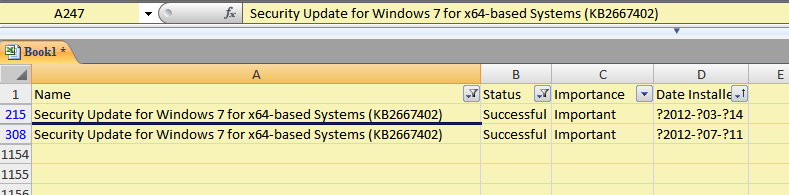
I selected all 1,152 lines in the lower pane, pressed Ctrl+C (Copy) - which puts the lines into the Clipboard (comma delimited) - and then I pasted the Clipboard contents into an Excel spreadsheet and filtered for the problematic update I was concerned about (KB2667402 had had many recurring failures) and Status="Successful", and sorted on the date column. I could then see the dates when update KB2667402 had been successful.
This only took just a few seconds. Simple, easy, painless, and certain.
(Note that the pasted data in Excel contains embedded question marks in the date field. These were also visible in the lower pane of SysExporter, though they are not apparent in the Control Panel Windows update history display. Notice how the column headings have also been captured in Excel.)
EDIT - 2013-01-04: I later discovered the menu Option to select "Remove Question Mark Characters".

[attach]
.png)