http://www.instantfundas.com/2011/03/hassle-free-xp-to-7-upgrade-with-o.html
If someone tries this, please post your results.
If someone tries this, please post your results.

 Topic: O&O Migration Kit for Windows 7 (Read 17,275 times)


What review is there to wait for? Go get the offer!

Overview
Whether you're installing Windows 7 on your old computer, or are planning to buy a new one that already comes with Windows 7, you’ll quickly notice that something very important is missing: your personal data, settings, and programs that were available on your computer’s former operating system. You could, of course, transfer each of them one by one, and then reinstall them in a tedious process. No? Then take the easier route: Migration Kit for Windows 7.
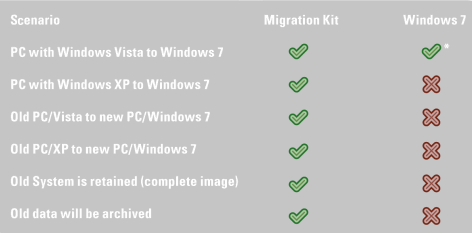
Windows 7 only supports In-Place migrations from identical editions (e.g. from Windows Vista Home Premium to Windows 7 Home). Both must be in the same language and both either 32 or 64-Bit. Migration between different editions is not supported (e.g. from Windows Vista Home Premium to Windows 7 Professional). The Migration Kit, however, supports a whole range of migration scenarios.
With just a few clicks, you’ll be able to transfer all your data and programs onto a new operating system or computer. This is not only easier and less time-consuming, it's also much more secure because as part of the Migration Kit for Windows 7, you’ll also be getting the multiple award-winning O&O DiskImage 4 Professional Edition. O&O DiskImage will create a complete image of your system prior to migration, so that your familiar IT environment will be available to you whenever you need it.
* Windows 7 only supports In-Place migrations from identical editions (e.g. from Windows Vista Home Premium to Windows 7 Home). Both must be in the same language and both either 32 or 64-Bit. Migration between different editions is not supported (e.g. from Windows Vista Home Premium to Windows 7 Professional). The Migration Kit, however, supports a whole range of migration scenarios.
About O&O BuildPE
Information and frequent questions about O&O BuildPE>>
O&O BuildPE is a Wizard that will help you create the boot media (CD, DVD or USB stick) for your O&O programs. For example, you will need the boot media if you want to run your O&O program without prior installation. This might be necessary whenever Windows is not booting up due to errors caused by defective software. To get your Windows back on track, you can run O&O DiskImage from the boot media, and restore the system partition to its original condition – this of course is only possible, if you have previously created an image.
Data recovery using the O&O RescueBox is also suited to boot media, since the installation of a data recovery product might overwrite key areas of the hard disk, making a later data recovery impossible.
Your system partition can only be changed if you use the O&O Partition Manager with the help of the boot medium. Often, new computers come with only one partition, and system files as well as private data are stored on it. A division into a system and a data drive makes the creation of images as well as the recovery of your data in the case of a disaster much easier.
Your boot medium also includes various O&O system rescue programs that allow you to access the Windows registry or stored files, even if Windows is corrupted or does not boot anymore.
Follow the steps in the Wizard to create the boot medium.
Please read the following tips:
* To download the required Windows AIK (Automated Installation Kit) you will need approximately 1.7 GB of free disk space. The download may take up to a few hours depending on transmission rate. We recommend using a download manager.
* Be prepared with either a CD, DVD or USB stick when creating the boot media. No data can be stored on the removable medium, it must be completely empty.
* Your computer should have at least over 1 GB RAM memory available in order to run your boot media as intended.
* One of the following Windows operating systems must be installed on your computer: Windows 7, Server 2008 R2 or Vista (all Editions, 32 and 64 Bit)
"Am I correct in reading the O&O site to say that it will migrate applications as well as data - in which case the Windows Transfer Wizard doesn't do that."That's odd, I used the Windows Transfer Wizard to transfer all the applications and their relevant data holas bolas. It worked very well for me. Maybe I used it the "wrong way"?
* Windows 7 ("Windows Transfer Wizard") only supports In-Place migrations from identical editions (e.g. from Windows Vista Home Premium to Windows 7 Home). Both must be in the same language and both either 32 or 64-Bit. Migration between different editions is not supported (e.g. from Windows Vista Home Premium to Windows 7 Professional)
"...not the wrong way, but the only possible way..."Oops. But I migrated from XP to Win7 (64-bit). - using WTW.
@Carol Haynes:Quote"Am I correct in reading the O&O site to say that it will migrate applications as well as data - in which case the Windows Transfer Wizard doesn't do that."That's odd, I used the Windows Transfer Wizard to transfer all the applications and their relevant data holas bolas. It worked very well for me. Maybe I used it the "wrong way"?
I did not know the WTW existed and only stumbled upon it by accident just as I was debating with myself whether to buy the O&O migration tool or the Laplink migration tool. WTW saved me some money and did a great job. I don't usually sing Micro$oft's praises, but I'd like to give credit where credit is due. (I've been very impressed with pretty much all of Windows7 so far.)
This software installs Windows Easy Transfer on a computer running the 32-bit version of Windows XP so you can copy your files, photos, music, e-mail, settings, and more to a computer running Windows 7.

"It doesn't say it transfers programs."It apparently doesn't say that it doesn't transfer programs either. I used it to transfer programs. Just pointed the thing at the program folders I wanted to transfer, and Bob's yer uncle - worked a treat. Some of the transferred proggies fired up initially with a bit of difficulty on the Win7 (64) platform, but, after a bit of adjustment to their properties, thereafter ran OK. Some didn't play nicely in the new OS so I reinstalled them and that usually seemed to fix things. One or two wouldn't work at all in the new OS, but these did not surprise me.
- Windows Easy Transfer doesn't move your programs, only your files and settings. You'll need to reinstall your programs by hand after Windows 7 installation is complete. Windows Easy Transfer will provide you with a list of programs that you are currently using with Windows XP.
- Don't use the File and Settings Transfer Wizard in Windows XP to move your files. It isn't compatible with Windows 7, and if you use it, you won't be able to restore your files in Windows 7. Use Windows Easy Transfer instead.
- Windows Easy Transfer can't transfer files from a 64-bit version of Windows to a 32-bit version of Windows. If you're running a 64-bit version of Windows XP, but you plan to install a 32-bit version of Windows 7, you'll need to copy your files manually to an external location before installing Windows 7, and then move them back after Windows installation is completed.
- Windows Easy Transfer moves your music and video files, but doesn't migrate the licenses for content protected by digital rights management (DRM). This means that you'll need to re-obtain rights to DRM‑protected files from the online store that provided them after you finish installing Windows 7 and restoring these files to your computer. For more information, see Step 4: Moving your files and settings back to your computer.
Original address: https://www.donationcoder.com/forum/index.php?topic=25955.0