


NANY 2010 Entry Information
| Application Name | FARR Plugin ProcessInfo |
| Version | 1.1.0 |
| Short Description | A FindAndRunRobot plugin to display information about running processes |
| Supported OSes | Windows |
| System Requirements |
|
| Version History |
|
| Website: | |
| Author | Jonathan Prater |
| Screencast |
Description
I'm a sysadmin by trade, and I frequently need to get quick information about processes running on a machine (either my own or a remote PC). I also frequently need to know what files the process is actually using at any given moment. And I don't necessarily want to have to access the machine directly to get that information.
While there are tools already available that give me that information, none of them are particularly fast about giving it to me, and none of the are as intutive as a FARR alias/plugin could be.
 So I wrote this to be the fast, simple tool that I as an admin need to get information quickly.
Current Features
- It queries processes matching a specified partial name, then lists them out by name and ID.
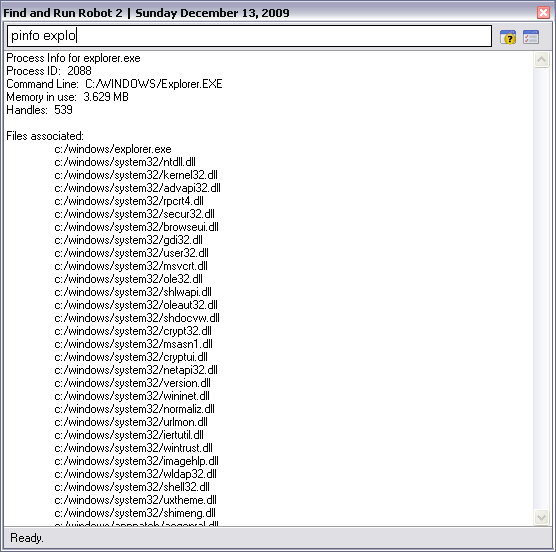
- Upon selection of a specific process, it returns more detailed information, including memory used, count of handles open, and paths to actual files.
Planned Features
- Access to processes on remote computers.
Screencast
Screenshots
Initially, the user types in pinfo...
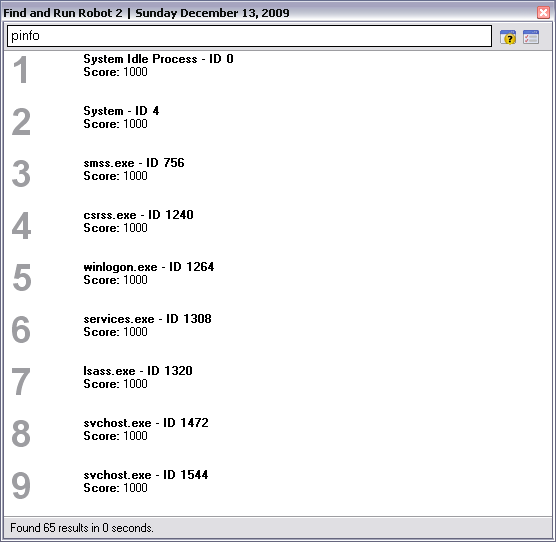
As the user enters more characters, ProcessInfo tightens down on the processes that match what was entered. The results list looks like this:
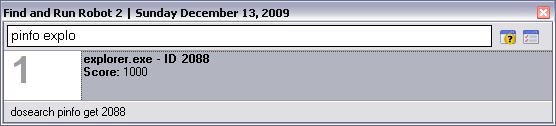
Upon selecting the desired target process, the user gets something like this:
Installing this application:
Make sure you've got FARR installed
 , then download the plugin file (attached below) and unpack it to a subdirectory of $FARR_Install\Plugins.
Toggle FARR and type rplugins, then click OK. One of the plugins in your list should be ProcessInfo, with an alias of pinfo.
Usage:
pinfo processname. Hit enter on a process you want to see details for. To see all processes, just type pinfo followed by a space.
To query remote computers: pinfo c=computername processname.
Uninstalling:
Toggle FARR and type rplugins. Before clicking OK, delete the directory $FARR_Install\Plugins\$ProcessInfo, where $ProcessInfo is the directory you originally unpacked the plugin to.[/list]


 Thank you for your help getting it working in the first place!





 Dude, mouser just slipped me a major bugfix! Latest version is out on the Redmine project, and it includes showing all processes, as well as showing icons for some processes that wouldn't show them previously.
  Props to the mouseman!!