Are you sure that the backup procedure you use will save you when (not if) the time comes that you need it?
I thought I would start a thread about how to test it and make sure it will.
First let's set the ground rules:
Ok, so let's get started:
Step 1: Make an image of your drive, onto another spare hard drive
Step 2: Wait you mean there's a step 2??
Step 3: Improving your system
There are several things you can do to make it a little easier to test your emergency procedures.
Hope that's of some use -- and please do get into the habit of regularly backing up your hard drive.
I thought I would start a thread about how to test it and make sure it will.
First let's set the ground rules:
- This thread is about whole-system (entire hard drive) backup and restore, not about backing up only your personal documents.
- As I described in my old backup guide, I firmly believe that the best approach involves both periodic whole-system backup combined with more frequent and incremental (preserving multiple versions) personal document backup, but this thread is about testing your full-system recovery procedure.
- This discussion is about *testing* your backup procedure -- not about actually using the software and hardware to do a backup in the first place.
Ok, so let's get started:
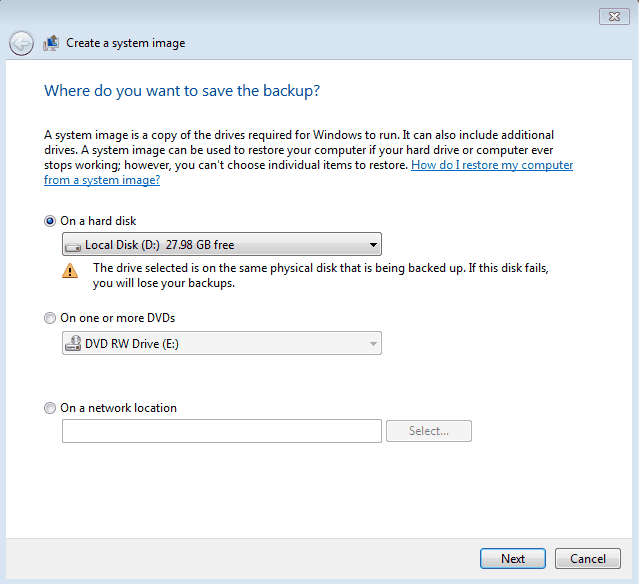
Step 1: Make an image of your drive, onto another spare hard drive
- I'm going to assume you already know how to make a backup of your (main) computer hard drive. But you may not -- many (most?) people use a backup procedure that just stores backups of certain important files. If not, for the procedure I'm describing, you are going to need a full Drive Imaging tool, like Acronis True Image, or the nice and free Drive Image XML, or Paragon Drive Image, something similar (see this thread or this thread for more discussion).
- When you make an image of one drive, that big image file has to be saved to another drive. That's where one of those external usb drives comes in so handy -- so get yourself an external USB drive for storing your backups.
Step 2: Wait you mean there's a step 2??
- Ok now if you're like most people who make a backup of their hard drive, there is no step 2. If the backup program runs successfully you assume that your computer is backed up and that you could restore it if something bad happened.
- But the ugly truth is that many people have had the terrifying experience of experiencing a real hard drive crash and finding that they could not restore their backed up drive image, for a variety of reasons. You don't want to go through this -- trust me.
- The solution of course is to safely test your restoration procedure. [As an aside I will note that some imaging tools like Acronis True Image now has a function that lets you virtually "mount" a drive backup, which can go a long way to validating it and making sure you can access the files -- but it's still no comparison to a real restoration test].
- So how do we simulate the catastrophe of a hard drive crash? Simple, take the working drive out of your PC. There you go, you are now in the same situation you would be in if you had a full hard drive crash. This happens in the real world. Expect it to happen to you one day.
- Drives are dirt cheap these days -- go down to the store or to your favorite internet shop, and buy yourself a spare hard drive.
- Now you're going to put this hard drive into your computer, and you are going to restore from the backed up image onto the new hard drive, which should restore it's state completely.
- What's that? You didn't create a standalone bootable cd for your drive imaging software, and so now you don't know how you are going to restore the backup? That's why you're testing this restoration procedure, so you learn all of these things you have to do.
- Figure out whatever steps you need to take to get the new hard drive restored with your backup image. Boot with it, make sure everything works and all the files are there.
- Once you verify it works, you can remove that drive and put it someplace safe, and put back your original (or put your original on the shelf and use this one). Congratulations, you have now tested your emergency restoration procedure.
Step 3: Improving your system
There are several things you can do to make it a little easier to test your emergency procedures.
- One is to install a hard drive rack inside your computer, which will let you swap hard drives from your case with just the turn of a latch. I love hard drive racks and the new sata racks are completely trayless and as easy as can be to use. Really ideal for such testing.
- Another alternative to a bootable restoration cd is to use a drive CLONING procedure instead of a drive IMAGING procedure, to directly make a copy of your hard drive onto another drive, which can be swaped in directly in an emergency, without needing to ever perform an image file restoration. The downside to this is that you can usually fit several compressed image files on a backup drive so they use a lot less space. The upside is you only need one spare hard drive (the drive you are going to clone onto), wheras with the imaging procedure, you typically need 3, your main drive, a drive to store your backup images onto, and then the drive you are going to restore onto. Cloning your hard drive is actually in many ways a simpler and more straightforward approach that you may prefer, especially with the cheap price of hard drives.
- TAKE YOUR TIME! Label your hard drives, be insanely careful about when you restore onto -- the last thing you want to do is wipe out your original hard disk while trying to test your recovery procedure. I like to keep my good hard drives way far away from me so there's no chance of making such a mistake.
- Don't even think about restoring back onto your main hard drive.. ever. You should always, when testing or restoring after a catastrophe, restore onto a spare hard drive. Only after you know for sure your restored system works well can you even entertain the possibility of reusing your original drive (assuming it wasn't a hardware failure that prompted the need to restore your backup. Until then you want to treat the original hard drive as a precious object not to be messed with, and you do not want to risk the restoration process failing and wiping out remnants of your original drive).
Hope that's of some use -- and please do get into the habit of regularly backing up your hard drive.