
ComparerCmd is command line version of Comparer tool.
Download
Description
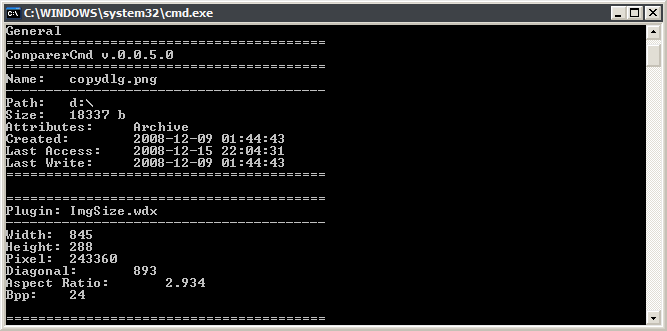
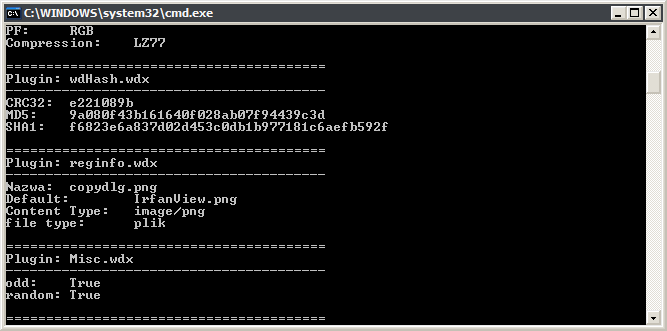
This application prints out all files properties in console window.
Screenshots
Requirements
- Comparer – for adding and configuring plugins
- .NET 2.0 framework
- WDX plugins
History
0.0.6.0
- changed – WDX plugins are now handled using wdx_proxy.dll;
0.0.5.0
- fixed – in some cases dates were shown incorrectly;
- added – ft_string correction procedure;
0.0.4.1
- fixed issue with 64bit Windows (special thanks to roentgen for help with this);
- added “-d” parameter for debug mode (shows plugins with no content);
0.0.4.0
- added “-a” commandline switch for automatic plugins dir scan;
- changed parameters parser (arguments order is not strict);
0.0.3.1
- fixed possible bug with “output.html” file placement;
- added support for external “header.html” and “footer.html” files (if they are available ComparerCmd will put their content into HTML output file);
0.0.3.0
- added “-h” switch for HTML output;
- added “-c” switch for alternate config file;
0.0.2.1
- fixed nasty bug which was crashing few plugins;
Usage
Installation
Unpack archive into Comparer’s directory.
Viewing files
Type in console window:
comparercmd.exe %1
– where %1 is file’s name to be loaded;
comparercmd.exe -a %1
– scans plugins directory automatically and shows %f file’s info;
comparercmd.exe -d -a %1
– same as above but shows additional info about empty plugins;
comparercmd.exe -h %1
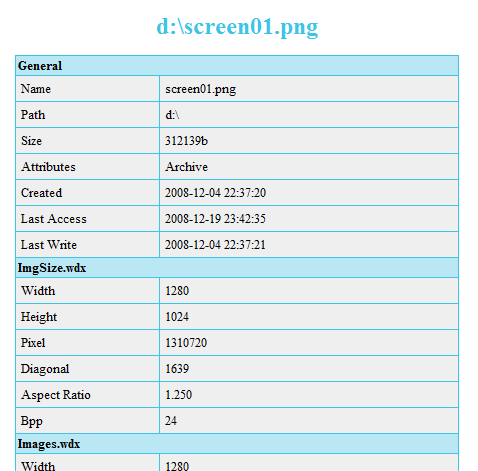
– saves results in “output.html” file containing %1 file’s details (together with “output.css” style sheet);
comparercmd.exe -c %C %1
– where %C is alternate config file name and %1 is file to be loaded;
comparercmd.exe -h -c %C %1
– same as above but generates “output.html” file with details (instead of printing results in console window);
Note: If “header.html” or “footer.html” files exist, their content will be imported into HTML output file. Please also remember that using %f (filename) and %p (file path) variables is possible inside those files.
Uninstallation
Simply delete EXE file.