|
The File menu has various file saving items and the program exit item you would expect. But it also has some extra functions.
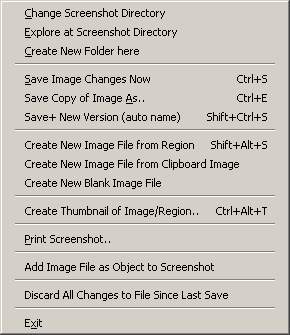
| • | Change Screenshot Directory - Change the screenshot directory (persists between runs). |
| • | Explore at Screenshot Directory - Open the file browser at the current screenshot directory. |
| • | Create New Folder Here - Creates a subfolder in the current screenshot directory. |
| • | Save Image Changes Now - Save any pending changes to the image file. |
| • | Save Copy of Image As - Let's you specify a new filename to save the file (you can also change format). |
| • | Save+ New Version - Save the current image with any pending edits as a new file and load it (autonames the file with version# info). |
| • | Create New Image File from Region - Select a region and select this option to create a new filename with the region image and load it for editing. |
| • | Create New Image File from Clipboard Image - Any image currently on the clipboard image is saved as a new file and loaded for editing. |
| • | Create New Blank Image File - Creates a new image with the current background color. The size is determined by the current image displayed. |
| • | Create Thumbnail of Image/Region - Brings up the Thumbnail Dialog to let you create a thumbnail of the entire image or the selection region of the current image. |
| • | Print Screenshot - Let's you print the current image. |
| • | Add Image File as Object to Screenshot - Let's you specify an image from a file which will be added as a movable/resiable object to the current screenshot (normally you would use the Clipart objects collection for this). |
| • | Discard All Changes to File Since Last Save - If you have made any changes to the image that have not been saved - they are abandoned. |
| • | Exit - Exit the program. |
|